
Shokz headphones that power on yet stay missing from your phone's Bluetooth look faulty, especially when they are brand new.
I'll help you put them into pairing mode first, then connect your phone or PC. The controls depend on the model, so check the name on your headphones or their box before starting.
OpenRun: keep holding Volume+ after it turns on
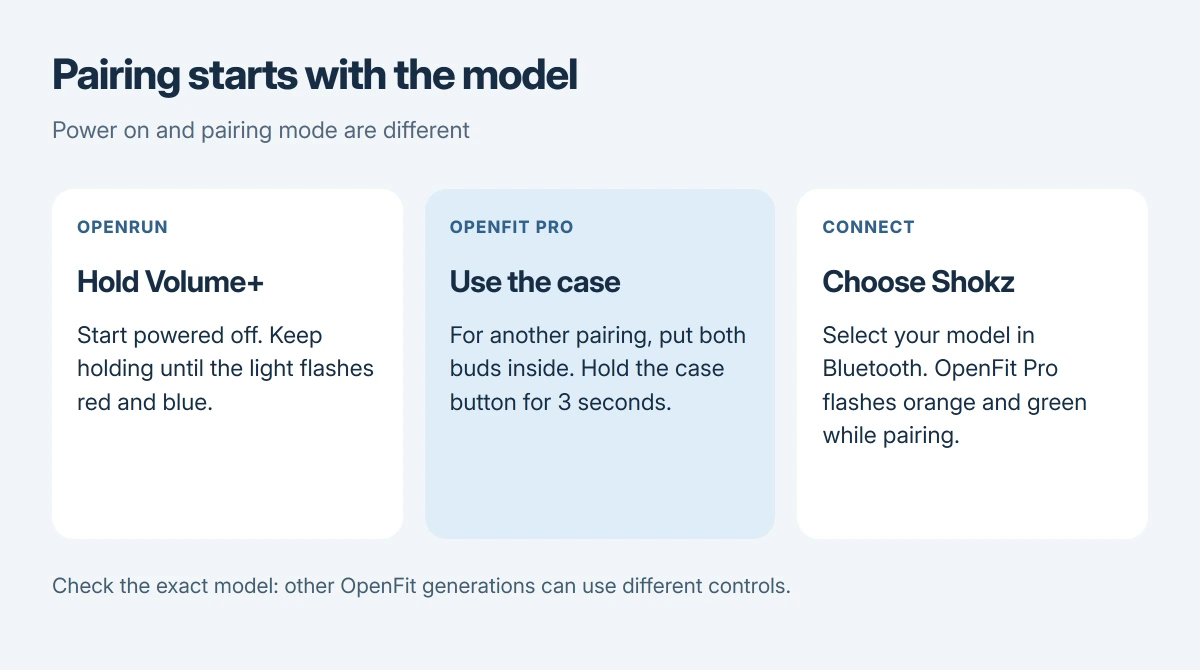
Start with OpenRun switched off. Hold Volume+ for about five to seven seconds, continuing past the power-on announcement. Stop when the light alternates red and blue and you hear the pairing announcement.
These steps are documented by the vendor in its OpenRun support guide. Simply turning it on isn't the same as making it discoverable to a new device.
Status: Shokz OpenRun, OpenRun Pro 2 and OpenFit Pro connection guides reviewed on 17 October 2026. Button procedures are model-specific. No headphones were paired here.
Now open Bluetooth on your phone or computer and select OpenRun by Shokz. The connected announcement confirms the pairing. You can then play a short piece of audio to check the destination.
For OpenRun Pro 2, Shokz gives the same power-off starting point and Volume+ hold. Choose OpenRun Pro 2 by Shokz when it appears; its model guide confirms the red-and-blue pairing light.
Shokz also says OpenRun Pro 2 works without its companion app, so you can complete this Bluetooth connection without installing it.
OpenFit Pro: use the charging case
For the first connection, opening the OpenFit Pro case starts pairing automatically. Look for the orange-and-green flashing indicator. These earbuds need the case procedure.
For a later connection, put both earbuds in their charging case. Hold the button inside the case for three seconds, until the indicator flashes orange and green, then choose OpenFit Pro by Shokz on your device.
Shokz lists those steps on its OpenFit Pro support page. Other OpenFit generations can use different touch controls, so don't assume this case-button method fits every OpenFit model.
I would use the model's own support page if the button isn't where this guide describes. Similar-looking earbuds can have different controls.
Finish the connection on your phone or Windows PC
On Android, open Settings > Connected devices > Pair new device, then tap your headphones. Google says in its Bluetooth pairing guide that names and routes can vary with Android versions and devices.
On an iPhone, use Settings > Bluetooth, leave Bluetooth on and tap the Shokz name when it appears. Keep the headphones in pairing mode while the phone searches for them.
For Windows 11, click the taskbar's sound icon, then open the arrow beside its Bluetooth tile. Turn Bluetooth on if needed.
Microsoft says to select the headphones under New devices and follow any remaining prompts, as its pairing instructions explain. Keep the headphones discoverable during this.
If your PC doesn't offer Bluetooth at all, our missing Windows Bluetooth guide addresses that first. The computer needs a working radio first.
If your headphones still don't appear
Return to the indicator light for your model. An ordinary power light isn't the pairing pattern. I would confirm that before removing devices or trying a reset that clears saved connections.
Shokz's OpenRun troubleshooting advises removing old pairings, restarting the connected device, resetting OpenRun and pairing again. Use its exact model instructions if you reach that point, since a reset removes remembered devices.
Our headphone reset guide explains why removing an entry from Windows and resetting the headphones are separate actions. It doesn't replace the model's button combination.
If the connection completes but sound comes from the laptop, choose the headphones as your audio output. That is a playback selection problem, so repeating pairing may not be the step you need.
The Short Version
Check the model before holding buttons. OpenRun pairs from power off with Volume+ held until red-and-blue flashes; OpenFit Pro has a case procedure. Select the matching Shokz name on your phone or PC once that pairing light appears.
Where to Next
What Shokz model do you have, and which colors flash when you try pairing? Add your device type to the comment. I'll use them to work out whether the missing step is on the headphones or the device.

Isaac Smith is the founder and editor of PC Glance, a website that covers computers, laptops, and technology. He is a tech enthusiast and a computer geek who loves to share his insights and help his readers make smart choices when buying tech gadgets or laptops. He is always curious and updated about the latest tech trends.