
Your Mail categories have gone, or your post is landing in the wrong box, and you cannot see any setting that decides it.
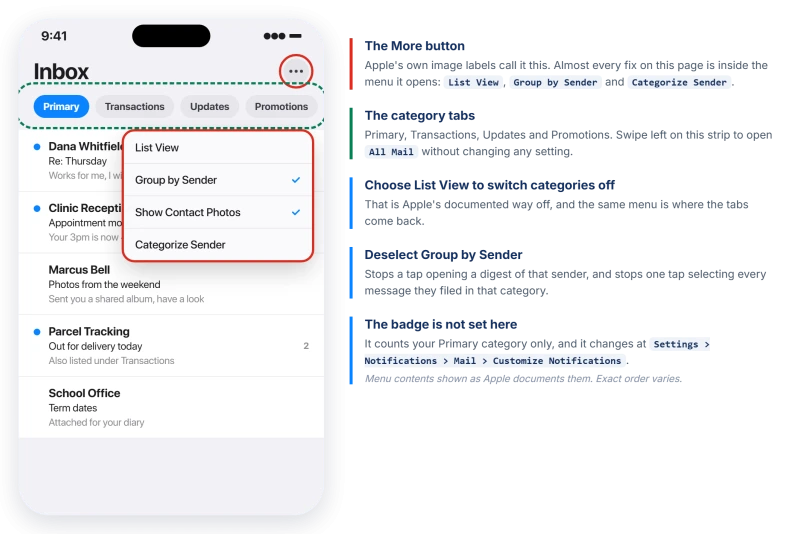
One button at the top of the inbox does all of it: turns categories on and off, moves a sender between them, and ungroups a sender entirely.
It is very easy to miss, so let me point straight at it.
If the tabs were there and then went away
Two taps, on the same control that turns categories off.
Open an inbox, tap the More button at the top of the screen, and look at the view options.
Apple documents the switch in one direction only, from categories to List View, which is the plain message list with no tabs across the top. The way back is the other option in that same menu.
If that menu holds no category option at all, skip to the section on tabs that never appeared.
The badge does not match your inbox
Apple's Check Your Email page carries a note that explains a complaint people usually blame on a bug.
> "The number of unread messages shown on your Home Screen reflects the number of unread messages in your Primary category."
So everything sitting unread in Transactions, Updates and Promotions is invisible to the badge. The icon and the inbox are counting different things, and they will keep disagreeing until you change what the badge counts.
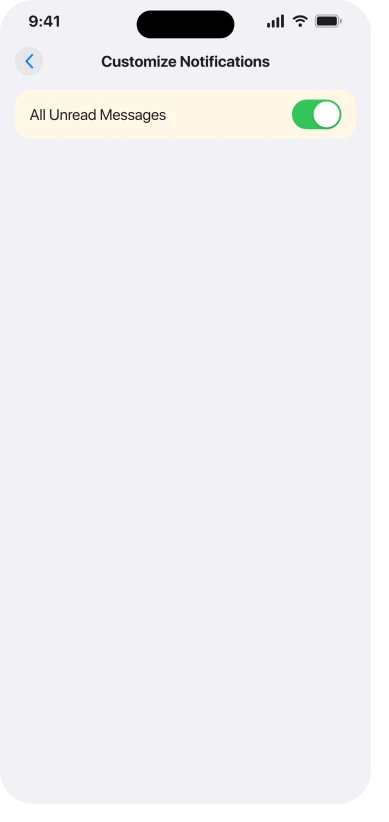
Apple gives the route in the same note. Open Settings, tap Notifications, tap Mail, tap Customize Notifications, then turn on All Unread Messages.
One caution on that screen.
Apple's page on Mail notifications calls Customize Notifications a list of your email accounts, while its Check Your Email page puts All Unread Messages there.
Both are Apple describing one screen, so expect the switch near an account list rather than on its own.
A badge that is stuck rather than miscounted is a different fault, covered in our guide to iPhone Mail notifications not working.
Flipping All Unread Messages will not shift it.
Tapping one message can select a whole sender
Apple flags this as Important, and repeats it word for word on its page about deleting mail:
> "When you select a Transactions, Updates, or Promotions message, you're selecting all the messages in that category from the sender."
This is not the Select All command. It is one tap on one message while you are in Select mode, and it takes everything that sender has filed in that category with it.
For marking a newsletter read, that is the point. For deleting, it is a trap.
Primary is the exception, because Apple notes that Primary messages are not grouped by sender, so selection there behaves the way it always did.
Three things to have in place before you go near it:
- The escape. Apple's own line: "While viewing a sender's digest view: Swipe left on a message, then tap" the trash button. Swipe instead of select and the rest of the batch stays put.
- The guard. Check the confirmation prompt is still on at Settings > Apps > Mail, where Ask Before Deleting sits under the Messages heading. With it off, there is nothing between one tap and the whole batch.
- The way back. Tap the button in the upper-left corner until you see Mailboxes, tap Trash, tap the message, then move it to another mailbox. For everything deleted across all your accounts, Apple says to open Mailboxes, tap Edit, then select the All Trash mailbox.
There is a deadline on recovery. Apple: "iCloud doesn't keep deleted messages longer than 30 days, even if you select Never."
The same email in two places
Apple built this on purpose and states it outright: "When a Transactions, Updates, or Promotions message includes time-sensitive information, it will also be included in the Primary message list."
A delivery notice can therefore sit in Transactions and in Primary at once. Nothing is duplicated in your account. One message is being listed in two views.
If the two copies sit side by side in the same list, that is not this. Check Settings > Apps > Mail > Mail Accounts for the same account added twice.
To pull everything from one sender into one place regardless of category, tap the Action Menu button at the top of that sender's message list, then choose Show All Messages.
Tapping a category message opens a list, not the message
Tap a Transactions, Updates or Promotions message and you get a digest view of everything from that sender, not the message you tapped. The first time, it reads as the inbox folding your mail away.
Apple's route back: go to your inbox, tap the More button, then deselect Group by Sender.
Each message then scrolls on its own while the category tabs stay where they are. It also removes the grouping that makes one tap select a whole sender, which is the trap two sections back.
Putting a sender in the right box
Sorting complaints have their own fix, and the two routes use different buttons on different screens.
- A Primary sender: tap one of their messages, tap the More Actions button on that message, then choose Categorize Sender.
- A Transactions, Updates or Promotions sender: tap one of their messages to open the digest view, tap the More button at the top of that message list, then choose Categorize Sender.
Pick a category and tap Continue. Apple: "All current and future messages from the sender will appear in the category you choose."
Existing mail moves as well, which makes it a real fix rather than a rule for future mail only.
Turning categories off, permanently or for a moment
In an inbox, tap the More button at the top of the screen, then choose List View. That is Apple's documented way off.
For a look rather than a change, Apple's tip is lighter: "You can quickly view all emails in an inbox. Swipe left on the categories at the top of the inbox to open All Mail."
So All Mail is one swipe away with nothing altered, and List View is the permanent version of the same view.
If the tabs never appeared at all
Two causes here. One is checkable in under a minute and the other is not.
Check your iOS version first. Apple's categories page exists for iOS 26 and iOS 18 and for no earlier version, so a phone on iOS 17 or older has no categories to find.
Look at Settings > General > Software Update.
Then the region limit. Apple's page on the feature carries a parenthesis that decides the rest: the Mail app sorts messages into categories "(not available in all countries or regions)".
Apple does not publish the list. The iOS 26 feature availability page, which is where Apple normally records exactly this, does not mention Mail categories anywhere, so there is no page to check your country against.
That leaves elimination: an up-to-date iPhone, the More button present in the inbox, no category option in that menu, and the same result on a second iCloud account.
At that point region is the remaining explanation, and no setting changes it. Categorize Sender will not help either, because there is nothing to categorise into.
Two things it is not:
- Not an Apple Intelligence feature. Apple's availability page lists Priority Messages, Smart Reply and Summarize Message Previews for Mail. Categories are not among them, so turning Apple Intelligence on will not produce the tabs. It does change what sits inside Primary, since Apple says Priority Messages appear there, but that is a block within a tab.
- Not a switch buried in Settings. Categories are turned on and off from the More button in Mail. One Settings feature acts on categorised mail, and it is in the next section, but nothing in Settings creates the tabs.
If mail is gone rather than misfiled
Three causes, in the order to check them.
A cleanup rule may be deleting it. iCloud Mail Cleanup works on the same categories this article is about.
Apple: it "can recommend senders in the Updates and Promotions categories to unsubscribe from in bulk, and automatically move future messages to the Trash." Check Settings > [your name] > iCloud > Mail > iCloud Mail Cleanup for active recommendations.
Apple notes your inbox is not affected until you turn a recommendation on, so an untouched setting is not the cause.
A Focus may be hiding whole accounts. Apple's filter page says you can "specify which email accounts are visible in Mail when a particular Focus is on".
Look at Settings > Focus, tap the Focus, and check under Focus Filters.
If no Mail filter is listed, this is not your cause, because Apple's route to create one is Add Filter then Mail.
Our guide to one Focus setting stopping calls has more on how easily a Focus gets set once and forgotten.
An ordinary filter may be on. Tap the button in the bottom-left corner of a mailbox list.
Apple says filters "temporarily show only certain email messages", and tapping "Filtered by" shows which criteria are set so you can deselect them.
An Unread filter left on hides everything you have already read.
What does not help
- Restarting, resetting or reinstalling. No Apple page ties a restart or a reset to categories. Every documented cause on this page is a view setting, a version, a region limit, or normal behavior read as a fault.
- Turning Apple Intelligence on or off. It does not create or remove the tabs.
- Signing out of the account and back in. No Apple page ties a sign-out to categories either.
- Hunting through Settings > Apps > Mail for a categories switch. The control is the More button inside Mail.
- Deleting a sender and re-adding them. Categorize Sender moves their existing mail, which is what you actually want.
Status: current for iOS 26.6. Apple documents a region limit on Mail categories but publishes no country list, and its iOS 26 feature availability page does not mention the feature at all.
Why are my iPhone Mail categories not showing?
The view is set to List View, the plain message list. Open an inbox, tap the More button at the top, and pick the category view there. If no such option exists, check you are on iOS 18 or later, since Apple documents categories for no earlier version, then read its note that the feature is not offered everywhere.
How do I turn off Mail categories on iPhone?
Open the Mail app, go into an inbox, tap the More button at the top, then choose List View. That gives one plain message list with no category tabs. If you want it only occasionally, Apple's lighter alternative is to swipe left on the tabs at the top of the inbox, which opens All Mail and changes no setting.
Why does my Mail badge not match my inbox?
Because the Home Screen badge counts unread messages in your Primary category only, which Apple states directly. Anything unread in Transactions, Updates and Promotions is invisible to it. Open Settings, then Notifications, then Mail, then Customize Notifications, and turn on All Unread Messages so the badge counts every category instead.
Are Mail categories part of Apple Intelligence?
No. Apple's iOS 26 feature availability page lists Priority Messages, Smart Reply and Summarize Message Previews as the Apple Intelligence features in Mail, and categories appear nowhere on it. Apple Intelligence does decide whether Priority Messages show up inside the Primary tab, but the category tabs themselves are separate from it.
The Short Version
- Tabs disappeared? The view is on List View. Tap the More button at the top of an inbox and pick the category view.
- Tabs never existed? Check you are on iOS 18 or later, then Apple's region limit, which Apple states but never lists by country.
- Badge not matching? It counts Primary only. Turn on Settings > Notifications > Mail > Customize Notifications > All Unread Messages.
- Careful with Select. Tapping one Transactions, Updates or Promotions message selects every message that sender filed in that category. Swipe left in the digest view to act on one.
- Deleted too much? Mailboxes, then Trash, then move it back. iCloud keeps deleted mail for 30 days at most.
- Same email twice across two tabs is documented. Time-sensitive mail also appears in Primary.
- Grouped by sender? Deselect Group by Sender from the More button.
- Wrong box? Categorize Sender moves that sender's existing mail as well as future mail.
- Mail actually gone? Check iCloud Mail Cleanup, a Focus mail filter, and the ordinary inbox filter.
Mail feeding your Wallet as well as sorting itself: On iOS 26 an order email can be turned into a tracked order, and our guide to the two switches behind Wallet order tracking covers the permission that starts it.
Where to Next
One button at the top of the inbox governs all of it. Categories on and off, moving a sender, and ungrouping them completely.
If your tabs vanished, you are almost certainly in List View rather than missing a feature.
If a sender keeps landing in the wrong category after you have moved them, tell me who it is in the comments, because that is worth a closer look.

Isaac Smith is the founder and editor of PC Glance, a website that covers computers, laptops, and technology. He is a tech enthusiast and a computer geek who loves to share his insights and help his readers make smart choices when buying tech gadgets or laptops. He is always curious and updated about the latest tech trends.