
Your iPhone screen goes black in the middle of using it, yet the phone is still on. It started after iOS 27, and it strikes at random.
On Apple's forum, 41 people pressed Me too on the same report. I read every reply, and a Level 7 volunteer spotted what brings the screen back without a restart.
What owners describe
The first post set the pattern: the screen goes "completely black and not respond but is still powered on". Yours may do exactly the same.
A factory reset did not help that owner, "Ive tried a full factory reset and it didn't work", and two Apple Store visits found no fault. "I have been to the apple store twice and they have not found anything with diagnostics".
Your screen may even return by itself. anmo1 wrote: "it comes back after 20-30 seconds. Never happened before. Only after the upgrade". AxaGB had it happen twice on a train, with tickets to show.
It does not depend on which iPhone you own, since owners report it on an iPhone 13, iPhone 14 Pro Max, iPhone 16 Pro Max and iPhone 17.
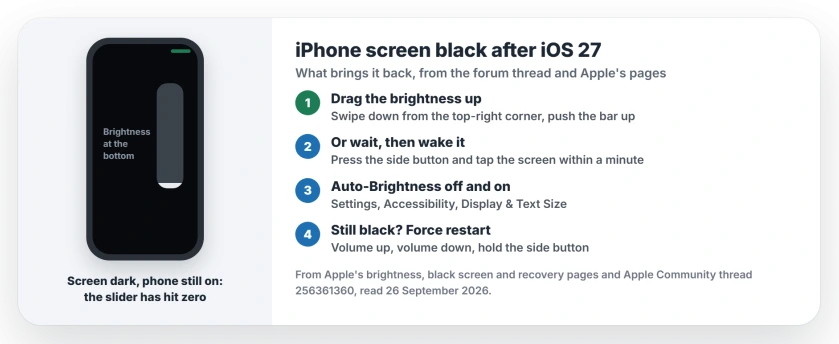
Status: iPhone on iOS 27, checked 26 September 2026. The screen can go black at random while the phone stays on. Apple has not fixed it yet; a brightness workaround helps.
1. Drag the brightness up in Control Center
Randy-12, a Level 7 volunteer, sees it on two phones at home: "This is happening to both myself with an iPhone 17 and my wife with an iPhone 13".
Then came the key detail. "Every time it happens the slider is on the lowest point of the slider". So your screen is not off at all; it has dimmed to nothing.
Their quick fix is to "open up the control panel with the swipe and then moving the slider up on the display brightness".
Apple's brightness guide describes the same move from the top-right corner, then says to "Drag the brightness bar up or down".
You can do it on a dark screen. From the top-right corner, swipe down, find the brightness bar by feel, and push it up.
2. Or wait it out and wake the screen
Chronotaru found that patience works too: "If you wait a moment, occasionally push the power button again and tap the screen over the next minute or so it will come back on".
Keep their other line in mind: "it's not that it's stuck off, it's being slow". Hammering the buttons again and again will not bring it back any sooner.
3. Turn Auto-Brightness off and on again
Auto-Brightness is the setting that moves that slider. Apple says that with it on, "the brightness slider on your device moves according to changing light conditions".
Apple also has a reset for a slider that misbehaves. If brightness "isn't adapting correctly", it suggests you "try to turn off auto-brightness" and switch it back on. The switch is in Settings, Accessibility, Display & Text Size.
Our suggestion: if the slider keeps dropping to the bottom, leave Auto-Brightness off for a few days. Apple notes that "Turning off Auto-Brightness may increase power consumption".
4. If it stays black, force restart
If nothing brings it back, restart the hard way. A Level 9 volunteer suggested it first, and Apple's steps are short.
Tap volume up, then volume down, and hold the side button in. The Apple logo tells you it has worked. Apple notes the hold can run past 10 seconds.
It works, but it is a stopgap. Nep099, on an iPhone 14 Pro Max, wrote: "I have to force restart it every time".
5. Install the fix when it arrives
One owner took it to an Apple Store, where staff first offered to replace it. Then "they told me to put it in recovery mode and get a new update".
The tech also mentioned an internal bulletin "saying that this is a known issue". We only have one owner's word for that, and Apple has said nothing in public.
If you go the recovery route, back up first. Apple warns that choosing Restore "erases all your data", and it suggests trying Update first.
Simpler still, keep an eye on Settings, General, Software Update, and install the next iOS 27 update as soon as it appears.
Other iPhone problems after the update
If your iPhone also runs hot, the overheating page covers what makes a fresh update run warm. And if the battery now drains faster, the battery drain page has an iOS 27 section.
What makes the iPhone screen go black after iOS 27?
Apple has not said. Owners see it at random, in different apps, on models from the iPhone 13 to the iPhone 17, and one found the brightness slider at its lowest point each time.
How do I get the screen back without restarting?
Open Control Center from the top-right corner of your screen and drag the brightness up. Or wait up to a minute, press the side button once, and tap your screen.
Is the black screen a hardware fault?
The thread points away from that, especially if yours started with the update. The first poster's iPhone passed Apple Store diagnostics twice, and every report started right after iOS 27.
Will a factory reset fix it?
It did not for the first poster. Apple Store staff pointed a second owner to a recovery-mode update instead.
The Short Version
- The screen goes black, but the phone stays on.
- Open Control Center from the top-right corner.
- Drag the brightness bar back up.
- Or wait a minute and press the side button.
- Turn Auto-Brightness off and on again.
- Force restart only if it stays black.
Where to Next
Try the brightness swipe the next time it happens, before you reach for a restart.
Did it work on your model? Tell me the iPhone and the app you were in when it went dark. I will add each pattern to this page.

Isaac Smith is the founder and editor of PC Glance, a website that covers computers, laptops, and technology. He is a tech enthusiast and a computer geek who loves to share his insights and help his readers make smart choices when buying tech gadgets or laptops. He is always curious and updated about the latest tech trends.