

A heart is easiest to type with your computer's emoji picker: press Windows + . on Windows or Control + Command + Space on a Mac, search for heart, then select the one you want. Neither method needs a numeric keypad.
For a plain text heart made from two keyboard characters, type <3. For a solid heart symbol in a Word document, the 2665 code and Alt + X offer another route. Choose the method that works in your app and gives you the heart you want.
Insert a heart with the Windows emoji panel
Click inside an editable message, email or document so the text cursor appears where the heart should go. Press Windows + period together and release both keys. That's the punctuation key, not the decimal key on a number pad.
When the emoji panel opens, search for heart. Choose the emoji category if another panel, such as GIFs or clipboard history, is selected. Click the heart you want to insert, then press Esc to dismiss the picker if needed.

Microsoft's Windows keyboard tips describe the emoji and symbol panel. The route works without typing a number code or changing your keyboard language.
Check the heart in your message or document before sending it. A red heart, a broken heart and a heart-shaped symbol aren't interchangeable, even though a search can show several of them together.
If the panel opens but nothing appears in the document, click back into editable text and try again. A selected webpage heading or the empty space beside a message isn't an insertion point.
For a Windows laptop without a separate number pad, I'd use this method first. It avoids the keyboard-layout complications of older Alt-code advice and lets you see the available hearts before choosing one.
Insert a heart on a Mac
Place the cursor in your message or document, then press Control + Command + Space. Search the Character Viewer for heart. Click the desired character in the compact picker to insert it.
If the expanded Character Viewer opens instead, double-click the character. A single click in that layout can select a result without adding it to your text, which can look like the keyboard method didn't work.
The app's Edit > Emoji & Symbols menu is another way in. Use it if the app or a keyboard utility uses that shortcut for something else. The Mac emoji shortcut guide explains the Fn and Globe alternatives.
Choose a result by its description, then check what appeared in your document. A heart offered as a symbol can have a different appearance from a colored heart emoji even when the shapes look related.
For frequent use, the expanded viewer offers Add to Favorites for a selected character. That gives you a way back to the same heart without remembering which search result you picked last time.
Use the Chromebook picker
Click the text field and press Search + Shift + Space. Another route is to right-click inside the field and select Emoji. Search for heart, then choose a result from the emoji panel.
Google's Chromebook character-picker instructions also describe Symbols and Emoticons categories. Stay in the category matching the result you want rather than selecting an animated image from GIF search.
If the shortcut is awkward on your keyboard, the right-click route avoids having to identify the Search key. Use two fingers on the touchpad to open the context menu when the device has no separate right mouse button.
After inserting the heart, type a few words to check that you're still typing in your message. If the site doesn't accept the character, try the same picker in a simple text document before changing any Chromebook setting.
Make a solid heart in desktop Word for Windows
In Word, type 2665 where you want the solid heart symbol. Select only those four digits, then press Alt + X. Word converts that Unicode character code into the corresponding heart.
Unicode gives characters standard numbers so software can identify them. U+2665 is BLACK HEART SUIT. In a normal text font it usually looks like a solid heart; the name doesn't force the text color to stay black.
For the outline version, use 2661 in the same way. That is WHITE HEART SUIT, a different character. Select the code before converting so a neighboring digit or letter isn't included accidentally.
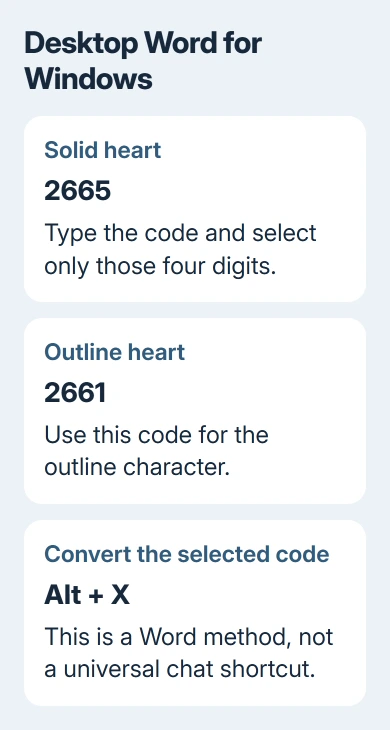
The Word character-code instructions explain this conversion. Keep Alt + X within a supported app such as desktop Word; it isn't a universal shortcut for a browser chat box.
If the code stays as digits, confirm that Word has the text cursor and that only the code is selected. If the result appears as an empty box, choose a font that includes the character, such as Segoe UI Symbol.
For other marks in the same document, the degree-symbol instructions compare Word's conversion with the regular symbol pickers. The right route depends on the app, rather than the shape alone.
Type a simple text heart with ordinary keys
Enter a less-than sign followed immediately by the number 3, making <3. On a standard US keyboard, hold Shift and press the comma key for the less-than sign, release Shift, then press 3.
On another keyboard layout, use the key marked <. The physical combination can differ. Keep your usual keyboard layout and use its less-than key.
This is a text expression rather than one heart character. It can remain as two visible characters, or a messaging app may replace it with a heart automatically. That replacement belongs to the app's own typing features.
Use the picker when you want a single heart character consistently. Use the two-character version when plain text is enough or the destination doesn't accept emoji.
When the heart looks different or won't appear
First check whether the heart is missing or just looks different. If the heart is present but changes color or style after sending, the receiving app, font or device may be drawing that same character differently.
For an important document, reopen the saved file and check the result where it'll be read. If exact artwork matters, a text character isn't a dependable substitute for a fixed graphic with a specific design.
If insertion fails only in one app, use that app's emoji or symbol controls and report the app version and chosen method to its support team. If normal letters don't enter either, check the text field or keyboard first.
The Short Version
Use Windows + period, the Mac Character Viewer or the Chromebook emoji picker and search for heart. Desktop Word can convert 2665 with Alt + X. For ordinary text, type <3.
Checked November 9, 2026.

Isaac Smith is the founder and editor of PC Glance, a website that covers computers, laptops, and technology. He is a tech enthusiast and a computer geek who loves to share his insights and help his readers make smart choices when buying tech gadgets or laptops. He is always curious and updated about the latest tech trends.