
An overheating monitor needs clear vents and room for heat to escape, so check those first. If the picture disappears, check its power light and built-in menu; a warm case alone doesn't explain a black screen.
Smoke, a burning smell, damaged wiring or a case too hot to touch safely means you should switch the monitor off and disconnect power when it's safe. Have it serviced before testing it again.
1. Let the monitor cool and clear its surroundings
Switch off the monitor, then wait until it has cooled before you move or clean it. Look around the ventilation openings for papers, a cover, a curtain or objects pushed against the rear casing.
Dell recommends ventilation, clean vents and avoiding direct sunlight for an overheating monitor. Move it out of a confined shelf and away from a heater or sunlit window.
Check your model's manual for how much space to leave around it. A wall mount can leave different space around the vents than the original stand, so the same gap won't suit every screen.
Check the external power brick too, if your monitor uses one. Give it open space instead of leaving it under a pile of cables or behind material that traps heat.
Turn the monitor back on in its new position and repeat the same computer task. If the fault stops, keep that space clear and check whether the monitor stays stable during normal use.
2. Clean the outside without opening the case
Disconnect the monitor from power and inspect its external vents. Follow the cleaning method in the monitor's own manual, including any instructions for compressed air, cloths and cleaning products.
Remove what's blocking airflow at the openings, keeping tools and liquid out of the vents.
Use the adapter supplied or approved for your model. Another power brick can have a connector that fits without supplying the right power for your monitor.
Leave internal cleaning and power-supply work to a qualified repairer. Opening an external monitor is electrical repair, unlike cleaning a removable dust filter on a laptop.
After reconnecting, repeat the same task in the same room conditions. Changing the placement, cables and display settings together makes it harder to tell which change stopped the shutdown.
3. Check what actually disappears during the fault
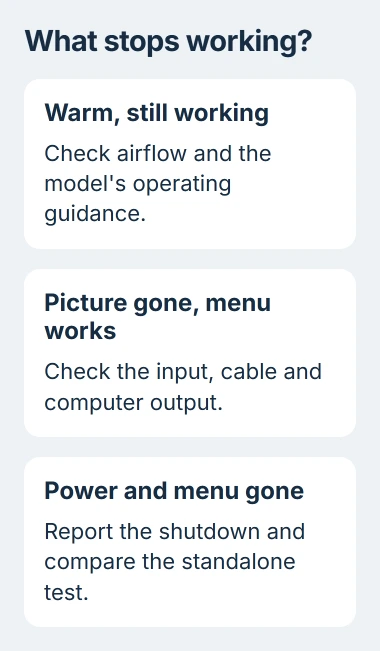
When the picture fails, look at the monitor's power indicator. Try opening its own menu using the buttons or joystick on the monitor, without relying on anything displayed by Windows.
If that menu stays visible, the monitor can still display a picture of its own. Check the selected input, video cable and computer output before deciding that heat shut the monitor down.
If the power light goes out and the menu won't open, note that instead. Tell support whether the monitor loses power or stays on with a no-signal message, because those need different checks.
For a screen that turns dark after the same period of inactivity, compare the Windows display and sleep timeouts. A timer can look like a heat-related failure when it repeatedly happens after several minutes.
Check whether your computer keeps working by listening for sound or looking at a second display. A monitor fault and a whole computer shutdown can both happen during a game, but they need different repairs.
4. Compare the monitor without the computer's signal
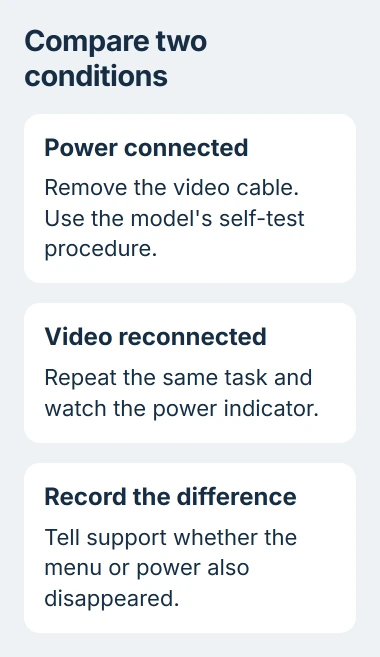
For a Dell monitor with a standard self-test, turn it off, disconnect the video cable and turn it back on with power connected. Look for its no-cable or self-test display.
For another brand, use the self-test or built-in diagnostic procedure in that model's manual. Some models need a particular button sequence to display their diagnostic colors.
Watch for the same power loss while the monitor shows its own test. If it shuts off with the computer disconnected, changing Windows settings or reinstalling the graphics driver won't address that shutdown.
If the self-test stays on, check the video connections next. A brief test can't catch every fault, so tell support exactly what happened: the test ran, the menu stayed visible, or the monitor powered off.
Reconnect the video cable and test again. Try a known working cable and another suitable input if available, keeping track of which connection produces the failure.
5. Follow the video route when the monitor stays powered
Connect the monitor directly to your computer, bypassing a dock or adapter where possible. This checks whether that extra connection is causing the missing picture.
Microsoft's external-monitor troubleshooting includes changing the cable, comparing another output and testing the monitor on another system.
If the screen works on another computer, note that before replacing the monitor. Include whether your original connection used HDMI, DisplayPort, USB-C or a dock.
For a second screen that never appears in Windows, use the monitor-detection checks. Those steps cover a monitor that has power but isn't recognized by the computer.
Don't try to hide repeated power loss by changing brightness, refresh rate or Windows power settings. If the monitor still shuts down with clear ventilation, report it to the manufacturer.
6. Arrange service for repeated shutdowns or abnormal heat
Send support the exact monitor model, power-adapter details and a description of the failure. Include whether its power light disappeared, whether its menu worked and what happened with the video cable removed.
Describe where you use it: on an enclosed shelf, on a wall mount, near a heater or only in a hot room when it fails. Those details help more than guessing the internal temperature from how the plastic feels.
Ask about warranty service if the monitor stays unusually hot or keeps shutting off after these checks. A technician can check its power supply and internal parts; another round of Windows resets won't do that.
The Short Version
Restore airflow and clean the outside as your model's manual describes. Check whether the monitor loses power or just its video signal, then run its self-test without the computer connected before arranging repair.
Checked November 5, 2026.

Isaac Smith is the founder and editor of PC Glance, a website that covers computers, laptops, and technology. He is a tech enthusiast and a computer geek who loves to share his insights and help his readers make smart choices when buying tech gadgets or laptops. He is always curious and updated about the latest tech trends.