
Fix a sideways video in OneDrive by rotating it in an editor, then exporting a corrected file. In Clipchamp, select the clip on the timeline and use the 90-degree rotation control. Save the finished export back to OneDrive.
The editing project and the finished movie are separate files. Once the picture is upright in the editor, you still need to export it. The exported MP4 is the file you can play and share afterward.
Start with the video and account you intend to use
Open Clipchamp from Windows Start, or use its browser version on a computer. Use an account that can open your recording. These steps apply to the computer editor, rather than the OneDrive phone app.
Microsoft's Clipchamp overview describes importing from your computer or OneDrive. It supports the Windows app and the editor in desktop Edge or Chrome.
For a work or school video, sign in with the account your organization gave you. That account needs access to Clipchamp. Signing in with a personal account won't automatically give you access to a work file.
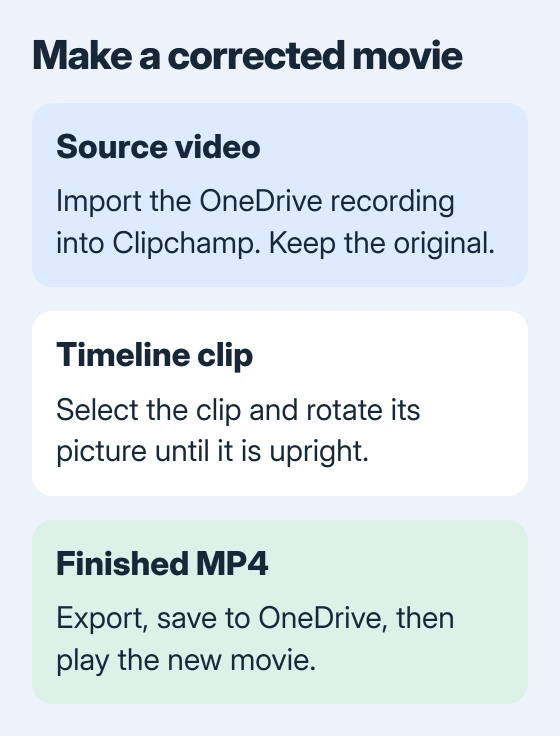
Keep the original video while you make the corrected copy. I'd give the export a distinct name, such as Holiday Upright, so you can compare both before replacing any shared file.
For a OneDrive folder that hasn't finished downloading, the OneDrive settings guide explains local and online-only files. Importing a cloud-only placeholder as though it were a complete local video can interrupt the process.
Bring the source into the editing timeline
Create a new video project. Open My media, then use the menu beside Import media to choose OneDrive if it's offered. Connect the account containing your video and select the source file.
To use a video you've already downloaded to your computer, choose Import media and select that file. Wait for it to appear in the media library, then drag it onto the timeline.
The video-editing instructions explain importing and adding to the timeline as separate steps. A thumbnail in My media isn't yet selected for editing.
For an eligible workplace video, OneDrive can also offer Open > Edit in Clipchamp from the file's right-click menu. That option depends on your access and account. Use the normal import route when your version doesn't show it.
Check that you've added the right clip to the timeline. Play a few seconds and compare the people, sound or opening scene with the source. This keeps you from correcting a similarly named video from another folder.
Select the clip and rotate it by 90 degrees
Click the video clip on the timeline so it's highlighted. Find the floating toolbar along the preview's upper edge. Open its three-dot menu, then use Rotate by 90 degrees until the picture is upright.
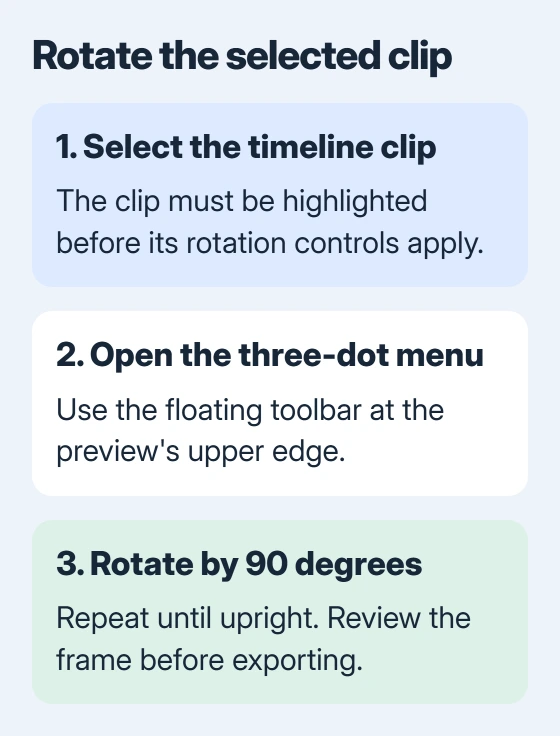
The rotation procedure also offers a freehand control. For an exactly sideways phone video, a fixed 90-degree turn is easier to get right.
A sideways clip usually needs a quarter-turn; an upside-down picture needs a half-turn. Watch the preview after each click so you can stop when it's upright, even if you weren't sure of the starting angle.
If you rotate the wrong clip, press Ctrl + Z immediately on Windows, or Command + Z on Mac. Undo reverses the latest edit, so use it before making other changes you intend to keep.
If your timeline has several clips, rotate each sideways clip or select those clips together. Hold Ctrl on Windows or Command on Mac while selecting them, then rotate the selected clips.
Play through the whole sequence afterward. The first clip can be upright while a later one is still sideways. Rotation changes the clips you've selected; it doesn't automatically correct every file in the project.
Check the frame after turning the picture
Rotation turns the picture, but it doesn't change the project's frame shape. Turning a landscape recording upright can leave space around it if the project still uses a wide frame.
Use the editor's aspect-ratio control, which sets the frame's shape, if you want a portrait movie. Pick a shape that suits where you'll share it, then check the preview before exporting.
Using fill or crop trims the picture's edges to fill the frame. Check faces, captions and nearby details. Leave space around the picture if keeping the whole recording matters more than filling every corner.
For phone recordings, check the direction, frame shape and crop separately. Each changes something different. Stretching the picture to hide empty space isn't a substitute for choosing those settings.
Export the corrected movie, then save it to OneDrive
Select Export and choose an available resolution that suits your source video. Wait for processing to finish. Saving the project lets you keep editing; exporting creates the movie other people can watch.
For personal accounts, the finished-video sharing options include Save to OneDrive. Connect the correct account if prompted and complete that save.
Work and school projects normally save exports to the project's Exports folder in OneDrive or SharePoint, unless that option was changed. Read the selected location on the export screen rather than expecting the result beside the original.
The export instructions cover the name, resolution and save location. Keep the editor open until the export finishes and the completed file is available.
Open the exported MP4 where you saved it and play it. Check its beginning and a later point for direction and sound. When it's ready, use the OneDrive sharing controls to send it to your viewers.
When the saved result still looks sideways
First, check the filename and folder. Your original, editing project and new export can all appear in the same account. Open the corrected MP4 directly so you aren't following an old shared link to the source.
If the export itself is wrong, reopen the project and check which timeline clip received the rotation. For a failed export or missing OneDrive save, contact Clipchamp support with the account type, error and point where it stopped.
The Short Version
Import the OneDrive video into Clipchamp, select its timeline clip and rotate it in 90-degree steps. Check the frame, export a new MP4 and verify that file in OneDrive before sharing it.
Checked November 5, 2026.

Isaac Smith is the founder and editor of PC Glance, a website that covers computers, laptops, and technology. He is a tech enthusiast and a computer geek who loves to share his insights and help his readers make smart choices when buying tech gadgets or laptops. He is always curious and updated about the latest tech trends.