
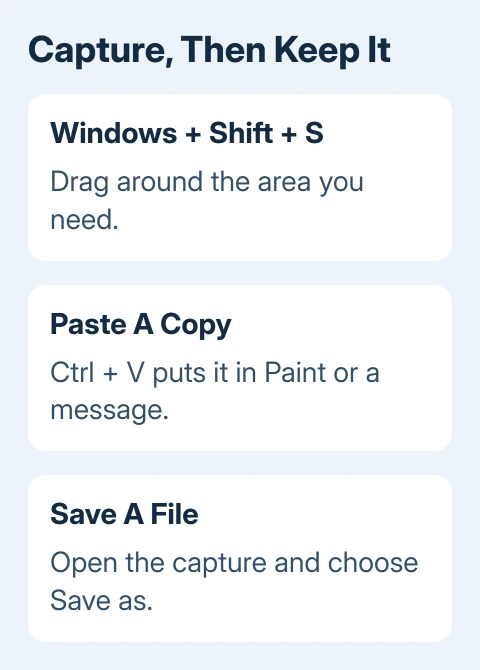
Press Windows + Shift + S on an HP computer to select the part of the screen you want to capture. It works without finding a Print Screen key, which is useful on HP laptops with compact keyboards.
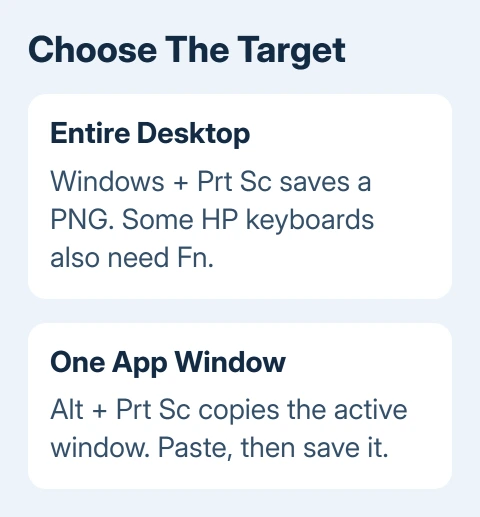
For a picture of the entire desktop saved straight to a file, use Windows + Prt Sc instead. Some HP keyboards need Fn as well. The difference matters: copying a picture to the clipboard doesn't always create a file you can attach.
Capture a small area with the Windows shortcut
Bring the window you need into view, then press Windows + Shift + S. The screen dims and a capture toolbar appears. Choose the rectangular capture and drag from one corner of the area to the opposite corner.
Release the mouse or trackpad button to finish. Open the capture notification to review the picture in Snipping Tool. Press Ctrl + S, choose a folder, and give the image a useful name before sending it.
I'd capture just the error box. Its words stay readable without including unrelated windows or the desktop background. Include the app name when that helps explain the error.
In recent Windows 11 versions, Snipping Tool can automatically save each capture. Open its Settings to control this and choose the folder. Use Save as when you want to choose the name or location for a particular picture.
On Windows 10, the same shortcut captures a selection to the clipboard. Use its notification to open the capture app, or paste the picture into Paint and save it there. On older installations, the app may be called Snip & Sketch.
Work out which HP key actually sends Print Screen
Look for Prt Sc, PrtSc, PrtScn, or Print Screen on the keyboard. A full-size HP desktop keyboard can have a separate key; a laptop may share it with another function.
Press the labeled key once. If it doesn't capture, try Fn + Prt Sc. HP's screenshot guide notes that some laptop layouts need Fn. The shortcut for another HP model might not match your keyboard.
The laptop's key settings can change how the top row of keys works. Follow the printed Print Screen label and your model's keyboard guide; you shouldn't need to change BIOS settings just to take one picture.
On current Windows 11 setups, Print Screen can open screen snipping instead of silently copying the full desktop. Check Settings > Accessibility > Keyboard > Use the Print Screen button to open screen snipping to change that behavior.
On Windows 10, the comparable control is under Settings > Ease of Access > Keyboard, in the Print Screen shortcut section. Its wording differs from Windows 11, so search that page for Print Screen.
If the key is absent or its label has worn off, keep using the selection shortcut. An external keyboard with a clearly marked Print Screen key is another option; an HP-only screenshot utility isn't required.
Save the full desktop or copy just one window
For the entire display, press Windows + Prt Sc. Add Fn if your HP needs it. Open File Explorer > Pictures > Screenshots to find the PNG file. With several monitors, the capture can include more than one display.
If Pictures is backed up with OneDrive, its actual folder location can be inside OneDrive. Open Pictures through File Explorer first instead of guessing a path from another computer's instructions.
For just one app window, select that window and press Alt + Prt Sc. On a keyboard that needs Fn for Print Screen, include Fn. Paste into Paint with Ctrl + V, then save the result.
The window capture instructions distinguish one window from the full desktop. Select the intended window first to avoid copying another app.
After pasting into an email or chat, check the preview. A tiny preview may expand when opened, but if an edge of the error box is missing, take the picture again and include the whole box.
Capture an open menu without rushing
Open Start, type Snipping Tool, and launch it. In Windows 11, select a capture mode and a delay, then choose New. Open the menu you want during that delay and select the capture area when the screen dims.
In the older Windows 10 Snipping Tool, use Delay, choose the wait time, and then select New. The menu stays available long enough to capture it without holding down a complicated key combination.
This is useful for a right-click menu that closes as soon as another app takes focus. Keep the mouse pointer out of the important words and capture enough of the parent window to show where the menu came from.
For a related browser task, the Windows screenshot guide covers the general capture choices. These shortcuts photograph visible content; they don't automatically capture a whole scrolling page.
When the picture seems to have disappeared
Try pasting into Paint before taking another capture. If the picture appears, the key worked and the missing part was saving a file. Save the image before copying something else, which can replace the clipboard contents.
If Windows + Shift + S doesn't open anything, launch Snipping Tool from Start. If Snipping Tool launches from Start, check the keys you're pressing. The shortcut is failing before you can select a capture area.
If another app intercepts the keys, close that app and try again. For a Dell keyboard connected to the HP, use the Dell screenshot key guide to check that keyboard's labels.
If only a protected video turns black in the picture, it may be blocking capture. Try capturing an ordinary Settings window. If that looks normal, the problem is with capturing the video rather than the screenshot shortcut.
If Snipping Tool won't launch either, open Get Help from Start and describe the Snipping Tool failure. Include your Windows version, the shortcut used, and whether Paint receives an image. That tells support which part isn't working.
The Short Version
Use Windows + Shift + S for a selected area. Use Windows + Prt Sc, with Fn when required, for a saved desktop image. Check whether the result is in the clipboard or a Screenshots folder before assuming the HP didn't capture it.
Checked November 9, 2026.

Isaac Smith is the founder and editor of PC Glance, a website that covers computers, laptops, and technology. He is a tech enthusiast and a computer geek who loves to share his insights and help his readers make smart choices when buying tech gadgets or laptops. He is always curious and updated about the latest tech trends.