
A working old printer can be sold, donated or kept for occasional printing. A broken one belongs with an electronics recycler. Before passing it on, clear its saved information and deal with any ink subscription or account attached to it.
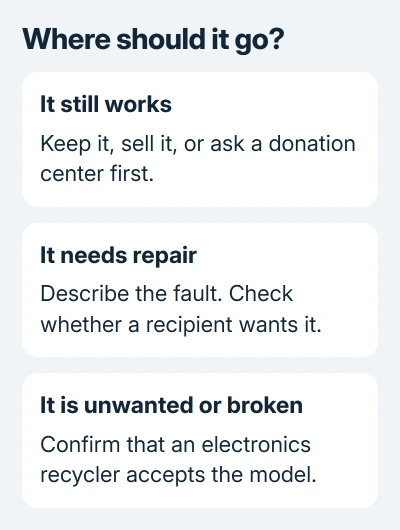
Start by checking whether it still prints. That separates a useful machine from one that needs repair, and it helps you describe its condition honestly to the next owner or collection service.
Find out whether the printer is still useful
Read the complete model name on the case label. Keep the power adapter, power cord and any detachable paper trays with it. A buyer or donation center needs that model number to check supplies and computer compatibility.
Print the printer's own test or status page using the command in its manual. On an all-in-one, try a plain copy as well. That checks the print mechanism without relying on a computer connection that might be the only thing wrong.
If that test page prints but a laptop can't print, check its offline status and print queue before retiring the machine. A blocked Windows job isn't a reason to discard a printer that still works.
For a computer test, use the Windows printer installation steps. Windows 11 uses Settings > Bluetooth & devices > Printers & scanners; Windows 10 uses Settings > Devices > Printers & scanners.
Print one page with text and, for a color printer, some color. Keep the result with the printer when offering it to someone else. Describe faded print, missing colors, jams or error messages rather than calling an untested machine working.
Keep it, sell it or offer it to someone who wants it
Keep it if it does a job you need and you can still buy compatible supplies. Check cartridge cost before buying a full set for a test. I'd check the model number and supply price before buying ink for a printer you plan to donate.
A working all-in-one may still be useful for copies or scans even when you no longer need frequent printing. Test the function you plan to keep using. Don't assume scanning works independently of empty cartridges on every model.
For a sale, list the exact model, connections you used, included cables and the test-page result. Show any fault clearly. If its power supply or paper tray is missing, don't price it as a complete working printer.
Call the donation center first. Ask whether it accepts that model, needs a working test page and wants ink or toner included. Acceptance varies, so don't leave a printer outside a closed collection point.
Give the next person a short setup note: model, included parts and any known fault. Leave your Wi-Fi password and account credentials out of that note. They should connect it using their own network and account.
If none of those contacts can use it, move to recycling rather than spending weeks storing an unwanted machine. A recycler can tell you whether it accepts a working printer as well as a broken one.
Clear the printer's information before handing it over
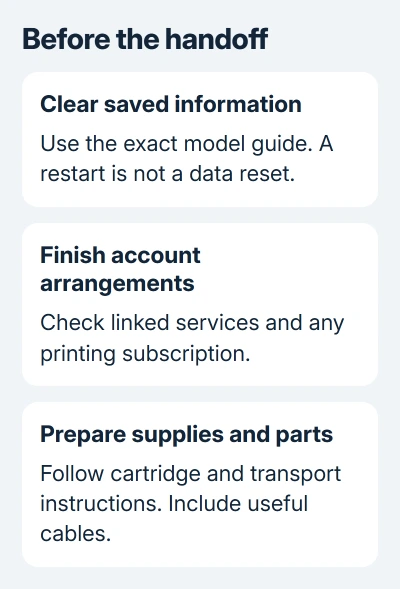
Network printers and all-in-ones can hold more than a Wi-Fi name. Depending on the model, saved information can include fax numbers, an address book, administrator credentials and stored jobs. Follow its disposal or transfer instructions.
A restart only turns power off and on. Removing the printer from your laptop only removes that computer's connection. Neither clears the information saved inside the printer.
For Epson fax all-in-ones, its disposal guidance starts at Settings > Restore Default Settings (some models use Setup instead of Settings).
Choose Clear All Data and Settings, or Reset All Settings on models using that label, for a printer leaving your network. A fax-only reset leaves other settings behind. Confirm your exact model's menu in its guide.
For an HP OfficeJet Pro 9010e, the HP reset choices explain why a function reset, factory defaults and Cold Reset remove different information. Use the reset options for that model; another HP series may use a different button sequence.
For a different brand or series, find the reset or transfer section in its user guide and match the full model. Ask the maker which command clears saved personal information if the guide doesn't explain its reset choices.
Save address-book entries or settings you'll need elsewhere before clearing them. Once the reset finishes, check that the old network or personal entries are gone. Don't reconnect your private account just to demonstrate setup to a buyer.
If the printer won't power on and its storage can't be cleared, tell the recycler that it may contain saved information. Ask about secure handling, especially for an office machine with stored documents or a hard drive.
Finish accounts and cartridge arrangements
Check the printer app and any printing subscription before giving it away. Resetting the printer doesn't cancel its subscription. Check how to cancel or transfer the service while you still have the printer and account.
For a subscription printer, ask its provider whether cartridges can transfer with it and when cancellation takes effect. Give the next owner clear instructions about the supplies and setup they'll need.
Recycle used ink or toner through a cartridge program. HP Planet Partners accepts eligible HP cartridges; check your region and cartridge type. Don't put them in a household recycling bin.
Follow your model's transport instructions for cartridges and ink tanks. An ink-tank printer needs different handling from a laser printer. Keep it upright when its instructions call for that, and don't tip it to empty ink yourself.
Keep reusable cables with a donated or sold printer. For recycling, ask whether cords, adapters and cartridges go with the printer or need to be collected separately. The answer can change where you take each item.
Arrange a confirmed electronics drop-off
The EPA recommends checking local electronics recycling and removing personal information first. Call your municipal waste office, an electronics recycler or the maker's recycling service with the exact printer model.
Ask whether printers are accepted, whether a fee applies, whether you need to book and whether size or quantity limits apply. A program accepting computers doesn't automatically accept every printer, particularly a large office copier.
Keep the machine intact and follow the collection site's packing instructions. For a business printer, ask whether the service handles business equipment and can provide the disposal paperwork your organization needs.
If the first service refuses it, ask the municipal waste office for an electronics collection option that accepts printers. Tell them its size and condition so they can suggest a service that accepts the printer you have.
The Short Version
Test it, then keep, sell or donate it if someone can use it. Clear stored information, finish subscriptions and follow cartridge instructions before handoff. Confirm a recycler accepts the model before taking it there.
Checked November 10, 2026.

Isaac Smith is the founder and editor of PC Glance, a website that covers computers, laptops, and technology. He is a tech enthusiast and a computer geek who loves to share his insights and help his readers make smart choices when buying tech gadgets or laptops. He is always curious and updated about the latest tech trends.