

A blank or unresponsive 1Password extension in Chrome often needs a full browser restart first. Quit Chrome, reopen it, then unlock the extension. If the popup works but passwords won't fill, check autofill instead.
These steps cover an installed extension. For a missing button or an account that isn't connected, use the 1Password setup guide first.
In this guide
1. Fully quit Chrome, then try the extension again
Save any unfinished browser work. On Windows or Linux, use Chrome's three-dot menu and choose Exit. On a Mac, choose Chrome > Quit Google Chrome from the menu bar. Closing a single tab isn't a browser restart.
Reopen Chrome in the profile where 1Password is installed. Select its toolbar button and unlock it. Check whether the popup shows your items, then try selecting a login on a site where filling previously worked.
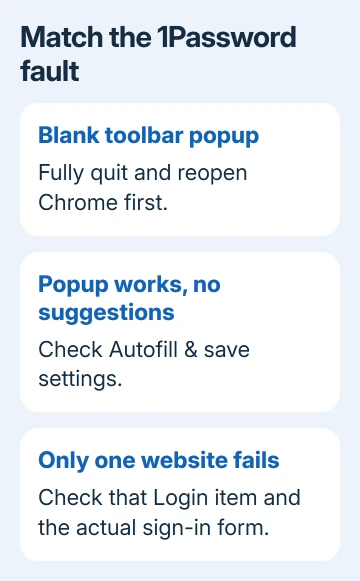
If the popup and filling work, stop there. If it soon goes blank again, note what you were doing just before it went blank. A repeatable action helps support distinguish an extension freeze from a website's sign-in problem.
I'd avoid uninstalling the extension at this stage. A restart is quicker, keeps your setup in place, and lets you try this fix without reconnecting your account.
2. Install browser updates before chasing an old bug
Open Chrome menu > Help > About Google Chrome. Wait for its update check, then choose Relaunch when offered. Google's update steps explain the restart requirement.
Chrome updates extensions automatically. To record 1Password's version, open Extensions > Manage Extensions > 1Password > Details. Updating the desktop app alone doesn't tell you the extension version.
Chrome 147 had a blank-extension fault in April 2026. 1Password's issue notice reports its fix in 147.0.7727.102.
That version fixed the April bug; it isn't the version you should install now. Use the current Chrome update offered to your computer. Installing an old release to match a troubleshooting post would move you backward.
A later owner still had blank popups after updating and reinstalling. The vendor's September reply treated that as a different possible fault because the April issue was resolved. If it's happening now, try the desktop-app restart next.
3. Restart the desktop app if you use it
For 1Password 8 on Windows or Linux, open the app, select the ellipsis at the top of its sidebar, and choose Quit. Open it again and unlock it before checking the browser extension.
For 1Password 8 on a Mac, open its menu-bar icon and select Quit. Reopen and unlock the app, then return to Chrome. Closing the app's window alone can leave it running.
Older 1Password 7 on Windows uses Quit from its system-tray icon. On a Mac with version 7, use 1Password > Quit 1Password Completely. Use the steps for your installed version.
If both apps open but unlocking one doesn't unlock the other, use the integration section in the installation guide linked earlier. The apps aren't communicating, which takes different steps to fix than a blank popup.
Restart the computer if the browser and app restarts haven't helped. Save work first, then reopen and unlock the extension after signing back in. If the same popup still fails, check the more specific settings next.
4. Turn off Update on Reload if developer tools enabled it
A browser developer setting can interfere with 1Password's popup and field menus. Check it if the popup is slow, opens empty, or the password controls inside forms don't respond, particularly after web-development work.
- In Chrome, open More tools > Developer tools.
- Select the Application tab in the tools pane. Use its hidden-tab menu if necessary.
- Select Service Workers in the sidebar.
- Turn off Update on Reload if it's checked, then close developer tools.
- Open and unlock the extension again, then retry the affected form.
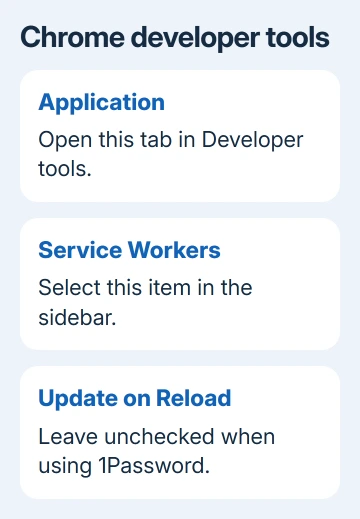
This setting affects service workers, the code that web apps and extensions run in the background. Turning it off removes a developer override; it doesn't erase your saved passwords or ask you to reset your account.
If your work requires that setting, use a separate Chrome profile for that development work or for 1Password. If it was already off, leave it off and check for missing suggestions or a failing login next.
5. Restore suggestions when the popup itself works
Open and unlock the extension. Select its top-left account menu, then Settings > Autofill & save. Enable Offer to fill and save passwords if it's off.
Return to a sign-in page and select a username or password field. If 1Password's control appears, choose the suggested login. You still need to choose a login; visiting the page alone won't fill the password.
Alternatively, find the saved site inside the extension and choose Open & Fill. This uses the address saved with the Login item. Check that address when a website has moved its sign-in page.
If it opens the wrong page, edit that item's website field and save the correct address. If the popup works but filling still fails on that one site, check its sign-in form next.
6. Handle one site's login separately
Compare the failing site with another saved login. If the popup works and fills elsewhere, focus on the affected site's form, saved address, or Login item.
For a form that isn't detected, follow the manual Login-saving steps. Saving from that form records its fields, which can help when an older item no longer matches.
When a website rejects the entered password, check for a recent password change or a different saved account. Use that site's password-reset process if needed, then update the saved login.
For Chrome's own save prompts, use the Chrome password-saving guide. Google's manager and 1Password have separate controls.
Send persistent blank windows to 1Password support
Contact support@1password.com with your operating system, Chrome and extension versions, plus the desktop-app version if used. Say whether the popup is blank, the controls in sign-in forms don't respond, or filling fails on one website.
Include the restart result and whether Update on Reload was enabled. Describe the triggering action and include the affected website address. Don't include login secrets, such as your account password or Secret Key, in the report.
The Short Version
Quit and reopen Chrome, install available updates, and restart the desktop app if used. For empty popups, check Update on Reload. For missing suggestions or one failing site, check autofill and that Login item instead.
Checked November 13, 2026.
 If you have any business, I can build it online






