
In iPadOS 26 your apps quietly became windows. Swipe a window up now and it minimizes instead of closing, so the old flick-to-close feels dead even though the gesture itself still works.
For most people this is the redesign, not a bug: there are three real ways to close an app now. A smaller group hits a genuine glitch where the gesture dies at random. The redesign is the likely answer, so start there.
Close any app right now, in any mode
The App Switcher still works exactly as before, in every multitasking mode. It just needs a slower hand than people remember.
Swipe up slowly from the very bottom edge toward the center of the screen, and pause for a beat before lifting your finger. The App Switcher opens with a thumbnail of every open app.
Then flick an app's thumbnail up and off the top of the screen. That force-closes it, the same as it always did.
Apple's own guide for switching between apps describes this same App Switcher gesture.
The one thing that never existed on iPad is the one-step iPhone move of swiping up on the app itself. On iPad you always open the App Switcher first.
If your apps open as windows, close them with the red dot
In the new Windowed Apps mode, a plain upward swipe on a window minimizes it, it does not quit it. To actually close it, use the window's own buttons.
Tap the three small dots at the top-left corner of the window once, and they expand into the traffic-light buttons. Tap the red one to close the app and clear it from the App Switcher.
The yellow button only minimizes the window, and the green one changes its size, which is exactly why a swipe felt like it stopped closing anything. Red is the real quit.
Want the old full-screen behavior back?
If windows are not for you, switch the whole iPad back to how iPadOS 18 felt.
Go to Settings > Multitasking & Gestures and choose Full Screen Apps. Every app now opens full screen, and the App Switcher flick-up-to-close behaves the way it used to, with no windows to fuss over.
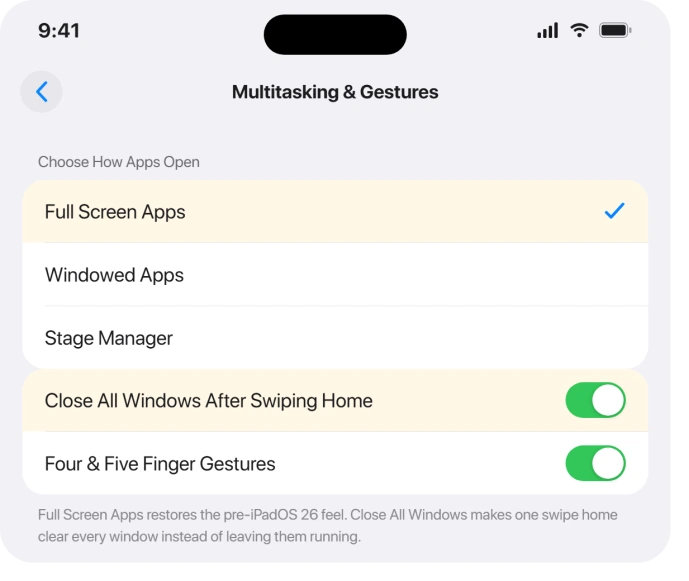
While you are on that screen, turn on Close All Windows After Swiping Home. With it off, swiping home leaves your windows open in the background and you have to swipe up a second time.
With it on, one swipe home clears everything.
If the swipe does nothing at all
If the gesture is completely dead, not just minimizing, the swipe gestures may have been switched off. Open Settings > Multitasking & Gestures, make sure Four & Five Finger Gestures is on, then restart the iPad.
Status: an intermittent version of this is a genuine iPadOS 26 bug, still reported through 26.1 and into 2026, with no fix named in Apple's release notes. Some people find the swipe and scroll randomly quit working and need several restarts a day.
A plain restart is the most reliable reset for that variant.
Hold the top button and either volume button, drag to power off, then turn it back on, or use the steps in iPad frozen and won't force restart if it is fully locked up.
One odd fix from a user with the random-swipe bug: turning off Settings > Siri > Press Side Button for Siri stopped the daily restarts for him. It is worth a try if restarts alone are not holding.
On a Magic Keyboard, skip the swipe entirely
If you keep your iPad in a keyboard, you never need the gesture. Press Command-H to jump to the Home Screen, or Globe then Up Arrow to open the App Switcher, then arrow to an app and flick it away.
If the trackpad itself is dead and that is why you reached for the touchscreen, that is a separate iPadOS 26 problem: Magic Keyboard trackpad not working.
What you do not need to do
Do not force-close all your apps to save battery. Backgrounded apps on iPad are frozen, not draining power, and quitting them just makes each one reload slowly later.
If your battery is the real worry, iPad battery drain on iPadOS 26 covers the settings that actually matter.
And do not count on a software update to fix the gesture. People reported the intermittent bug surviving the 26.1 update, so learn the new close methods above rather than waiting for a patch.
Why won't my iPad close apps by swiping up after iPadOS 26?
Because iPadOS 26 opens apps as windows, and swiping a window up minimizes it instead of quitting it.
Open the App Switcher (swipe up and pause) and flick the thumbnail off the top, or tap the red button in the window's top-left corner. Both truly close the app.
How do I close all my open windows at once?
Turn on Settings > Multitasking & Gestures > Close All Windows After Swiping Home.
After that, a single swipe up to the Home Screen closes every open window instead of leaving them running in the background, which is the default and the source of most confusion.
Is this an iPadOS 26 bug or is it working as intended?
Mostly it is intended. The swipe still works, but windowed apps now minimize on a swipe and close from the red button, which trips people up.
There is also a real but less common bug where the gesture randomly dies and needs a restart, and that one was still around in 26.1.
The Short Version
- The gesture is not gone. Swipe up slowly, pause, then flick the app thumbnail off the top of the App Switcher.
- Windowed apps close from the red traffic-light button at the top-left, not a swipe. Yellow minimizes, green resizes.
- Want the old feel? Settings > Multitasking & Gestures > Full Screen Apps, and turn on Close All Windows After Swiping Home.
- Gesture totally dead? Check Multitasking & Gestures > Four & Five Finger Gestures is on, then restart. The random-failure bug is real and still in 26.1; a restart, or turning off Press Side Button for Siri, helps.
- On a keyboard, use Command-H or Globe + Up Arrow. Do not force-close apps for battery, it does not help.
Where to Next
- Trackpad dead too: Magic Keyboard trackpad not working on iPadOS 26
- iPad locked up: iPad frozen and won't force restart
- More iPad fixes: iPad problems and fixes
- Back to the start: pcglance home

Isaac Smith is the founder and editor of PC Glance, a website that covers computers, laptops, and technology. He is a tech enthusiast and a computer geek who loves to share his insights and help his readers make smart choices when buying tech gadgets or laptops. He is always curious and updated about the latest tech trends.