
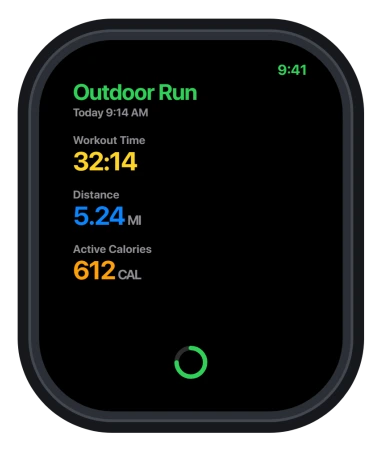
When you tap End on a workout, your Apple Watch does not just file it away. It spends a few seconds writing the workout into your health data, then hands it to the Fitness app on your iPhone.
Since watchOS 26.1, that write step got slow.
A structured interval session that used to save instantly can now sit there for minutes, and a long run can take far longer to reach your phone. The workout is not gone while this happens. It is mid-save.
The one move that actually loses it is ending that save early, by force-quitting the Workout app or restarting the watch before it finishes.
First, if a workout is stuck saving right now
Leave the watch alone. Put it on the charger if you like, and give it a few minutes. A custom workout with lots of intervals takes longer than you would expect, because the watch processes every segment as it writes.
Do not force-quit the Workout app, and do not force-restart the watch, while it is still saving. That is the specific thing that turns a slow save into a lost workout. Wait first, panic later.
Why watchOS 26.1 made saving slow
watchOS 26.0 saved workouts quickly. 26.1 changed how the watch commits a finished workout to your health data, and the save turned heavy. Open runs pick up an extra twenty to thirty seconds.
Custom and interval workouts, the ones built from many segments, are where it stalls for minutes or fails outright.
A running-app developer traced it to the watch doing extra processing for structured workouts, saving each segment as its own activity, so the more intervals a workout has, the more likely it hangs.
That also explains why it hits the built-in Workout app and third-party apps alike. The slow part is the health-data save they all share, not any one app.
If your Apple Watch distance is also reading wrong or sleep is not being tracked since the same update, those are separate watchOS 26 issues with their own fixes.
Your workout history is safe in iCloud
This is what keeps people from panicking into a full reset. Your workout and activity history does not live only on the watch.
If iCloud Health sync is on, it is stored in iCloud and kept up to date across every device on your Apple Account.
So even when the watch shows nothing, unpairing it does not wipe your past workouts. Unpairing backs the watch up to your iPhone first, and your Health and Fitness history syncs back from iCloud afterward.
Check it is on at Settings > your name > iCloud > Saved to iCloud > Health. Apple explains what is stored and how it stays in sync in Manage Health data.
Before you unpair or erase the watch, open the Fitness app on your iPhone and confirm your recent workouts are already listed. That is your proof the sync finished and nothing is left only on the watch.
The fixes, from safest to most drastic
Work down this list in order. Most people are sorted within the first two or three steps.
- End the workout from your iPhone, not the watch. Since 26.2, several people find that stopping the activity from the phone saves cleanly when ending it on the watch still hangs. If you train with your phone nearby, try this first.
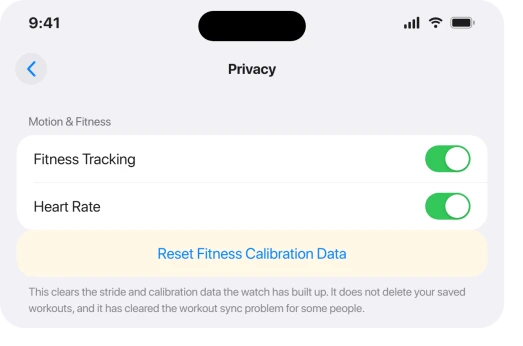
- Reset Fitness Calibration Data. On your iPhone, open the Watch app, then go to My Watch > Privacy > Reset Fitness Calibration Data. This clears the calibration the watch builds up over time without touching your saved workouts, and it cleared the not-syncing problem for some users.
- Force-restart the watch, but only if the app is truly frozen and not mid-save. Hold the side button and the Digital Crown together for about ten seconds, until the Apple logo appears. Apple lists the steps in Restart Apple Watch. Never do this while a save is still running.
- Unpair and re-pair the watch. This usually works, but for many people it lasts only a workout or two before it returns. Your data is safe, since unpairing backs the watch up and your history comes back from iCloud. Apple covers it in Unpair and erase your Apple Watch.
- Erase the watch and set it up as new. This is the one that tends to stick. On the watch, go to Settings > General > Reset > Erase All Content and Settings, then set it up as a new watch instead of restoring the backup. Because your history is in iCloud, people who did this reported losing no workout or health data. The cost is re-adding your watch faces and re-hiding apps you do not use.
Status: the slow or failed workout save is a real watchOS 26.1 regression, not your watch. Apple has not acknowledged it, and later updates help some people but not everyone.
What will not fix it, and what to avoid
- Force-quitting the Workout app mid-save. This is what turns a slow save into a permanently lost workout. If it is still saving, wait it out.
- Erasing everything the moment a workout hangs. The save may still finish, or the data may already be in iCloud. Try waiting, then the calibration reset, before you wipe anything.
- Blaming your running app and reinstalling it. The slow save is system-wide, on Apple's side. Reinstalling Strava or a coaching app can drop the workouts it had not synced yet, while only fixing future ones.
- Treating unpair and re-pair as permanent. It often reverts after a workout or two. If you want it to stick, erase and set up as new.
Why is my Apple Watch workout not saving after watchOS 26.1?
watchOS 26.1 made the watch slower at writing a finished workout into your health data, especially custom and interval workouts built from many segments.
The workout is usually stuck saving, not deleted. Leave the watch alone until it finishes, and it normally syncs to the iPhone Fitness app on its own.
Will I lose my old workouts if I unpair my Apple Watch?
No, as long as iCloud has your Health data. Your workout and activity history is stored in iCloud and synced across your Apple Account, and unpairing backs the watch up to your iPhone first.
After you re-pair or set up as new, your past workouts sync back down.
How do I force my Apple Watch to sync workouts to my iPhone?
Keep both devices unlocked, nearby, and on Wi-Fi, then open the Fitness app on the iPhone.
If a workout still will not appear, open the Watch app, go to My Watch > Privacy > Reset Fitness Calibration Data, and end your next workout from the iPhone rather than the watch.
The Short Version
- After you tap End, watchOS 26.1 can take minutes to save a custom workout and far longer to sync a long run. It is stuck saving, not deleted.
- Do not force-quit the Workout app or restart the watch mid-save. That is the one thing that loses the workout for good. Wait it out.
- Your history is safe in iCloud, so unpairing or erasing does not wipe past workouts, as long as iCloud Health sync is on.
- Fixes, in order: end the activity from the iPhone, reset Fitness Calibration Data, force-restart only if truly frozen, unpair and re-pair, or erase and set up as new.
- It is a real 26.1 bug with no Apple fix yet, though later updates help some people.
Where to Next
- Rings or complications gone blank on the face: Apple Watch complications missing after watchOS 26
- Heart rate not reading during workouts: Apple Watch heart rate not reading on watchOS 26
- Watch draining faster since the update: Apple Watch battery drain on watchOS 26

Isaac Smith is the founder and editor of PC Glance, a website that covers computers, laptops, and technology. He is a tech enthusiast and a computer geek who loves to share his insights and help his readers make smart choices when buying tech gadgets or laptops. He is always curious and updated about the latest tech trends.