

Your wallpaper flashes black for a moment every time you swipe between Spaces, and it looks like your Mac is glitching. It is not, and I can tell you exactly what is happening.
macOS keeps a separate wallpaper for each Space, and it repaints that wallpaper as you swipe from one Space to the next.
It is most obvious swiping to a full-screen app, where the whole Space goes black mid-swipe, then catches up once it settles.
Nothing is broken. Your wallpaper is still set and your files are fine. It usually traces to a few settings, the biggest being a Mission Control switch the update quietly turned off.
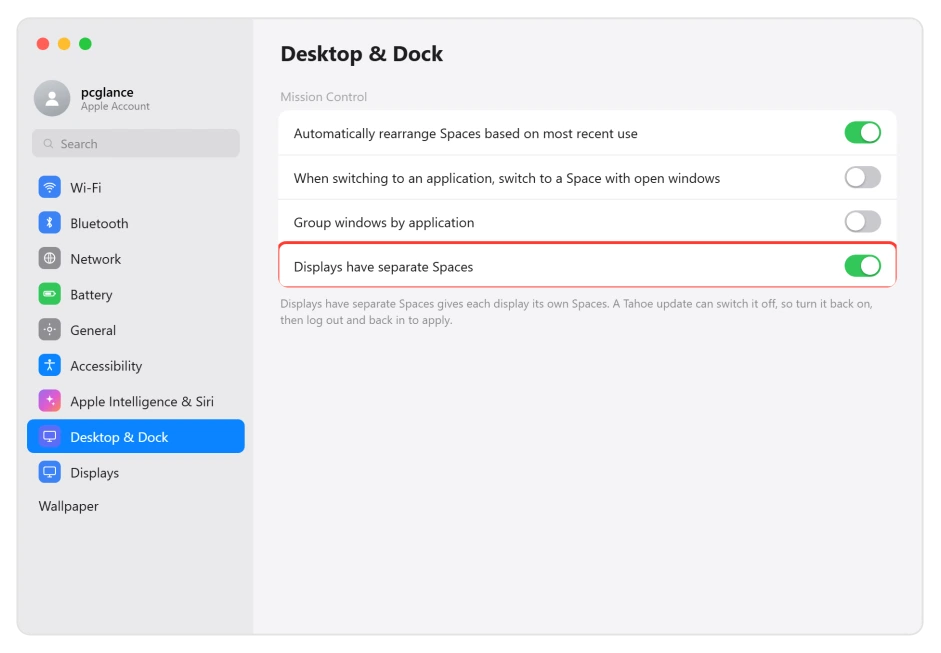
Turn "Displays have separate Spaces" back on
Start here, because the Tahoe update flips this setting off for a lot of people, and turning it back on clears the black transition for many of them.
Open System Settings, Desktop & Dock, and scroll to the Mission Control section at the bottom. Turn on Displays have separate Spaces.
Then log out and back in, or restart, because this switch only takes effect after a fresh login.
This is the highest-yield fix, but it is not universal. Some people, especially on a single display, still see the glitch after turning it on. If that is you, keep working through the rest.
The instant redraw: killall Dock
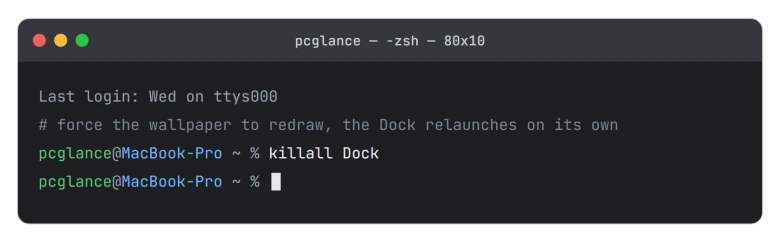
When you just want the wallpaper back without restarting, one command does it. Open Terminal, from Applications, Utilities, Terminal, and run this line:
killall DockThe Dock process draws Mission Control and the per-Space wallpaper, so restarting it forces a clean repaint. The Dock relaunches on its own in about a second, and you lose nothing, no closed apps and no unsaved work.
Do not reach for killall WindowServer to do this. It forces the same redraw, but it logs you out and closes every open app, which is far too much for a cosmetic glitch.
If Reduce Motion is on, turn it off
This one runs backwards from what you would expect. Reduce Motion makes the black flash worse, not better.
With Reduce Motion on, macOS drops the crossfade between Spaces, so the switch is instant and you see the un-repainted black with nothing covering it. Turn the animation back on and it hides the repaint.
Open System Settings, Accessibility, Motion, and turn Reduce Motion off. It lives under Motion on Tahoe, not Display.
Apple explains the setting in Customize onscreen motion on Mac.
If you would rather keep Reduce Motion on, try Reduce Transparency instead, under Accessibility, Display. A few people found toggling it settled the transitions.
Swap a dynamic wallpaper for a still one
A Dynamic wallpaper set to Automatic is a common trigger, since it is the piece macOS has to recompute on every Space change.
Open System Settings, Wallpaper. Either pick a plain still picture, or for a dynamic one, set its appearance to Light (Still) or Dark (Still) instead of Automatic. If the black stops, the dynamic wallpaper was the cause.
Rebuild your Spaces, or restart
If it still sticks, force macOS to reassign each Space's wallpaper from scratch.
Open Mission Control, with Control and the Up Arrow, or a three-finger swipe up. Hover a desktop or full-screen tile along the top, click the X to remove it, and do that for each one.
Then click the + to add fresh Spaces. Apple covers adding and removing Spaces in Work in multiple spaces on Mac.
A plain restart or log out clears it too, though it often comes back after the Mac sleeps.
If your Mac also will not wake cleanly from sleep, that is worth fixing alongside this.
On an external monitor, a specific sequence helps: take every app out of full screen, disconnect the display, reconnect it, then send apps back to full screen one at a time.
It is tedious with a lot of windows, but it resets the per-display Spaces.
If the external display is not detected at all after Tahoe, that is a separate problem.
Status: Apple has not acknowledged or fixed this through macOS 26.5, so it is a known community glitch. Turning Displays have separate Spaces back on and killall Dock are the fixes that hold.
What will not fix it, and what is not this bug
- Waiting for an update. As of macOS 26.5 there is no fix and no Apple acknowledgment, so file it with Feedback Assistant but do not wait on it.
- killall WindowServer. It forces the same redraw, but it logs you out first. killall Dock does the job without the disruption.
- Deleting wallpaper preference files. That advice targets managed or forced wallpapers, a different problem, and it will not touch this glitch, so skip it.
- The black menu bar in full screen is not this bug. A full-screen app has no desktop behind it, so its menu bar is black by design. That is normal Tahoe behavior, not the transition glitch.
- A black login screen with frozen widgets is a different, bigger problem. That points to a rougher update or account issue, not the cosmetic Space repaint covered here.
Why does my Mac wallpaper go black when I switch Spaces?
macOS repaints each Space's wallpaper as you swipe, and on Tahoe that repaint can lag, showing black until it catches up. It is cosmetic, not lost data.
The most common cause is the update turning off Displays have separate Spaces. Turn it back on under System Settings, Desktop & Dock, then log out and in.
Is killall Dock safe to run?
Yes. It restarts the Dock, which also draws Mission Control and your Space wallpapers, and the Dock comes back on its own within a second or two.
You do not lose any open apps or unsaved work. It is far safer than killall WindowServer, which logs you out of the whole session.
Did macOS 26.5 fix the black wallpaper glitch?
No. People still report it through 26.4.1 and 26.5, and Apple has not acknowledged or fixed it. The steps here are user-tested workarounds, not an official patch, so keep them handy after each update until that changes.
The Short Version
- macOS repaints each Space's wallpaper as you swipe, and on Tahoe that repaint lags and shows black. It is cosmetic, nothing is deleted.
- Best first fix: turn Displays have separate Spaces back on, under System Settings, Desktop & Dock, Mission Control, then log out and in. The update often turns it off.
- For an instant redraw without restarting, run killall Dock in Terminal. Avoid killall WindowServer, which logs you out.
- If Reduce Motion is on, turn it off, under Accessibility, Motion, since it strips the animation that hides the repaint. Swapping a dynamic wallpaper for a still one also helps.
- Apple has not fixed it as of macOS 26.5, so these are workarounds. Rebuilding Spaces or restarting clears it, but it can return after sleep.
Where to Next
- Another Tahoe display glitch: Mac menu bar icons missing after macOS Tahoe
- Multiple displays acting up: External monitor not detected after macOS Tahoe

Isaac Smith is the founder and editor of PC Glance, a website that covers computers, laptops, and technology. He is a tech enthusiast and a computer geek who loves to share his insights and help his readers make smart choices when buying tech gadgets or laptops. He is always curious and updated about the latest tech trends.