
You have a podcast going, you clear your throat or hum along to a song, and the volume drops for a beat, as if someone reached over and turned it down.
It creeps back up, then does it again the next time you make a sound.
That is a feature called Conversation Awareness. It is built to duck your music when you start talking to someone, but it trips on your own coughs, hums, and singing too. It takes one tap to stop.
Let me take you to the setting behind it, because it is not where anybody looks first.
Turn off Conversation Awareness
When it thinks you have started a conversation, it lowers your media and lifts the voices in front of you, and for a podcast it can pause the audio outright.
Handy in theory, maddening when your own throat-clear sets it off.
There are two ways to switch it off, and you only need one.
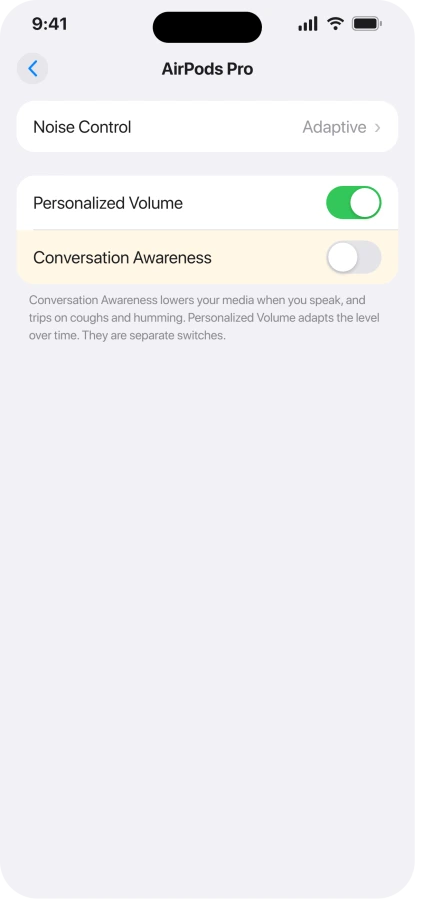
- In Settings. With your AirPods in and connected, open Settings and tap your AirPods near the top of the screen. Find Conversation Awareness and turn it off.
- In Control Center. Touch and hold the volume slider, then tap the Conversation Awareness button, the small icon of a person speaking.
On iOS 26 the Control Center panel for AirPods was redesigned and is easy to misread, so if the volume long-press looks like a dead end, the mode controls are still there. Look for the person icon and tap it.
Check which AirPods you have
Only some AirPods have Conversation Awareness at all: the AirPods 4 with active noise cancellation, the AirPods Pro 2, the AirPods Pro 3, and the AirPods Max 2.
If yours are AirPods 3, AirPods Pro 1, the plain AirPods 4 without noise cancellation, or the 2024 USB-C AirPods Max, they do not have it.
The plain AirPods 4 does have Personalized Volume, so check that. The other three have neither of the next two features, so skip to Reduce Loud Audio below.
If it is not Conversation Awareness, two features get the blame
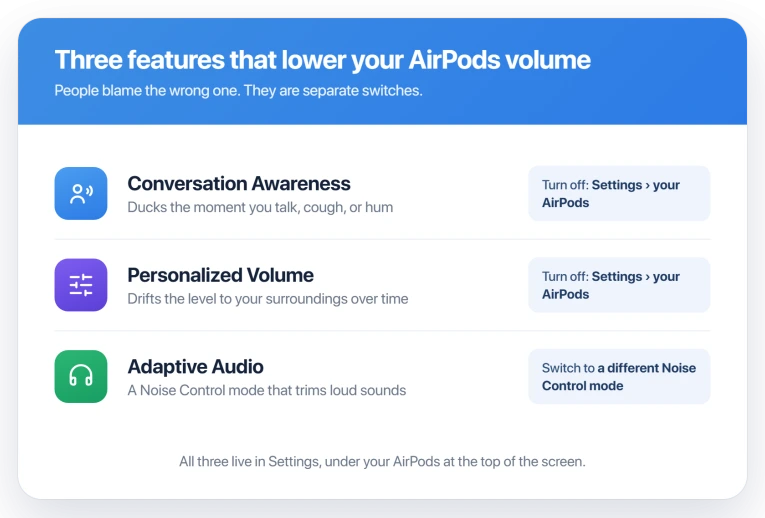
These two also change your volume on their own, and people mix them up with Conversation Awareness. Both sit in the same place, Settings, then your AirPods at the top.
- Personalized Volume. This one learns your habits and reads your surroundings, then nudges the media volume up or down over time. It is a slow drift, not a sharp duck the instant you speak. Turn off Personalized Volume in that same list if the level keeps wandering.
- Adaptive Audio. This is a Noise Control mode, not a background setting. It blends noise cancellation and Transparency to suit the room, and it can pull down loud sounds around you. If your Noise Control is set to Adaptive, switch it to Off, Noise Cancellation, or Transparency instead.
Apple lays out all three in Adjust listening mode settings on AirPods.
The loudness limit to rule out
One more setting turns the volume down, but for a different reason.
Reduce Loud Audio caps anything above a level you set, so it trims loud passages rather than reacting to your voice. Open Settings, Sounds & Haptics, Headphone Safety, and check Reduce Loud Audio.
If it is on and set low, raise the limit or turn it off. Apple explains it in Headphone notifications.
After a long stretch of loud listening, iOS can also turn you down once as a safety warning. That is a one-off, not the every-few-seconds dip.
One thing it is not: the Face ID setting. Attention Aware only quiets alerts and alarms when you look at the phone, never your music, so do not go hunting there for this.
If turning it off does not stick
Once Conversation Awareness is off, it stays off. There is no known iOS 26 bug that flips it back on, so if the dips continue, work back through the other features. If you still want a clean slate:
- Update the AirPods firmware. It updates on its own while they charge in Bluetooth range of an iPhone on Wi-Fi, with no manual button. Check the version at Settings, Bluetooth, the (i) next to your AirPods, then About.
- Forget and re-pair. Tap your AirPods in Settings, choose Forget This Device, then open the case next to your iPhone to set them up again.
Status: the volume ducking is Conversation Awareness working as designed, over-eager on your own coughs and humming, not a bug. Turning it off is the fix, and it stays off once you do.
What will not fix it, and what is not this bug
- Just turning the volume back up. The feature ducks it again the next time you make a sound. Switch the feature off instead.
- Chasing the Attention Aware setting. It touches alerts and alarms, not media. It will not stop your music from dipping.
- This is not AirPods cutting out. If the sound drops entirely or stutters, that is AirPods cutting out on iOS 26, a Bluetooth issue, not a volume feature.
- It is not a mic problem. If people cannot hear you, that is AirPods microphone muffled on calls.
Why do my AirPods keep lowering the volume when I talk?
That is Conversation Awareness. It lowers your media and boosts nearby voices the moment it hears you speak, and it fires on your own coughs, hums, and singing along, so it feels random.
Turn it off in Settings, tap your AirPods at the top, then switch off Conversation Awareness. Or long-press the volume slider in Control Center and tap the person icon.
How do I stop my AirPods turning the volume down on their own?
Turn off Conversation Awareness first, then Personalized Volume, both under Settings and your AirPods at the top. If your Noise Control is set to Adaptive, change it to another mode.
Also check Reduce Loud Audio under Settings, Sounds & Haptics, Headphone Safety, in case a low limit is trimming the peaks.
Which AirPods have Conversation Awareness?
The AirPods 4 with active noise cancellation, the AirPods Pro 2, the AirPods Pro 3, and the AirPods Max 2. Older models and the non-noise-cancelling AirPods 4 do not have it.
The 2024 USB-C AirPods Max do not have it either, only the newer AirPods Max 2.
The Short Version
- AirPods dipping the volume when you talk, cough, or hum is Conversation Awareness, a feature, not a fault. It is over-eager about your own sounds.
- Turn it off under Settings, your AirPods at the top, or by long-pressing the volume slider in Control Center and tapping the person icon.
- Only AirPods 4 (noise-cancelling), Pro 2, Pro 3, and Max 2 have it. If yours cannot, look at the next two features instead.
- Personalized Volume drifts the level over time, and Adaptive Audio is a Noise Control mode that trims loud sounds. Both have their own switch in the same list.
- Reduce Loud Audio, under Sounds & Haptics, Headphone Safety, caps loud passages. The Face ID Attention Aware setting only affects alerts, not media.
Where to Next
Where they carry on playing after you have dropped off, the pause-on-removal behavior has its own conditions.
- Sound dropping out, not just dipping: AirPods Pro 3 hissing or weak ANC
- Audio cutting in and out: AirPods cutting out on iOS 26

Isaac Smith is the founder and editor of PC Glance, a website that covers computers, laptops, and technology. He is a tech enthusiast and a computer geek who loves to share his insights and help his readers make smart choices when buying tech gadgets or laptops. He is always curious and updated about the latest tech trends.