
Your AirPods cut out the moment your Apple Watch announces a mile or closes a ring mid-workout, and whatever you were playing never comes back.
watchOS 26.5 shipped with a workout-audio fix, so you would be forgiven for thinking this is solved. That fix is for a different problem, so let me help you work out whether yours is that bug or something else.
The two that actually hold here are routing your audio through the Watch alone, or switching off the announcement that seizes it.
Play through the Watch, not your iPhone
The most reliable fix flips how most people listen. Instead of playing from your iPhone with the AirPods bridging both devices, disconnect the AirPods from the phone and play straight from the Watch.
AirPods can only take a live audio stream from one device at a time. When your music runs off the iPhone, the Watch has to muscle in to speak an alert, and the return trip to the iPhone often fails.
Cut the phone out of the loop and the tug of war ends.
On your iPhone, open Settings, tap Bluetooth, tap the small (i) next to your AirPods, and choose Disconnect.
Then start your music from the Watch itself, either an Apple Music playlist synced to the Watch or its Now Playing screen.
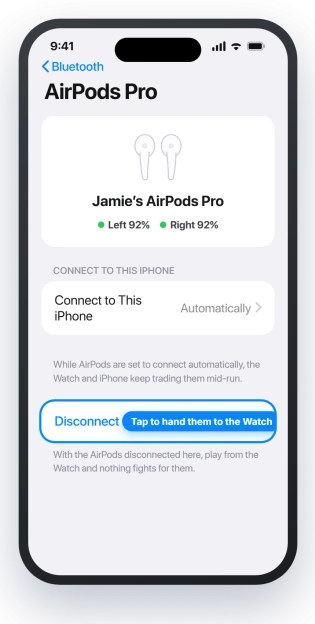
Runners who did this report the splits play in the AirPods and the music picks straight back up, which is the whole point.
One trade-off to know before you commit: once the AirPods are disconnected from the iPhone, they may stop auto-connecting to it later and ask you to reconnect by hand.
If that annoys you more than the workout drops, the next fix leaves your phone in charge.
If your AirPods also cut out when you are not working out, that is a broader Bluetooth issue rather than this one, and it is covered in AirPods cutting out on iOS 26.
Turn off the announcement that grabs the audio
If you would rather keep playing from your iPhone, remove the thing that interrupts it.
The spoken split, pace, and ring-close alerts are what duck your music and then fail to hand it back, so silencing them stops the drop at the source.
On the Watch, open Settings, tap Workout, and turn Voice Feedback off. The same switch sits on your iPhone in the Watch app, under the Workout row.
Two separate settings trip people up. Voice Feedback and the per-workout distance alerts are not the same switch, so turning Voice Feedback off can still leave a spoken mile split coming through.
Open your workout, tap the three dots on that workout tile, and check its own alert preferences for a split or segment alert still switched on.
If the interruption is a notification being read aloud rather than a workout stat, that is Announce Notifications instead.
On the iPhone, open Settings, tap Notifications, tap Announce Notifications, and turn it off, or scroll down and switch it off just for the apps that keep talking over your run.
Apple lists the same controls in Listen and respond to notifications with AirPods on Apple Watch.
This is the opposite of another common complaint, where the announcements refuse to play in your AirPods at all.
If that is your problem, the fix is different and lives in Apple Watch workout voice alerts going silent.
Why your audio does not come back
When any alert speaks, the Watch takes over the single Bluetooth audio channel your AirPods are holding, ducks the music, and plays the announcement.
On a good day it hands the channel back and your track resumes. The bug is that the hand-back stalls, so the buds sit silent, or the sound jumps to the Watch speaker and stays there.
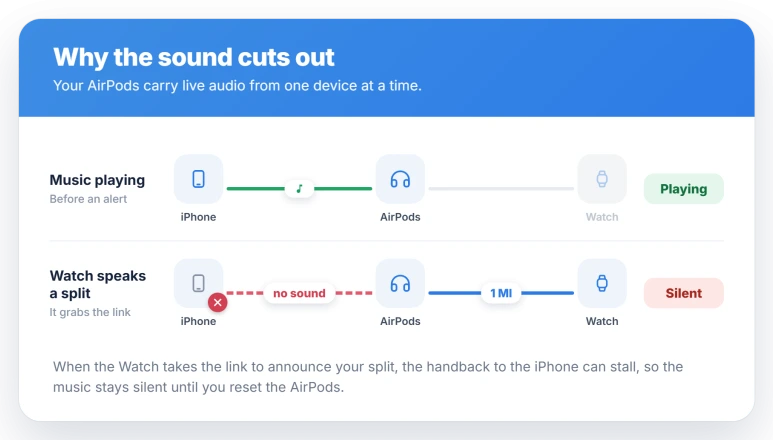
That single-channel limit is the root of it.
Your AirPods cannot stream from the Watch and the iPhone at once, so every announcement forces a switch, and each switch is a chance for the audio to get stuck.
This is the best read from the pattern of reports rather than something Apple has spelled out, so treat it as the likely cause, not an official one.
The version history is the frustrating part. Many users found the drops eased on watchOS 26.4, though Apple never named it in the notes.
The workout fix Apple did announce, in watchOS 26.5, is for a separate bug where alerts fail to play when your iPhone is out of range of the Watch.
It is not this one, so updating to 26.5 on its own may not settle the cutouts, and some people deliberately stayed on 26.4.
Status: still present on watchOS 26.5. Its named workout fix is a different out-of-range bug, and many say 26.4 quietly eased this one. Play through the Watch or mute announcements to avoid it.
When it drops mid-run
If the audio dies partway through and you just want it back without stopping, the move that works is blunt. Pop both AirPods into the case for a second, then take them out again.
That forces a fresh connection and the sound returns, where reconnecting from the Bluetooth screen usually does nothing.
Toggling Bluetooth off and on from the iPhone can clear a stuck route too, though it tends to be a one-time reset rather than a lasting fix.
What will not fix it
A few popular attempts burn time without solving anything.
- Restarting or wiping the Watch. People have restarted both devices and even set the Watch up from scratch. The drops came back on the next announcement.
- Reconnecting the AirPods mid-run. Tapping them in the Bluetooth list while they are stuck does not wake the audio. Only the case reset does.
- Deleting a running app. One runner found removing a third-party app helped their routing, but for the cutouts it is a dead end for almost everyone.
- Waiting for the next update to cure it. Because watchOS 26.5 fixed a different workout bug, sitting tight and updating is not a plan. Use the settings fixes.
How do I stop my Apple Watch from announcing workouts in my AirPods?
Turn off Voice Feedback. On the Watch, open Settings, tap Workout, and switch Voice Feedback off, or do it on the iPhone in the Watch app under Workout.
For alerts that are read-aloud notifications rather than stats, also turn off Announce Notifications in Settings, Notifications.
Why do my AirPods keep switching to my Watch during a workout?
Because they can only hold one audio connection at a time. When the Watch needs to speak an alert, it grabs that connection from your iPhone, and the switch back does not always complete.
Playing from the Watch alone, with the AirPods disconnected from the iPhone, removes the reason for the switch.
Can I keep music playing on my iPhone during an Apple Watch workout?
Yes, but keeping the iPhone in the loop is what triggers the drop for many people. If you want to stay on the phone, turn off Voice Feedback so nothing interrupts the stream.
The steadier setup is the reverse, playing from the Watch with the AirPods disconnected from the iPhone.
Did watchOS 26.5 fix AirPods cutting out during workouts?
Not this exact issue. The workout fix in watchOS 26.5 is for alerts that fail to play when your iPhone is out of range.
The AirPods-dropping-on-announcement problem is separate, was quietly eased for many on 26.4, and was never formally acknowledged. If an update does not settle it, the settings fixes will.
The Short Version
- Neither device is broken. An announcement grabs the single audio channel and does not hand it back, so the music stops.
- Most reliable fix: disconnect the AirPods from your iPhone and play from the Watch, so the two devices stop fighting over the buds.
- Prefer to stay on your phone? Turn off Voice Feedback, and check the per-workout split alert too, since it is a separate switch.
- If audio dies mid-run, drop both AirPods in the case for a second and take them out again to force it back.
- watchOS 26.5 does not fix this. Its workout fix is for a different, out-of-range bug, and many found 26.4 quietly helped.
Where to Next
Losing the audio is bad, losing the record of the session is worse. Workouts that do not save on watchOS 26 walks through where the data goes.
- AirPods dropping even when you are not working out: AirPods cutting out on iOS 26
- The reverse problem, no spoken alerts at all: Apple Watch workout voice alerts silent
- AirPods quietly turning your volume down: AirPods keep lowering the volume on iOS 26

Isaac Smith is the founder and editor of PC Glance, a website that covers computers, laptops, and technology. He is a tech enthusiast and a computer geek who loves to share his insights and help his readers make smart choices when buying tech gadgets or laptops. He is always curious and updated about the latest tech trends.