
Personal Hotspot will not switch on, and a setting you cannot even tap feels like a broken phone. It usually is not one.
Apple's first answer is that your plan may not include it, which is nobody's favourite news, but it is worth ruling out before you reset anything.
Let me split the problem first, because there are two versions of this and they want different things from you.
Sort the switch from the connection
These are two unrelated problems that arrive as the same sentence, and the fixes have nothing in common.
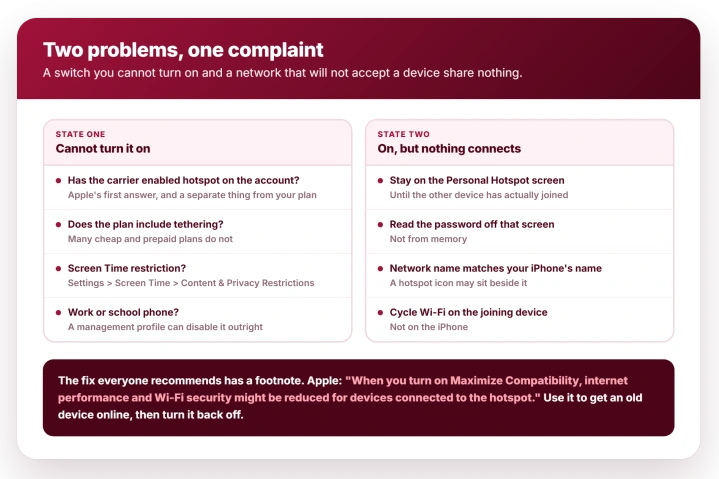
- You cannot turn it on. The Personal Hotspot row is dimmed, or the switch will not move, or the row is not in Settings at all. If it is missing, Apple's route to it is Settings > Cellular > Set Up Personal Hotspot, and it says that if Cellular Data is on and that option still is not there, the answer is your carrier and your plan. Nothing you do on the other device matters yet. If the whole Cellular row is dimmed rather than just this one, that is a restriction instead, and our page on a greyed-out Cellular row covers it.
- It is on, but nothing connects. The switch moves and your laptop or iPad either cannot see the network or refuses the password. Note that Allow Others to Join being off does not rule this branch out: Apple states that for Instant Hotspot, between your own Apple devices, that setting "doesn't need to be turned on".
Everything through the next two sections is for the first case. If your switch works, skip ahead to the connecting problem.
If you cannot turn it on, Apple points at your carrier
Do the ten-second check first. Apple has a line for this exact symptom, on a different page from its main hotspot troubleshooting: "If Personal Hotspot is dimmed or unavailable, open Settings, tap Cellular, and make sure that Cellular Data is turned on."
Do that before you phone anybody. Cellular Data gets switched off to save data or dodge roaming charges, then forgotten, and a dimmed hotspot is the result. If that was it, you are done.
If Cellular Data was already on, work the other free on-device check first, the Screen Time one in the next section, and then make the call. Both cost you seconds. The call is the one that actually settles it.
Apple's guidance in If Personal Hotspot is not working is direct: after telling you to open Settings, tap Personal Hotspot and tap Allow Others to Join, it adds, "If you can't find or turn on Personal Hotspot, check that your wireless carrier enabled it and that your wireless plan supports it."
Those are two separate conditions and they fail independently:
- Your plan has to include tethering. Plenty of cheaper and prepaid plans do not, and some that do meter it separately from your normal data.
- The carrier has to have enabled it on your account. This is a provisioning flag on their side. A plan can technically include hotspot while the account was never switched on for it, which is a five-minute fix for them and an unfixable one for you.
So the first move is not a reset. It is asking your carrier whether hotspot is enabled on the account, in those words. If the answer is no, no amount of toggling changes anything.
On a Dual SIM iPhone, ask about the right line. Apple notes that with two SIMs set up, "Personal Hotspot uses the line you select for cellular data".
So a work eSIM without tethering and a personal line with it will behave completely differently depending on which one is carrying data, and the setting looks broken rather than restricted.
While you are there, check you are on the current iOS, which Apple asks for as the third of its four first steps.
One case to separate out: if the line itself is brand new and never finished setting up, hotspot is not your problem yet.
A plan that is still provisioning has nothing to share, and our guide to an eSIM stuck on Activating deals with that first.
Get the line live, then come back to this.
A grayed-out control is also what a restriction looks like
This is the second free check, and it explains the cases where hotspot worked yesterday and does not today.
iOS can lock settings so they appear but cannot be changed.
Apple's iOS 26 User Guide describes the mechanism under Content & Privacy Restrictions: "Allow changes to other settings: Tap an option below Allow Changes To, then tap Allow or Don't Allow."
A setting sitting under a Don't Allow is exactly what a grayed-out control looks like from the outside. To check:
- Open Settings, tap Screen Time, then Content & Privacy Restrictions.
- If that is switched on, open Allow Changes To and look at Cellular Data, which Apple lists there as "Changes to cellular data settings". Personal Hotspot is a cellular setting, and that is the only cellular entry in the list.
Two situations produce this without you having done it.
A phone handed out by an employer or a school can carry a management profile that disables tethering, and no setting on the device will override it.
And a Screen Time passcode set years ago for a child's device can still be quietly enforcing rules on a phone that has since become someone's main handset.
If the phone is company-managed, that is the answer, and the person to ask is whoever administers it.
A Mac sharing its own connection can be locked the same way, and the Mac Internet Sharing page shows where to spot that profile.
If the switch is on but nothing connects
Different problem, different list. Apple's own instruction is to retry the connection after each step rather than doing all of them, which saves you the ones you did not need.
- Stay on the Personal Hotspot screen while the other device joins. Apple says so explicitly. It does not say how often leaving early breaks a join, but it is a free thing to get right.
- Read the password off that same screen rather than from memory. Apple's route for a password error is to open Settings and tap Personal Hotspot to see the Wi-Fi password.
- Check you are joining the right network. Apple notes the hotspot's network name matches the iPhone's device name, and a Personal Hotspot icon may appear beside it.
- Turn Wi-Fi off and back on on the device that is trying to connect, not on the iPhone.
- Turn Bluetooth on at both ends, not just Wi-Fi. Apple lists it as a requirement, and it is easy to miss because the network is a Wi-Fi one.
- Get the devices within 30 feet, or 10 metres, of each other. Apple publishes that figure and almost nobody quotes it.
- Restart both devices, the iPhone providing the hotspot and the one trying to join.
If the joining device sees the network but the internet does not work once connected, that is a Wi-Fi problem rather than a hotspot one, and our iOS 26 Wi-Fi fixes cover that side.
Maximize Compatibility works, and it costs you something
This is the fix that gets recommended everywhere, almost always without the second half of Apple's sentence.
Maximize Compatibility is aimed at older devices that struggle to join the hotspot.
The usual explanation is that it drops the network to a band they can see, though Apple never says so on any page checked here.
Apple does name the models: "iPhone 12 model or later, iPad Pro 11-inch (3rd generation or later), iPad Pro 12.9-inch (5th generation or later), or iPad mini (6th generation)".
Turn it on in Settings > Personal Hotspot.
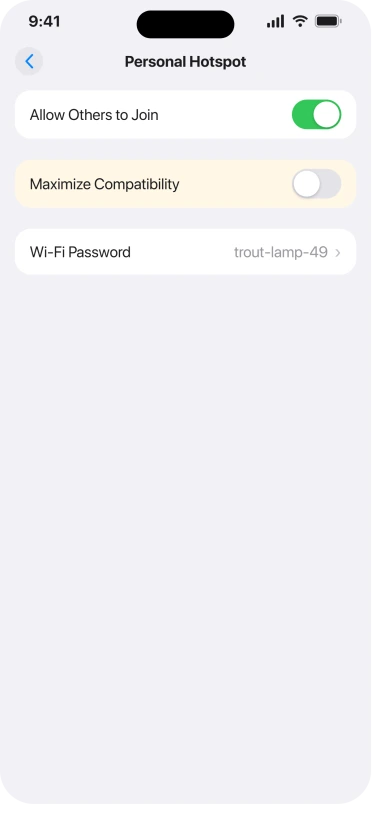
Now the part to know before you flip it. Apple's own footnote on that page reads: "When you turn on Maximize Compatibility, internet performance and Wi-Fi security might be reduced for devices connected to the hotspot."
That is a real trade, and it is stated by Apple. What follows is ours rather than Apple's: Apple never tells you to switch it back off, but given its own warning, we would.
Turn it on when an older laptop or a games console cannot see the network at all, then turn it off again.
Leaving it on means slower tethering and weaker Wi-Fi security every time you use it, in exchange for compatibility you are no longer using.
Reset Network Settings, and what it takes with it
Apple lists this among its first steps, but it is the most expensive thing on the page and it belongs after the free checks, not before them.
The route is Settings > General > Transfer or Reset iPhone > Reset > Reset Network Settings.
Apple gives the cost in the same sentence: "This also resets Wi-Fi networks and passwords, cellular settings, and VPN and APN settings that you've used before."
So budget for re-entering every Wi-Fi password you use, and know that a VPN or a custom APN your carrier or employer set up will need setting up again.
On a work phone, that alone is a reason to ask an administrator before running it.
If the carrier says it is enabled and it is still dimmed
At that point you have ruled out both documented causes and you are looking at a line-level fault or a bug rather than a setting.
Note what changed and when, because a switch that died on the day you updated is a different report from one that never worked.
Then ask the carrier to reprovision the line rather than simply confirm the plan. Apple publishes no fix for this state, so anything promising one is guessing.
Owners do report what their carriers did. In the Apple Community thread with 696 Me too votes, one wrote: "They replaced my SIM with a new one, and now Personal Hotspot works perfectly."
Another, on 18 September 2026: "I had to get a new eSIM." A third removed the hotspot add-on from their plan for a couple of days, then added it back: "It worked immediately!"
All three fixes are user-reported, and every one went through the carrier.
What does not help
- Toggling the switch repeatedly. If the carrier has not enabled hotspot on your account, the control is reporting that accurately and will keep doing so.
- Editing APN settings you found in a forum. Apple's warning is blunt: "Don't edit the APN unless directed by your carrier or mobile device administrator." If you already did, the way back is Settings > Cellular > Cellular Data Network > Reset Settings.
- Leaving Maximize Compatibility on permanently. Apple says it can reduce both performance and Wi-Fi security. It is a temporary tool.
- Resetting network settings first. It is the step that costs you the most and it cannot create a hotspot entitlement your plan does not include.
Status: current for iOS 26.6. Apple's hotspot troubleshooting still leads with the carrier-and-plan check. Recheck if the Settings layout moves on a point release.
Why is Personal Hotspot grayed out on my iPhone?
Most often because your carrier has not enabled hotspot on your account, or your plan does not include tethering. Apple's page says to check both. The other common cause is a Screen Time restriction or a management profile on a work or school phone locking the setting.
Can my carrier block Personal Hotspot?
Yes. Hotspot is a provisioning flag on your account as well as a feature of your plan, and Apple's troubleshooting sends you to the carrier to confirm both. Ask specifically whether hotspot is enabled on the account, not just whether your plan includes data.
Does Maximize Compatibility reduce security?
Apple says it can. Its own footnote is that internet performance and Wi-Fi security might be reduced for devices connected to the hotspot, which almost no guide quotes. Use it to get an older laptop or console online, then switch it back off. Apple never tells you to do that last part, but given its own warning, we would.
Why does my hotspot disconnect when I leave the settings screen?
Apple's instruction is to stay on the Personal Hotspot screen until the other device has actually joined, so leaving early during the join can stop it completing. An established connection should hold afterwards, though Apple separately notes that devices disconnect automatically when the hotspot is not being used, to save battery.
The Short Version
- Split the problem first. A switch you cannot turn on and a network that will not accept a device are unrelated faults.
- Cannot turn it on: Apple says check that your carrier enabled hotspot on the account and that your plan supports tethering. Those fail separately.
- Also check Settings > Screen Time > Content & Privacy Restrictions. A locked setting looks identical to a broken one, and a work or school profile can disable tethering outright.
- On but nothing connects: stay on the Personal Hotspot screen, read the password off that screen, confirm the network name matches your iPhone, and cycle Wi-Fi on the joining device.
- Maximize Compatibility is for iPhone 12 and later and it helps older devices join, but Apple says it may reduce internet performance and Wi-Fi security. Turn it off afterwards.
- Reset Network Settings last. It clears saved Wi-Fi passwords, cellular settings, and VPN and APN configurations.
Where to Next
Split the problem before you change anything. A switch you cannot turn on and a network nobody can join are two different faults with two different owners.
If the switch is greyed, that is usually your plan, and no reset argues with a plan.
If you have confirmed with your carrier that hotspot is included and the switch is still dead, say so in the comments and we will go through the rest of it.

Isaac Smith is the founder and editor of PC Glance, a website that covers computers, laptops, and technology. He is a tech enthusiast and a computer geek who loves to share his insights and help his readers make smart choices when buying tech gadgets or laptops. He is always curious and updated about the latest tech trends.