
You set a reminder and it never arrived, or it turned up in silence, or it went off at some hour you never chose. Those are three separate problems, even though they all feel like one broken app.
Working out which of the three you have is most of the job, and it takes a minute.
Read the three descriptions with me, pick yours, and go straight to that section.
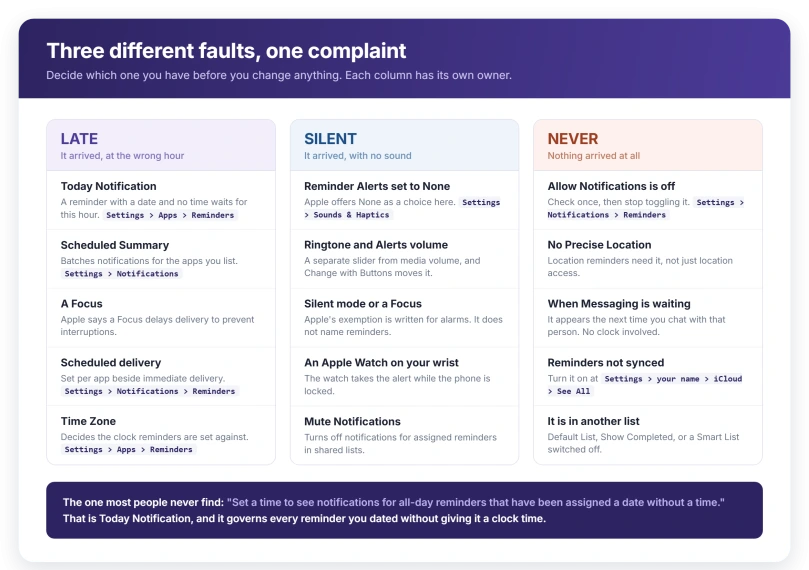
Late: a date with no time is delivered on a schedule
Give a reminder a date and skip the time, and it stops being a timed alert.
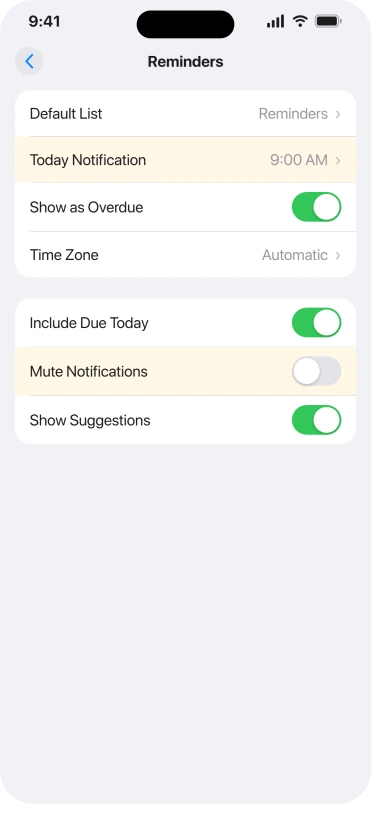
Apple's Reminders settings page names the class and the control together: Today Notification is where you "set a time to see notifications for all-day reminders that have been assigned a date without a time."
So a reminder made on Tuesday for Friday, with no clock time on it, waits for whatever hour that setting holds. Change it at Settings > Apps > Reminders > Today Notification.
If you want a reminder at a particular moment, give it a time as well as a date.
Apple's Calendar page draws the same line: reminders scheduled as all day sit in the all-day section, and reminders scheduled at a specific time appear at that time.
Late: a summary can be holding your notifications
This one is not a Reminders setting at all, and it produces the same symptom.
Scheduled Summary collects notifications from apps you choose and delivers them in batches at times you set. If Reminders is on that list, its alerts wait for the next batch.
Check it at Settings > Notifications > Scheduled Summary.
Apple's steps are to turn it on, "schedule times for the notification summary", then tap A to Z and "turn on the apps to include in your notification summary."
If Reminders is switched on there, turn it off and the alerts go back to arriving when they are due.
A Focus does something similar. Apple: "When you use Focus, it delays the delivery of notifications on iPhone to prevent interruptions."
Late: the wrong time zone
Time Zone, at Settings > Apps > Reminders, is described by Apple as the zone "used to display and create reminders."
Apple does not say what happens when it is wrong, so treat this as a thing to check rather than a diagnosis.
If your reminders are consistently out by a fixed number of hours, this is the row that decides which clock they are set against.
Silent: the alert sound has an off position
The sound for reminders is not inside the Reminders app.
Go to Settings > Sounds & Haptics > Reminder Alerts. Apple's own line: "Choose a sound from the list. You can also choose None if you don't want to hear a sound when you receive a reminder alert."
None is a real setting a phone can end up on, and it is the first thing to rule out.
Silent: the volume slider is a separate control again
Even with a sound chosen, the loudness comes from somewhere else.
Reminder alerts use the Ringtone and Alerts slider at Settings > Sounds & Haptics, not the media volume.
Underneath it sits Change with Buttons, which lets the side buttons move that slider during the day without you noticing.
Our guide to an iPhone alarm that went silent covers both controls in detail, because they behave the same way for alarms.
One difference matters and it runs the opposite way to what people expect.
Apple states that "Do Not Disturb, the Ring/Silent switch, and Silent mode don't affect the alarm sound." That exemption is written for alarms.
Apple publishes no such exemption for reminder alerts, so silent mode and a Focus can silence a reminder while leaving an alarm untouched.
Silent: an Apple Watch may be taking the alert
If you wear a watch, the alert may be landing there rather than on the phone.
Our guide to an Apple Watch not showing notifications sets out Apple's rule: the watch takes the notification when it is on your wrist, unlocked, and your iPhone is locked or asleep.
A reminder that buzzes silently on a wrist you were not looking at reads exactly like a reminder that never fired.
Silent: reminders assigned in a shared list
Mute Notifications, at Settings > Apps > Reminders, does one job in Apple's words: "Turn off notifications for assigned reminders."
Apple defines assigned items as ones "assigned to you in shared lists", and notes that a task on a shared list can be assigned to any person on it, including yourself.
If you collaborate on lists and hear nothing about the items on them, check this row.
Shared lists also carry their own switches. Open the list, tap the button at the top, tap Manage Shared List, and under Notify When you can turn Adding Items and Completing Items on or off.
Never: notifications may simply be off
Rule this out once, properly, before anything else on this page.
Apple's route: "go to Settings > Notifications, tap the app, then turn off Allow Notifications." Read it backwards to check the switch is on for Reminders.
While you are on that screen, Apple notes you can also choose "immediate or scheduled delivery for the app's notifications", so a Reminders set to scheduled delivery is another route to the late symptom.
Never: location reminders need precise location
A location reminder set without one specific permission waits forever.
Apple: "To receive location-based reminders, you must allow Reminders to use your precise location."
The route is Settings > Privacy & Security > Location Services. Turn on Location Services, tap Reminders, choose While Using the App, then turn on Precise Location.
Location access on its own is not enough. Without the second switch the phone cannot tell that you have arrived anywhere in particular.
Never: a "when messaging" reminder is waiting for you
This one is not broken. It is waiting on something that may not have happened.
Apple's description: "The reminder appears the next time you chat with that person in Messages."
There is no clock involved at all. If you have not opened a conversation with that person since setting it, nothing happens, and it can sit for weeks looking like a failure.
Never: reminders are not syncing between your devices
A reminder made on one device that never appears on another is a sync question, not an alert question.
Apple's route: "Go to the Settings app on your iPhone. Tap your name. Tap iCloud, tap See All, then turn on Reminders."
The same requirement applies to people you share with. Apple: "Everyone you collaborate with must be signed in to their Apple Account and have Reminders turned on in iCloud settings."
Never, or so it looks: it landed in a list you do not open
This one does not stop a reminder alerting. It stops you finding it, which looks the same afterwards.
Default List decides "the list for new reminders you create outside of a specific list, such as reminders you create using Siri." Check it at Settings > Apps > Reminders > Default List.
Two related things hide items rather than silence them. Completed items are hidden by default, and Apple's fix is to tap the button at the top of a list and choose Show Completed.
And the Today and Assigned to Me Smart Lists can be switched off entirely, from the button at the top of the list screen, then Edit Lists.
If features are missing rather than misbehaving
Apple prints one condition on six separate Reminders pages, which is a strong sign of how much it decides:
> "All Reminders features described in this guide are available when you use updated reminders in iCloud. Some features aren't available when using other accounts."
Reminders kept in a Gmail, Outlook or Exchange account are a smaller feature set. Tags, Smart Lists and several alert options are not part of it.
Check what is connected at Settings > Apps > Reminders > Reminders Accounts.
Apple scopes the upgrade itself to people coming from old software: "If you've been using Reminders with iOS 12 or earlier, you may need to update your reminders stored in iCloud."
Before you take it, read Apple's page on updating Reminders.
Apple does not describe the update as reversible, and it does say that after updating, "your reminders aren't compatible with earlier versions of iOS and macOS." The same page carries a real loss case: on a second updated device, reminders created by Siri before you first open the Reminders app there can be lost, so open the app once on every device you update.
What does not help
- Deleting and re-adding a reminder. Nothing about a fresh item changes Today Notification, the alert sound, or Scheduled Summary.
- Reinstalling the Reminders app. The settings that decide alerts live in Settings and in your iCloud account.
- Toggling notification permission over and over. Check once that Allow Notifications is on for Reminders, then stop. If it is already on, the cause is further down this page.
- Waiting for a location reminder to catch up. Without Precise Location it will not fire at all, so there is nothing to wait for.
- Assuming silent mode cannot be the cause because it does not mute alarms. Apple's exemption is written for alarms. It says nothing about reminder alerts.
Status: current for iOS 26.6. Apple documents Today Notification, Scheduled Summary, the precise-location rule and the iCloud sync switch, and says some features need updated reminders in iCloud.
Why are my iPhone reminders not alerting?
Check three things in order. First, that Allow Notifications is on for Reminders under Settings, Notifications. Second, whether the reminder has a time or only a date, because date-only reminders arrive at the hour set in Settings, Apps, Reminders, Today Notification. Third, whether Reminders is included in Scheduled Summary, which holds notifications back into batches.
Why do my reminders arrive at the wrong time?
Two settings decide this and neither is obvious. A reminder with a date and no time is delivered at whatever hour Today Notification holds, under Settings, Apps, Reminders. Separately, Scheduled Summary at Settings, Notifications collects chosen apps into batches at times you set, and a Focus delays delivery too, which Apple states directly.
Why do my location reminders never go off?
Because they need precise location, not just location access. Apple says you must allow Reminders to use your precise location. Open Settings, Privacy and Security, Location Services, turn Location Services on, tap Reminders, choose While Using the App, then turn on Precise Location. Without that final switch, a location reminder never fires at all.
Do reminders make a sound in silent mode?
Apple's published exemption covers alarms only, stating that Do Not Disturb, the Ring/Silent switch and Silent mode do not affect the alarm sound. No equivalent exemption exists for reminder alerts, so silent mode and a Focus can leave a reminder showing on screen with no sound while an alarm in the same conditions still rings.
The Short Version
- Arriving at an odd hour? A date with no time is delivered at the Today Notification time, and Scheduled Summary batches notifications for the apps you list.
- Wrong by a fixed number of hours? Check Time Zone under Settings, Apps, Reminders.
- No sound? Reminder Alerts can be set to None, and loudness comes from the separate Ringtone and Alerts slider.
- Silent mode does not mute alarms, but Apple never says that about reminders. Do not rule it out.
- Wearing a watch? It takes the notification when it is on your wrist, unlocked, and the phone is locked.
- Nothing at all? Confirm Allow Notifications is on for Reminders, once.
- Location reminders dead? They need Precise Location, not just location access.
- "When Messaging" reminders wait for the conversation. No chat, no reminder.
- Missing on another device? Turn on Reminders at Settings > your name > iCloud > See All.
- Cannot find it rather than never heard it? Check Default List, Show Completed, and whether a Smart List is switched off.
Where to Next
Three different failures, three different places to look, and it is worth being honest with yourself about which one you actually have.
An odd hour usually means a date with no time attached, and that is a two second fix once you know.
If yours arrives late rather than never, tell me roughly how late in the comments, because that number points at a specific cause.

Isaac Smith is the founder and editor of PC Glance, a website that covers computers, laptops, and technology. He is a tech enthusiast and a computer geek who loves to share his insights and help his readers make smart choices when buying tech gadgets or laptops. He is always curious and updated about the latest tech trends.