
Somebody has told you NameDrop hands out your contact details the moment two phones touch, and now you are wondering whether to switch it off.
That is worth taking seriously rather than waving away, so I have gone through what actually moves and when.
Two buttons come up when it fires, Receive Only and Share, and our reading of Apple's own steps is that one of them has to be tapped before anything leaves your phone.
The gesture is not the one people picture
Read Apple's first step slowly, because the shape of it answers most of the worry: "Hold the display of your iPhone a few centimeters from the top of the other person's iPhone or Apple Watch."
Your display. Their top edge. The two phones are not interchangeable and they are not side by side, which is an awkward enough arrangement to be hard to strike by accident.
Then it has to be held: "Continue holding your devices near each other until NameDrop appears on both screens."
What Apple pictures at that point is a single screen, described as "A NameDrop screen showing the user's name and number", with the two buttons under it.
So what you are looking at is your own card and the choice about it.
Apple does not say what is on the other person's screen at that moment, so the symmetry is our assumption rather than its statement.
And it can be called off: "To cancel, move the two devices away from each other or lock your iPhone before the NameDrop transfer completes."
So the sequence is a specific pose, held, followed by a choice, and Apple documents a way out of it.
Apple never puts that in one sentence, which is part of why police departments spent late 2023 warning parents that phones were swapping details on contact.
What it sends, and what it holds back
Apple's Personal Safety guide is the only page that draws the boundary, and it draws it clearly:
"NameDrop shares only your name, the phone number or email address you choose, and Contact Poster information associated with your Contact Card. It doesn't share other information in your Contact Card, like your home address or birthday."
Note that page is not part of the iOS 26 iPhone guide. It carries a published date of October 2024, and the sentence appears nowhere in the current iPhone User Guide.
You also pick the fields each time.
On the iOS 26 NameDrop page the step is to tap the button beside your card, select the fields you want, then tap Save.
Apple's name for that button exists only in image alt text and differs between its own pages, so go by position rather than by name.
What sticks is the choice: "The same fields will be selected by default next the time you use NameDrop."
One field is held back unless you go looking for it: "When you share your contact information through Contacts or NameDrop, by default your pronouns aren't shared. When you're sharing another contact's information, their pronouns are never shared."
And one thing it cannot do at all: "NameDrop only works for sending new contact information, not updating an existing contact." So it will not quietly rewrite someone already in your phone.
Your Contact Poster travels with it.
If yours is not appearing on other people's phones, that is a separate fault, and our guide to a Contact Poster that will not show covers it.
If you already tapped Share
Nothing Apple publishes takes it back. The card is on their phone and it stays there, the same way a number written on paper does.
The part you can still act on is the next one. Because the same fields stay selected by default, a detail you sent in a hurry is queued up for whoever comes after them.
That picker only appears while a NameDrop is running, so the correction has to be made the next time one fires, before you tap Share.
The off switch, and the two things it takes with it
Apple prints the route and the default in one sentence: "NameDrop is on by default. To turn off NameDrop (and other Bring Devices Together features), go to Settings > General > AirDrop, then turn off Bring Devices Together."
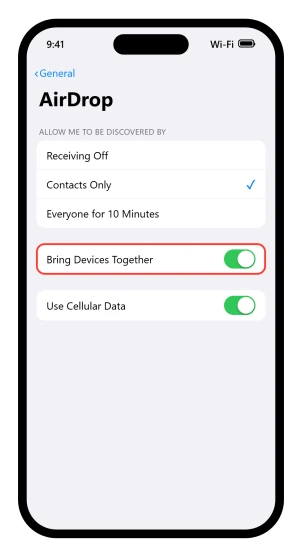
Read the bracket. It is not a NameDrop switch, it is a proximity switch, and Apple documents two other things behind it.
Holding two iPhones together also starts an AirDrop transfer of whatever file you have open, though only with someone already in your contacts.
And it starts SharePlay: "you can instantly stream supported content, listen to music, play games, and more in sync with a friend by holding your iPhone close to your friend's iPhone."
Apple groups all three under the same gesture in its own announcement, but never lists what the toggle covers.
Our reading is that switching Bring Devices Together off stops all three and leaves ordinary AirDrop from the share sheet working, since that route is documented separately.
Treat it as a reasonable inference rather than a promise.
If the row is dimmed rather than switched off, that is usually a restriction rather than a fault.
The place to look is Settings > Screen Time > Content & Privacy Restrictions > Allowed Apps & Features, and our guide to AirDrop not working has the route.
Apple's iOS 26 guide never names AirDrop among the things that screen can restrict, so that one comes from the device rather than the documentation.
One more wrinkle if you go looking for the toggle. Apple prints it as Bring Devices Together in the iPhone User Guide and Bringing Devices Together in its Personal Safety guide.
Same switch, two spellings, so search for either.
Read those two before you flip it, because I have seen people turn this off and then wonder why handing over a photo stopped working.
Two claims Apple never makes
That both iPhones have to be unlocked. Apple does not say it on any of its NameDrop, AirDrop, Contacts, SharePlay, Personal Safety or platform security pages.
Its platform security guide says a receiving device has to be awake, and its NameDrop page says locking your iPhone cancels a transfer in progress.
Awake is not unlocked, and cancelling is not the same as never starting.
That it needs a particular iPhone. Apple names hardware requirements only for Apple Watch. It states no iPhone model requirement anywhere, so any iPhone that can run the software appears to be enough.
There is also a genuine muddle about the version.
Apple's release notes list NameDrop under iOS 17, its September 2023 newsroom post announced it as shipping that day, and its own older guide page says iOS 17.1 or later.
The safe statement is that it arrived with iOS 17 in September 2023.
What else fires when two iPhones touch
Five features use roughly the same gesture, and only one of them starts on its own. That overlap is where the sense of a phone acting behind your back comes from.
- NameDrop. Starts by itself, offers Receive Only or Share.
- AirDrop by proximity. You have to already have the file open, and the other person has to be in your contacts. Apple's general rule for AirDrop is that "the recipient can accept or decline each transfer as it arrives".
- SharePlay. Both people have to be in each other's contacts, and the invitation can be declined.
- Tap to Cash. Starts in Wallet, needs an amount typed and Face ID, Touch ID or your passcode passed before the phones go near each other, and the recipient still chooses Accept or Decline.
- Sharing Accessibility settings. You start it from Settings, and the other person has to tap Accept or hold three fingers on their screen.
So a card appearing unprompted is NameDrop. Anything involving money began with you opening Wallet and authenticating, which settles most arguments about what just happened.
Our guide to Apple Pay not working covers the contactless side, which is a different gesture again: double-click the side button, authenticate, then hold the top of the phone to a reader.
What iOS 26.2 tightened
The strongest change Apple has made in this area is not about NameDrop at all, and it is the thing a worried reader should know exists.
From the AirDrop page: "With iOS 26.2, iPadOS 26.2, macOS 26.2, or later, if someone tries to send you an item with AirDrop and they're not in your contacts, they must use an AirDrop code."
That is a file-sharing gate rather than a contact-sharing one, so it changes nothing about NameDrop.
The codes, the window one buys you and how to end it early are in our guide to AirDrop not working.
Status: unchanged since iOS 17 and still on by default at iOS 26.6. The gap is documentary rather than functional. Apple has never written the sentence readers are looking for.
Can someone take my contact details by walking past me?
Not from what Apple documents. The gesture is your display held a few centimeters from the top of their phone, held until NameDrop appears on both screens, and then a choice between Receive Only and Share. Apple never writes that nothing is sent before that tap, so read that part as our reading of its steps.
How do I turn NameDrop off on iOS 26?
Settings, General, AirDrop, then turn off Bring Devices Together. Apple says NameDrop is on by default. Our reading is that the same switch covers proximity AirDrop and proximity SharePlay, so all three stop together. Apple never lists what it governs, and documents no way to split them. Ordinary AirDrop from the share sheet is a separate route, and our reading is that it keeps working.
What information does NameDrop actually share?
Your name, the phone number or email address you pick, and your Contact Poster. Apple states it does not share other Contact Card fields such as your home address or birthday, on a Personal Safety page it dates October 2024. Pronouns are held back by default, and are never shared when you pass on somebody else's card.
Do both iPhones need to be unlocked for NameDrop?
Apple does not say it on any of its NameDrop, AirDrop, Contacts, SharePlay or Personal Safety pages. Its security guide says a receiving device must be awake, and its NameDrop page says locking the phone cancels a transfer already under way. Neither is the same as requiring an unlocked phone to begin one.
The Short Version
- Two buttons appear, Receive Only and Share, and our reading of the steps around them is that one gets tapped before anything moves. Apple never writes that sentence.
- The pose is asymmetric. Your display goes near the top edge of their phone, and it has to be held.
- Moving apart or locking the phone cancels it, in Apple's own words.
- It shares your name, one number or address, and your Contact Poster. Not your home address or birthday, on the one Apple page that draws that line.
- Pronouns are held back by default and never travel when you pass on someone else's card.
- It cannot overwrite a contact you already have.
- "Both phones must be unlocked" is not something Apple states, on any page in its iPhone guide or its safety guides.
- The off switch is Settings, General, AirDrop, Bring Devices Together, which on our reading stops proximity AirDrop and SharePlay with it.
Where to Next
The short version is that NameDrop does not fire from a pocket and it does not send anything until somebody taps. If that was your worry, you can put it down.
If you would still rather it were off, the switch is one screen away and it costs you nothing you will miss.
And if you have seen it behave differently to what I have described, I would genuinely like to hear about it in the comments.

Isaac Smith is the founder and editor of PC Glance, a website that covers computers, laptops, and technology. He is a tech enthusiast and a computer geek who loves to share his insights and help his readers make smart choices when buying tech gadgets or laptops. He is always curious and updated about the latest tech trends.