
You are driving, the blue line is moving, and Maps has gone completely silent on you. Missing a turn because of it is genuinely unnerving, and I am sorry you are dealing with it.
Work down this list, because the first two rungs settle most of it.
One question first, because it splits the page. Is Maps silent everywhere, or only in the car?
1. The volume setting that has a No Voice option
Start here. Thirty seconds, and the commonest cause by a mile.
Maps has its own volume control. It is separate from your ringer and separate from media, and one of its settings is silence.
Go to Settings, Apps, Maps, then Spoken Directions. Under Voice Volume, choose Normal or Loud.
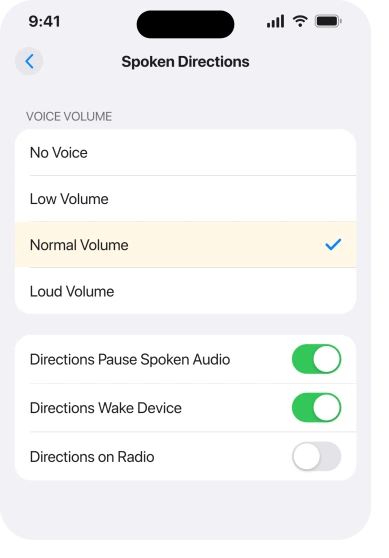
Apple points at the same screen from its spoken directions guide: "You can also change the default volume in Settings > Apps > Maps. Tap Spoken Directions, then choose an option below Voice Volume."
If that was already set correctly, move on. If it was on No Voice, you are done.
2. The speaker button on the route itself
Second. It catches people who have checked Settings and found it set correctly.
There is a second control, and it applies to the trip you are on rather than to Maps in general. While you are navigating, tap the speaker icon near the top of the screen. Choose the level you want.
That per-trip setting is why Maps can talk on one journey and not the next with nothing changed in Settings. I would check it before anything else on a route that used to work.
Apple describes the icon by what it shows: "Voice volume for spoken directions is normal" or "is soft".
Check it at the start of a drive rather than from a parked car with no route running, because the button only appears while directions are live.
3. Did you tap Go, or did you tap Steps?
Now a documented rule almost nobody knows. It explains the cases where every setting is correct.
Apple: "If you start with a location other than My Location, you see a Steps button instead of Go, and no directions are spoken."
Read that again. Plan a route from an address rather than from where you are standing, and Maps gives you a list to read instead of a journey to follow.
No voice. By design.
So start your route from My Location and check the button says Go. If it says Steps, you have found it.
4. In the car, Bluetooth is probably eating the voice
For the car case. This is the answer for most people whose phone talks at home and goes quiet on the road.
Pair your iPhone to a car and the navigation voice goes to the car rather than the phone speaker. So the stereo can be on the wrong source. Or the car can mix voice prompts at a level you cannot hear. Either way, silence.
An owner on Reddit tested exactly this and reported what happened. They found Bluetooth still paired, unpaired it, and "maps spoke through the phone instead of the radio".
Their bigger finding came next: "when my phone and car were in bluetooth, apple maps was silenced".
So try the drive with Bluetooth off and see whether the voice comes back. That tells you in one journey whether the phone or the car is swallowing it.
On Google Maps the voice changed rather than went quiet, and the Google Maps voice page covers what brought the old one back.
5. Directions on Radio, and it is not reversible in one tap
For the car case, narrower. Worth its own rung because it changes where the sound goes and people forget they turned it on.
Apple describes the setting on the same screen: "Directions on Radio: On supported cars, turn on this setting to hear spoken directions when you're listening to the radio."
The same Reddit owner turned it on to test it and then could not get back to the arrangement they wanted. In their words, they would "rather have maps silenced while bluetooth is enabled. But it won't reverse."
Ours, and marked as ours: on the evidence of that one report, treat Directions on Radio as a setting to change deliberately rather than to try out. Note what it was set to before you touch it.
6. Audio that is playing over the top of it
More specific. The voice is working here and you still cannot hear it.
If a podcast or an audiobook is running, Maps has to duck it to be heard, and there is a switch that decides whether it does.
Apple: "Directions Pause Spoken Audio: Turn on this setting to pause spoken audio (like podcasts and audio books) when you receive spoken directions."
You will find it in the same place, at Settings, Apps, Maps, Spoken Directions. Turn it on if you listen to anything while you drive.
Two more on that screen are worth knowing. Directions Wake Device wakes the screen for each instruction. That is a useful confirmation that the voice is firing at all.
And if your alerts generally are too quiet, an iPhone whose notifications are too loud or too soft explains which slider owns what.
7. Language, internet and location, which live somewhere else entirely
Last rung. It covers three requirements that are not in the Maps settings at all.
The navigation voice is Siri's voice. Apple's route to change it runs through Siri, not Maps: "Tap Siri (or Apple Intelligence & Siri), then change any of the following: Language… Voice." So a language you cannot understand, or a broken Siri voice download, shows up as a Maps problem.
Then the two hard requirements. Apple: "To use turn-by-turn spoken directions, your iPhone must be connected to the internet, and precise location must be turned on."
So I would check Settings, Privacy & Security, Location Services, Maps, and confirm Precise Location is on. A route with approximate location draws fine. It just will not talk you through the turns.
If you lose signal on the drive, that is a different problem, and Wi-Fi and cellular that drop out covers the connection side.
What does not help
- Turning the volume up with the side buttons before a route starts. Those buttons only move the navigation voice while a route is actually speaking.
- Reinstalling Maps. It is a built-in app and none of the seven causes here is stored in the app.
- Resetting all settings. It does clear the lot, and it also wipes every Wi-Fi password, so leave it until you have tried the rungs above.
- Blaming the update. Owners have reported this across several iOS versions, and every cause on this page has been there for years.
Status: iOS 26.6.1, checked 19 August 2026. Apple documents all seven causes. The Bluetooth finding in rungs 4 and 5 comes from one owner who tested it and reported back.
Why has Apple Maps stopped talking?
Most often because Voice Volume at Settings, Apps, Maps, Spoken Directions is set to No Voice, or because the speaker button on the live route is turned down. Those are two separate controls and either one silences the other.
Why does Apple Maps not talk in my car?
Because a paired car takes the navigation audio. One owner found their phone silent while Bluetooth was connected and the voice returned through the phone speaker once they unpaired. Check the car's audio source before you change anything on the phone.
Why does Maps show steps instead of speaking?
Because the route did not start from where you are. Apple states that starting from a location other than My Location gives you a Steps button instead of Go, and no directions are spoken.
Does Apple Maps need the internet to speak?
Yes. Apple states that turn-by-turn spoken directions need the iPhone connected to the internet and precise location turned on. Approximate location is not enough.
The Short Version
- Set Voice Volume to Normal or Loud at Settings, Apps, Maps, Spoken Directions.
- Then check the speaker button on the live route, which is a separate per-trip control.
- Starting a route from an address rather than My Location gives you Steps, and no voice at all.
- In the car, a Bluetooth connection takes the audio. Test one drive with it off.
- Directions on Radio changes where the sound goes and one owner could not reverse it.
- Turn on Directions Pause Spoken Audio if you listen to podcasts while driving.
- The voice, the internet requirement and precise location all live outside the Maps settings.
Where to Next
The thing that catches most people is that there are two volume controls, one in Settings and one on the route, and neither tells you the other exists. Check both before you touch anything else.
Silence is one failure, a frozen map is another. Apple Maps freezing when the iPhone locks on iOS 26 covers the mid-journey version.
If yours is silent only in the car, I would like to know the make and whether you use CarPlay or plain Bluetooth. Those two behave differently and reader reports are the only way that gets properly mapped.

Isaac Smith is the founder and editor of PC Glance, a website that covers computers, laptops, and technology. He is a tech enthusiast and a computer geek who loves to share his insights and help his readers make smart choices when buying tech gadgets or laptops. He is always curious and updated about the latest tech trends.