
The underside is too hot for your knees. The fan sounds like it is trying to take off. Everything has gone treacle-slow. You are probably wondering how worried to be, so let me answer that first.
A laptop protecting itself is doing its job, and the slowness is the protection rather than the damage. Then I will take you through eight fixes, cheapest first.
Independent solutions, not steps. Stop when yours cools down.
1. Give the vents somewhere to breathe
Free, instant, and more often than not the entire answer.
Almost every laptop pulls cool air in through its base and pushes hot air out of the back or the side. Sit it on a duvet, a cushion, a carpet or your lap, and that intake is simply covered.
Move it onto something hard and flat. A wooden board will do. So will a hardback book. Wait ten minutes, then listen to whether the fan settles.
Ours, and marked as ours: if it calms down within a few minutes of moving onto a desk, you have your answer and the rest of this can be ignored.
2. Find out what is actually working the machine
Hot with nothing open, and hot while something hammers the processor, are two separate faults.
Press Ctrl + Shift + Esc for Task Manager and sort the Processes list by CPU.
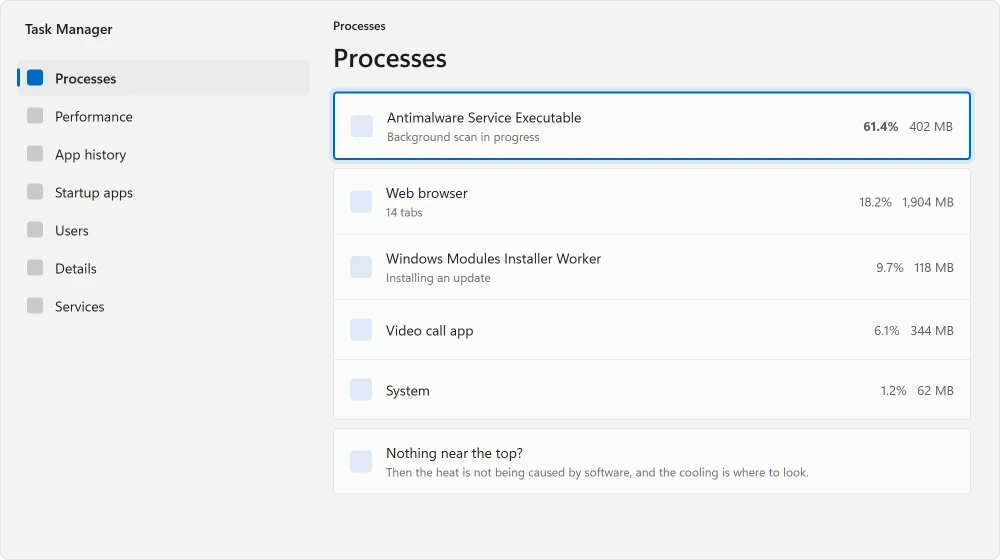
Watch it for a minute while the machine is hot. Something sitting at the top eating CPU is your cause. Then the fix is that program, not the cooling.
Browser tabs, a stuck update, an antivirus scan and video calls are the usual suspects. If nothing much is running and it is still hot, jump to the last fix.
And if a jammed update is what you find, an update that will not move clears it.
3. Turn the power mode down
Windows lets you trade performance for heat, and most laptops ship set towards performance.
Documented by Microsoft in its performance guidance: the setting lives at Settings, System, Power & battery, then the Power mode dropdown.
If Power Options in Control Panel lists nothing but Balanced, Modern Standby is hiding the older plans and this slider replaces them.
For heat you want it the opposite way to the usual advice. Choose Balanced. Or Best power efficiency, if your machine offers it.
You do lose some speed. For browsing and documents you will not notice it. What you will notice is a quieter fan.
4. Cap the processor before it gets hot
This one is a step further and it is genuinely effective on a laptop that overheats under load.
Search the Start menu for Edit power plan. Open Change advanced power settings. Expand Processor power management, then Maximum processor state.
Set it to around 90%. Do that for battery and for mains.
That small reduction removes the top slice of the frequency range, which is where a processor generates heat out of all proportion to the performance it gains.
Ten percent off the ceiling often takes a lot more than ten percent off the temperature.
Ours, and marked as ours: we are describing a mechanism here rather than quoting a figure from anybody. Try 90%, see whether it helps, and put it back to 100% if it does not.
If it is only hot after being carried shut, the lid action is the thing to change. Sleep on a modern laptop is not a stop.
5. Clear the dust out of the vents
The older your machine, the more this one matters.
Dust builds up on the inside of the exhaust grille and mats into a felt-like layer. Air stops moving through it. No setting anywhere can help a fan with nothing left to push.
Switch the laptop off and unplug it. Use short bursts of compressed air into the vents from outside. Hold the fan still if you can see it, because spinning a fan with compressed air can damage it.
Opening the laptop to clean it properly is a bigger job, it may affect your warranty, and it is a poor choice for a first attempt on a machine you depend on. Outside cleaning first, and see whether that is enough.
6. Check whether it only happens on the mains
This is a specific pattern with a specific cause, and it catches people out.
Fine on battery and hot on mains is by design. Plugged in, Windows and the firmware allow higher sustained performance, so more heat is produced by design.
Combine it with fix three. Setting the mains power mode down closes most of that gap and costs you very little.
7. Did this begin after an update?
Did the heat arrive suddenly rather than creep up over years? Then chase the change, not the cooling.
Reported by an owner on Microsoft's Q&A, 14 July 2025, on a Ryzen 5 7600 desktop that behaved perfectly on Windows 10: their processor was hitting its 95 degree limit at startup and after waking, with nothing open at all.
They had already done a clean install twice, updated the chipset drivers and the firmware, and replaced the thermal paste a month earlier.
So software really can do this. The machine underneath can be mechanically perfect.
Check whether a graphics driver updated around the time the heat began. Roll that one driver back before you try anything more drastic.
If the machine is slow as well as hot, slow and hot are different problems separates the two.
8. The sleep and wake case, and an honest warning about it
This last one is narrow, and it is for a specific machine: cool in normal use, roasting itself on waking.
The same owner was advised to make two firmware changes: disabling the integrated graphics in the BIOS so only the dedicated card was in use, and setting a manual thermal throttle limit of 75 degrees rather than leaving it at 95.
Reported working, two days later: "Yes, after several tests Windows 11 is no longer showing such behavior… my CPU is finally no longer doing that, the only thing that happens now is that when the pc boots into windows the processor only spikes at 45-48c and quickly returns to 33-37c".
And then reported as failing, three weeks after that: "the same behavior of 3 weeks ago started happening in front of me again… everything was fine for 3 weeks after I disabled the iGPU on BIOS and it just came back out of nowhere."
Nobody ever confirmed a permanent fix on that thread. As of the last post it was still happening, with the fans at maximum and the processor clocking itself down to almost nothing on wake.
I am including all of that because those three weeks matter to you. A fix that holds and then quietly unwinds will fool you into thinking the machine is cured. If yours is the sleep case, test it across weeks rather than across one evening.
Meanwhile, shut down instead of sleeping.
The thing Windows will not tell you
Let me say this plainly, because every article on the subject assumes otherwise.
Ours, and marked as ours: Windows has no built-in display of your processor temperature. Task Manager gives a figure for a dedicated graphics card and nothing at all for the CPU.
So when advice tells you to check your temperatures, it is quietly assuming you already installed something to read them.
Your laptop maker's own utility usually shows it. Look there before you install anything from a stranger.
Status: written 21 August 2026. Windows shows no CPU temperature in Task Manager, so every figure here comes from an owner report rather than something you can check natively.
Why is my laptop so hot when nothing is running?
That points at software rather than cooling. Sort Task Manager by CPU and watch for a minute, because a stuck update or a background scan will do it.
If genuinely nothing is running, check whether the heat began after a driver or Windows update landed.
Is it bad if my laptop gets hot?
Hot is expected under load. A machine that slows down when hot is protecting itself, which is the system working rather than failing. Worry about heat with nothing running, heat that arrived suddenly, or a machine that shuts itself off.
A hot laptop can also leave a warning in Event Viewer about a processor speed cap, and the firmware limit page shows how to tell a real cap from a harmless entry.
Does lowering the maximum processor state help with heat?
Usually yes. The top of a processor's frequency range costs far more heat than it returns in speed, so capping it around 90% often makes a noticeable difference for very little loss. Set it back to 100% if you cannot tell the difference.
Why does my laptop only get hot when plugged in?
Because it is allowed to run harder on mains power. That is design rather than a fault. Setting the plugged-in power mode to Balanced closes most of the gap.
The Short Version
- Blocked vents on a soft surface are the commonest cause and cost nothing to fix.
- Hot with nothing running is a software problem, not a cooling one.
- Power mode and a 90% processor cap both trade a little speed for real heat.
- Dust mats into the exhaust grille, and no setting helps a fan with nothing to push.
- Hotter on mains than on battery is how it is meant to work.
- Windows shows you no CPU temperature at all, which nobody mentions.
Where to Next
The pattern I would pay attention to is when it started. Gradual over years is dust and dried paste. Sudden points at software, and rolling back a single driver beats opening a laptop.
Slow as well as hot? Those may be two problems rather than one, and the slow machine question tells you which you have.
A stuck update in the background does both at once, so clear an update that will not move before anything else.
Heat and charging are linked on a laptop, so if yours says plugged in and stays put, the number it stops at explains most of it.
Heat is also what ages a battery fastest, so a laptop that has run hot for years is usually worn as well. The report that measures it takes one command.
For the noise rather than the heat, the first move is finding what is running. A loud fan is a symptom, and Task Manager usually names the cause.
Say in the comments whether yours is hot with nothing open or only under load. Those two need completely different answers, so it is the first thing I would ask.

Isaac Smith is the founder and editor of PC Glance, a website that covers computers, laptops, and technology. He is a tech enthusiast and a computer geek who loves to share his insights and help his readers make smart choices when buying tech gadgets or laptops. He is always curious and updated about the latest tech trends.