
You are looking at two versions of the same operating system with a real price gap between them, and the comparison you have found lists one difference. That is not you missing something.
I went and read what Microsoft publishes, and its own consumer comparison really does name a single feature. The rest is spread across four separate technical pages that nobody buying a laptop would ever open.
So this is the real list, sorted by what you might want the machine to do.
What Microsoft's shopping page tells you
Documented by Microsoft on its Home versus Pro comparison: the one feature it marks as Pro only is BitLocker Drive Encryption, described as protecting you if the device "is lost or stolen".
Home is given Device encryption instead.
That is the whole consumer-facing difference as presented. It is thin, and it is why everybody ends up searching for this.
You want to encrypt the drive properly
Both editions encrypt. They do not do it the same way.
Device encryption on Home is automatic and tied to your Microsoft account, with the recovery key stored there. It works. You get very little control over it.
BitLocker on Pro is the manageable version. You choose what gets encrypted, where the key goes, and how it unlocks.
Documented by Microsoft for the removable-drive version: "BitLocker to Go: requires a USB flash drive. This feature is available in Windows Pro and above editions."
So encrypting a USB stick rather than just the system drive means Pro. If you are securing a machine that also refuses to update, clear a stuck Windows update first, since encryption changes want a healthy machine underneath.
You want to reach this PC from somewhere else
This is the difference that sends people to Pro, and Microsoft is unusually blunt about it in its Remote Desktop guide.
Documented by Microsoft: "You can use Remote Desktop to connect to computers running Windows Professional, Enterprise, Education editions, and Windows Server editions. These editions can act as hosts for incoming Remote Desktop connections. However, Windows Home editions can't serve as Remote Desktop hosts, though they can be used as clients to connect to other systems that support Remote Desktop hosting."
Read that second half carefully. It decides which of your machines needs the upgrade.
Connecting FROM a Home machine is fine. Home works perfectly as the device you sit at.
Connecting TO a Home machine is not possible. The PC you want to reach is the one that needs Pro.
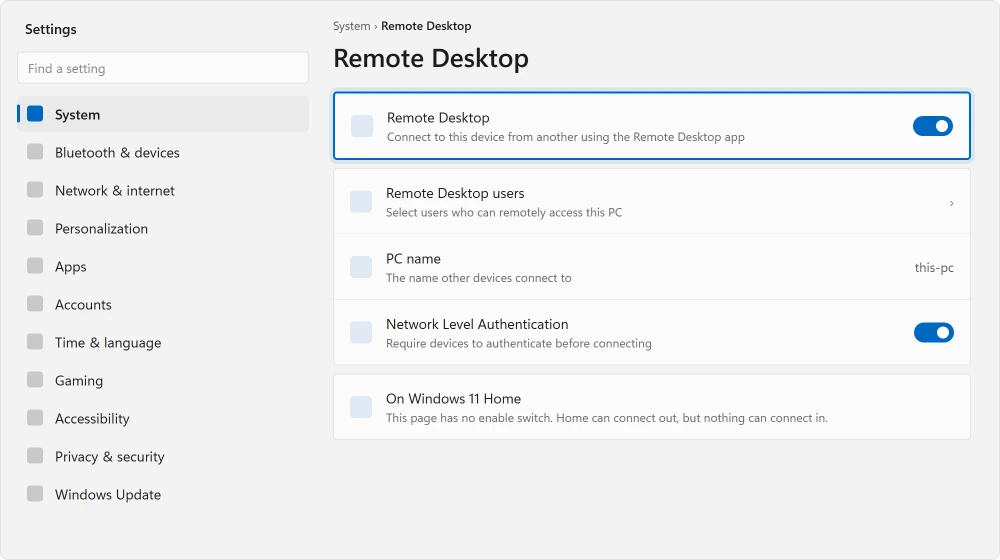
Buying one machine to leave at home and reach from elsewhere? That machine wants Pro. The laptop you carry does not.
You want to run virtual machines
Documented by Microsoft: "Client Hyper-V: requires a processor with second-level address translation (SLAT) capabilities. This feature is available in Windows Pro editions and greater."
Note both halves of that. It is a Pro feature, and it needs the right processor as well. Buying Pro alone guarantees you nothing.
Ours, and marked as ours: if virtual machines are your only reason for considering the upgrade, free alternatives exist and run on Home.
And if the machine already struggles, adding virtual machines will not help, so read what is really slowing the machine down first. Hyper-V is the built-in one, not the only one. Weigh that against the price before you pay it.
Hyper-V also runs the sandboxes some apps use, such as Claude Cowork, and the September 2026 update broke their folder sharing for a week. The Plan9 error page names the update that fixed it.
WSL 2 runs on Home too, through Virtual Machine Platform rather than Hyper-V. When its install fails with 0x80370114, that feature is the fix.
You have, or will have, a lot of memory
Now the difference nobody puts on a comparison table. This one is an absolute ceiling rather than a missing feature.
Documented by Microsoft in its memory limits reference:
| Edition | Physical memory limit |
|---|---|
| Windows 11 Home | 128 GB |
| Windows 11 Pro | 2 TB |
| Windows 11 Pro for Workstations | 6 TB |
For almost everybody this is irrelevant. I would rather say that plainly than use it to sell you an upgrade. A 128 GB ceiling is far beyond what a normal laptop or desktop will ever hold.
It matters if you are building a workstation for video, virtual machines or large datasets. Reading this about a laptop with 16 GB in it? Skip the whole section.
You are setting the machine up and do not want a Microsoft account
This one is practical. It hits you in the first ten minutes, and Microsoft buries it where no buyer looks.
Documented by Microsoft in the Windows 11 requirements: "Windows 11 Home edition requires an internet connection and a Microsoft Account to complete device setup on first use."
That is a requirement, not a suggestion. On Home you cannot finish setup with a local account and no internet.
Pro still lets you set up a machine without one. For some buyers that is the entire reason to pay the difference.
You are joining a work network
If your employer manages the machine, Pro is usually not optional, because domain join and the management tooling live there.
Ours, and marked as ours: do not buy Pro yourself for this without asking first. Plenty of employers supply the key, and some upgrade the machine for you once it enrolls. Paying twice for the same thing is an easy mistake to make here.
If Windows already reports a license problem, read its activation result before paying for an edition upgrade.
You have S mode and want to know where it fits
Documented by Microsoft: "S mode is only supported on the Home edition of Windows 11."
So S mode is a Home thing. If your machine is in S mode and you want out, Microsoft is equally clear about the direction of travel: "If you switch out of S mode, you can't switch back to S mode later."
It is a door that only opens one way. Better to know that before you walk through it.
When Home is the right answer
You should probably stay on Home. Saying that costs me nothing, and padding out the case for spending money would cost you.
Use one machine, sit in front of it, keep your files on it, happy with a Microsoft account? Then none of these differences will ever touch you. The features are real.
They are aimed at people running several machines, or managing them for other people.
Upgrade when you hit one of the specific walls on this page. Not before. And not because a comparison table has more ticks in one column.
Status: written 21 August 2026 against current Windows 11 documentation. The shopping page names one Pro-only feature. The rest comes from four separate technical pages.
Should I pay extra for Windows 11 Pro at home?
Usually not. The differences are Remote Desktop hosting, BitLocker, Hyper-V, a much higher memory ceiling and domain join. If you do not actually want any of those, Home does the same job for less money.
Can I use Remote Desktop on Windows 11 Home?
Only as the machine you connect from. Microsoft states that Home editions cannot serve as Remote Desktop hosts, so the PC you want to reach is the one that needs Pro. Connecting from a Home laptop to a Pro desktop works fine.
How much RAM can Windows 11 Home use?
128 GB, against 2 TB on Pro and 6 TB on Pro for Workstations. These are Microsoft's published physical memory limits. For a normal laptop or desktop the Home ceiling is far higher than the hardware will ever reach.
Can I set up Windows 11 Home without a Microsoft account?
No. Microsoft's requirements state that Home needs an internet connection and a Microsoft Account to complete setup on first use. Pro still allows a local account during setup, which for some buyers is the whole reason to choose it.
The Short Version
- Microsoft's own consumer comparison names one Pro-only feature, BitLocker.
- Home cannot host Remote Desktop, but it can connect to one that does.
- Hyper-V needs Pro or better, and a processor with SLAT as well.
- Home is capped at 128 GB of memory, against 2 TB on Pro.
- Home requires a Microsoft account and internet to finish setup.
- S mode exists only on Home, and leaving it is permanent.
Where to Next
The question I would actually ask yourself is which machine you are buying for. Remote Desktop is the difference that most often justifies the money, and it applies to the PC you leave behind rather than the one you carry.
Already on Home and wondering whether an upgrade would speed things up? It will not. Nothing on this page touches performance. If the machine feels slow, why a PC feels slow is where your answer usually is.
Where a guide has told you to open gpedit.msc, Home does not have it and there is a route that works instead.
There is a third option people rarely price properly against either edition. What a Chromebook actually gives up, and the date that decides how long it lasts.
Say in the comments what you want the machine to do. Half the people asking this question do not need Pro, and the other half need it for one very specific reason.

Isaac Smith is the founder and editor of PC Glance, a website that covers computers, laptops, and technology. He is a tech enthusiast and a computer geek who loves to share his insights and help his readers make smart choices when buying tech gadgets or laptops. He is always curious and updated about the latest tech trends.