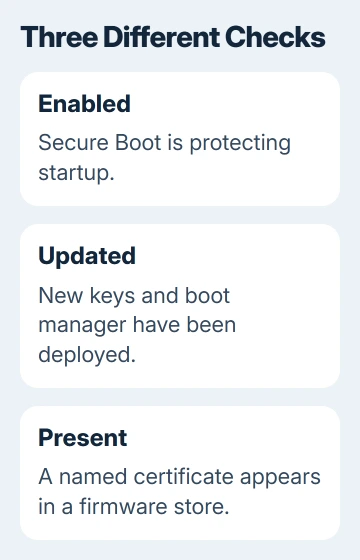
Secure Boot being on doesn't tell you whether a Windows 10 PC has the 2023 certificates. Check the update status in PowerShell first, then check the firmware database for the certificate you need.
These checks tell you whether Secure Boot is on, whether the certificate update finished, and whether a particular certificate is there. All three checks leave your boot settings unchanged.
In this guide
Start with the PC's boot mode
Press Windows key + R, enter msinfo32, and press Enter. In System Summary, read BIOS Mode, then Secure Boot State. A PC using this feature should show UEFI and On.
Off means the feature isn't enabled. For Unsupported, check the PC's boot setup and hardware before relying on certificate results. Don't switch firmware settings just to make a certificate check run.
For a PC that needs the feature enabled, read the Secure Boot preparation steps first. Changing firmware settings takes more preparation than running commands that only read information.
On a workplace computer, ask IT to run checks that need administrator access. A normal account can read some status information, but reading the firmware needs PowerShell running as administrator.
Read the certificate update status
Search Start for Windows PowerShell. Use its right-click menu to select Run as administrator, then approve the prompt. Use the built-in Windows PowerShell so the commands have access to the SecureBoot module they need.
Copy this command as one line. It reads the certificate update information without editing the registry:
Get-ItemProperty -Path 'HKLM:\SYSTEM\CurrentControlSet\Control\SecureBoot\Servicing' | Select-Object UEFICA2023Status,UEFICA2023Error,UEFICA2023ErrorEventMicrosoft explains how this field tracks the update in its certificate servicing reference. Read UEFICA2023Status for one of these values:
- Updated means the newer keys and boot manager are installed successfully.
- InProgress means the update has started and hasn't reached completion.
- NotStarted means the update hasn't run yet.
An error value of 0 means that field reports no error. A nonzero UEFICA2023Error needs attention even if the PC still starts. If UEFICA2023ErrorEvent has a value, save it to help you find the related event.
A missing registry path or blank fields don't give you a completion result. Don't create those values or type Updated into the registry: changing the label wouldn't install certificates.
I'd use this status check before examining individual certificates. It tells you whether the whole update finished. Finding one certificate name only answers part of that question.
Check whether the firmware trusts the 2023 Windows certificate
In the same administrator window, run:
Confirm-SecureBootUEFITrue means Secure Boot is enabled. False means it's disabled. An unsupported-platform error means the command can't run this check on your setup. An access error means it doesn't have the permission it needs.
Next, read the firmware's trusted-signature database and search it for the Windows certificate name:
$db = Get-SecureBootUEFI -Name db
[System.Text.Encoding]::ASCII.GetString($db.Bytes) -match 'Windows UEFI CA 2023'
The first line reads db, the firmware database of signatures allowed to start software. The second turns that data into searchable text and looks for the certificate name. Run the second line only if the first completed without an error.
True means that name was found in the returned database. False means this name search didn't find it. That only checks for the name. It doesn't fully check the certificate or tell you whether the updated boot manager is installed.
The Get-SecureBootUEFI reference describes the firmware variables the command can read. The similarly named Set-SecureBootUEFI changes them and isn't needed for this task.
An older 2011 certificate can remain for compatibility after an update. Judge completion by the servicing status, rather than expecting every older name to disappear.
Read the update-authorizing key separately
The KEK, or key exchange key, is a different firmware store. Its keys authorize changes to the trusted and blocked signature databases. To search it for the newer Microsoft key, run:
$kek = Get-SecureBootUEFI -Name KEK
[System.Text.Encoding]::ASCII.GetString($kek.Bytes) -match 'Microsoft Corporation KEK 2K CA 2023'
Again, wait for the first line to succeed before running the second. True confirms the name appears in that store. That doesn't mean the whole update finished if its status is missing or still shows it in progress.
Other configurations use Microsoft UEFI CA 2023 or Microsoft Option ROM UEFI CA 2023 for boot software and hardware. Which ones you need depends on the device. A missing optional name doesn't necessarily mean something is wrong.
Keep the results together: Secure Boot state, servicing status, and any certificate-name checks you ran. That gives the PC maker a much clearer report than a screenshot showing only On in System Information.
Match an unfinished result to the next action
Open Settings > Update & Security > Windows Update. Install the updates offered under your PC's support plan, and restart when asked. October 14, 2025 marked the end of ordinary free Windows 10 support.
The current consumer ESU enrollment page extends coverage through October 12, 2027.
Managed Extended Security Updates (ESU) and Long-Term Servicing Channel (LTSC) systems have different support plans. Ask IT which updates this particular Windows 10 installation is entitled to receive.
Find the exact laptop or motherboard model on its maker's support site and check the firmware guidance. Before applying firmware updates, have your recovery information ready and follow the maker's procedure for that model.
For a nonzero error, open Event Viewer > Windows Logs > System and look for related TPM-WMI events. Copy the event ID, timestamp and message rather than treating all certificate failures as the same fault.
Send IT or the manufacturer the event details, winver build and firmware version. Ask about updated firmware or managed certificate deployment. The certificate expiration page explains the deadline.
The Short Version
Read boot mode and UEFICA2023Status before checking a firmware store. Updated means deployment finished; a True name match means presence. For errors or missing status, check servicing and firmware.
Checked November 13, 2026.