
You save a picture or a scan in the Files app, open it, and press on the words. Nothing gets selected, although the same image lets you copy its text in Photos.
That started with iOS 27, and it is tied to Quick Look, the viewer Files uses. I read a thread with 24 Me too clicks where one owner got Live Text working again, and checked each step against Apple's Files and Preview guides.
What the owners found
The thread opened on an iPhone 17, and the owner narrowed it down fast: the same image still worked in the Photos app.
They had already tried the obvious reset. In their words: "I've toggled off/on Live Text in Language & Region settings".
A day later they reported Live Text working in Photos and in the Preview app, yet still failing in Quick Look, from Files and from Notes.
It is not only the iPhone. Another owner added: "The same in Books app on MacOs 27 and iPadOs 27."
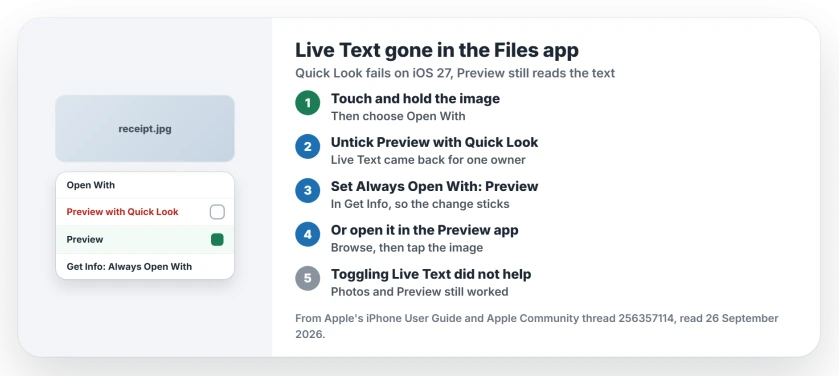
Status: iOS 27, checked 26 September 2026. Live Text fails in Quick Look but works in Preview. One owner got it back by opening the image outside Quick Look.
1. Stop Files opening the image in Quick Look
The fix comes straight from the thread. One owner wrote: "I had the same problem if my image was saved to my files folder."
They pressed and held the file name until the menu appeared, chose Open With, and unticked Preview with Quick Look. Live Text then, in their words, "returned as normal."
Apple's Files guide describes that menu plainly: "When opening a file, you can specify the app you want to open it with."
2. Make Preview the default for that kind of file
Rather not choose every time? Apple has a setting for it. Touch and hold the file, choose Get Info, then use the menu next to Always Open With.
Apple says the point is that "the file always opens in that app when you tap it." Pick Preview, and your images skip Quick Look from then on.
3. Or open the picture from the Preview app
You do not have to start in Files at all. Apple's Preview guide says: "You can browse and open PDFs and images directly in Preview, without opening the Files app first."
Open Preview, tap Browse, find the image and open it, then press on the text as usual.
4. Check that Live Text itself is on
If Live Text fails in Photos too, the cause is different. The switch sits in Settings, under General, then Language & Region, and the screenshot text page walks through it.
Apple also says Live Text only works in some regions and languages. A missing button everywhere points there first.
5. Give the update time to finish indexing
After iOS 27, the first owner saw an indexing message in Settings. When it cleared, they wrote: "The indexing has now finished (at least the message has gone from Settings)."
That brought Photos and Preview back, but not Quick Look. So waiting helps the rest of the phone, not the viewer itself. That reading is ours.
Other iPhone file and text problems
If files open in an app you did not expect since the redesign, the Files app page explains Open With. And if Look Up does nothing on your photos, the Visual Look Up page has the checks.
Why does Live Text not work in the Files app?
Since iOS 27, Live Text fails in Quick Look, the viewer Files uses for images. The same image works in Photos and in Preview.
Can I still copy text from an image saved in Files?
Touch and hold the file, choose Open With, and open it in Preview instead of Quick Look. Then press on the text.
How do I stop Files opening images in Quick Look?
Touch and hold the file, choose Get Info, and set Always Open With to another app, such as Preview.
Does turning Live Text off and on fix it?
Not for this fault. One owner toggled it in Language & Region settings, and Quick Look still would not select text.
The Short Version
- Live Text fails in Quick Look on iOS 27.
- Photos and Preview still read the text.
- Open the file with Preview instead.
- Or set Always Open With in Get Info.
- The Preview app opens images directly.
- Toggling Live Text did not help.
Where to Next
Open one of your saved images in Preview now and press on the text. If it selects, set Preview as the default for images.
Has an update fixed Quick Look for you? Leave the version number in a comment, so other readers know when they can stop working around it.

Isaac Smith is the founder and editor of PC Glance, a website that covers computers, laptops, and technology. He is a tech enthusiast and a computer geek who loves to share his insights and help his readers make smart choices when buying tech gadgets or laptops. He is always curious and updated about the latest tech trends.