

Messages on your Mac shows gray circles with initials where your contacts' photos should be. Your iPhone may show some of them fine, which makes it more confusing.
That is annoying when every conversation looks the same at a glance. I read Apple's Contacts guides, plus a MacRumors thread where owners have pooled fixes since early 2024.
Why the photos disappear
The thread has about 23,000 views and 33 replies. Owners report more than one cause, and the newest answer came in September 2026.
That owner opened with "I FOUND THE SOLUTION TO THIS!!" In their words, "there is an option to have contact and poster photo. By default when you assign a photo its only putting its as the poster photo."
Earlier owners traced the problem to something else: a Microsoft Exchange or Outlook contacts account on the same Mac.
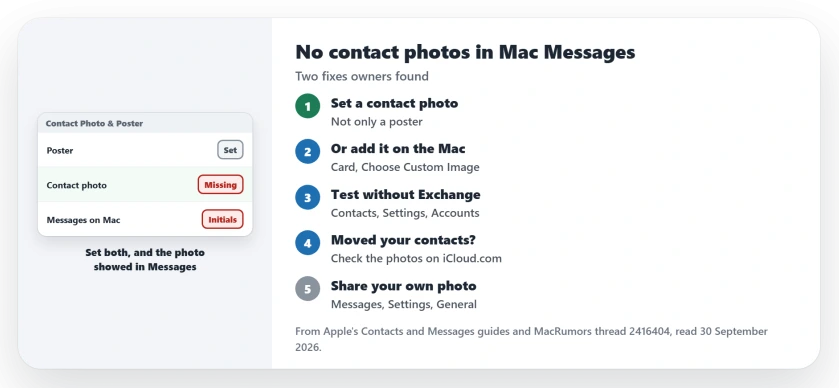
Status: checked 30 September 2026. One owner fixed it by setting a contact photo as well as a poster. Another fixed it by turning off an Exchange contacts account on the Mac.
1. Set a contact photo, not only a poster
On your iPhone, open the contact, tap Edit, then tap Contact Photo & Poster. Make sure the contact has a photo chosen as well as a poster.
In that owner's words: "you have to also select the same or your choice photo as the contact photo as well." After that, the picture "showed up in iMessage and contacts instead of the circle with the initial."
2. Or add the picture on the Mac
You can also set it on the Mac directly. In Contacts, select a card, choose Card, then Choose Custom Image, click Photos, and pick a picture.
Apple's Contacts guide says these pictures "appear in contact cards and in other apps that use contact information, such as Mail and Messages."
Click Save, then Done, and I would test with one contact you message often before doing the rest.
3. Test with the Exchange account turned off
If you have work contacts from Exchange on the Mac, try this next. One owner wrote: "The issue was 100% solved as soon as I disabled my Microsoft Exchange contacts from the Apple Contacts app!"
In Contacts, choose Contacts, then Settings, then Accounts, and select the Exchange account. Apple says that when you turn off Enable this account, "The account's contacts are removed from your Mac (until you select the checkbox again)."
Another owner only got their photos back after they "had to remove MS outlook from my Mac" and its contact sync. Try the Exchange switch first, since it is easy to undo.
4. Check your photos after moving contacts
Moving contacts between accounts can lose the pictures. One owner moved theirs from Exchange to iCloud, and in their words: "Out of ~600 contacts, I only have photos for about 10."
Another owner saw photos on the iPhone that never reached iCloud or their other devices. Check a few contacts on iCloud.com to see whether the pictures are there.
5. Share your own photo, if others ask
This works the other way round. On the Mac, choose Messages, then Settings, then General, and set up Name and Photo Sharing.
Apple describes Share Name and Photo as a way to "Share your name and photo in the messages you send." It only changes what other people see, not the pictures on your screen.
Other contact and Messages problems
On iPhone, posters that fail to appear on calls are a separate problem, and the contact poster page covers it. For RCS texts stuck as Not Delivered on a Mac, the RCS page has that fix.
Why are contact photos missing in Messages on my Mac?
Owners found two causes. The picture was set only as a contact poster, or an Exchange contacts account on the Mac got in the way.
Why does my iPhone show contact photos when my Mac does not?
The picture may be saved as a poster only on that contact. Or it may never have synced from your iPhone to iCloud. Set a contact photo as well and check iCloud.com.
Does an Exchange account affect contact photos on Mac?
It did for one owner. Turning off the Exchange contacts account in Contacts settings brought their photos back.
The Short Version
- Set a contact photo, not only a poster.
- Or add the picture on the Mac.
- Turn off an Exchange contacts account to test.
- Removing Outlook fixed it for one owner.
- Moving contacts can lose the photos.
- Check the pictures on iCloud.com.
- Name and Photo Sharing only affects others.
Where to Next
Pick one contact without a photo and set a contact photo on your iPhone now. Then open Messages on the Mac and look again.
If none of this brings the photos back, leave a comment with how your contacts sync. Knowing the account type helps.

Isaac Smith is the founder and editor of PC Glance, a website that covers computers, laptops, and technology. He is a tech enthusiast and a computer geek who loves to share his insights and help his readers make smart choices when buying tech gadgets or laptops. He is always curious and updated about the latest tech trends.