
Close a window and your screen fills with thumbnails of every open window and desktop. Close the next one and it happens again. You never asked for it. I would look at Game Bar and any game controller before you blame your keyboard.
That screen is Task View, the desktop switcher. Over 30 people say it happens to them as well, on Microsoft's support board. The fix that worked came from owners, not from the support answer.
Where owners saw it
The asker wrote in May 2026: "when I close any window the Desktop Switching screen takes over." It started after an update, went away, then came back with the next update.
If you use two screens, watch the second one. Another owner saw it when clicking taskbar icons there, most often File Explorer. In their words, they were "not pressing any buttons when this happens, only a left mouse click."
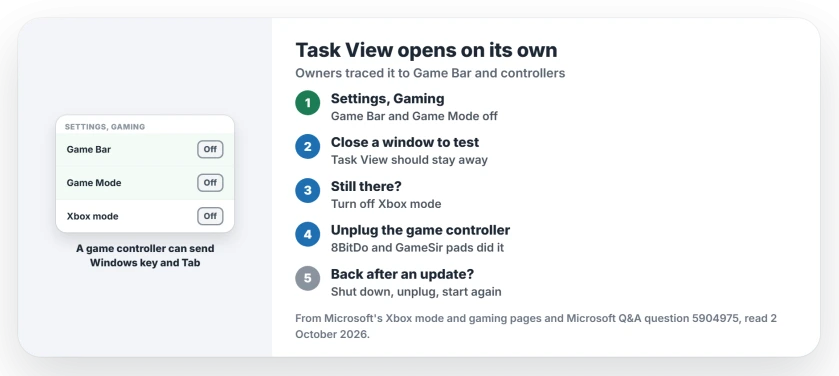
Status: checked 2 October 2026. Turning off Game Bar and Game Mode, or Xbox mode, stopped Task View opening for owners. Unplugging a game controller fixed it for two more.
1. Turn off Game Bar and Game Mode
This fix has the most backing. One owner wrote: "Turning both off in Settings->Gaming has resolved the issue", and the comment drew more than 30 votes.
Two owners replied that it worked for them. One wrote "That fixed it!", and another called it a life saver after the screen had come and gone with updates.
Microsoft says Game Mode should be on by default on your PC, under Settings, Gaming, Game Mode. Game Bar has its own page in the same Gaming section. Switch both off. Then close a window to test.
2. Turn off Xbox mode
Xbox mode sits on the same Gaming page from Windows 11 24H2 onward, in supported markets. Check yours next. Microsoft's Xbox mode page says that in Xbox mode, Task View opens with a "long press on the Xbox button".
One owner found that setting was the culprit: "turning off XBOX mode fixed my issue." Still there after that? They suggest also turning off the Game Bar options that let a controller open it.
3. Unplug your game controller
Two owners found the cause in their hands. One had an 8BitDo pad that seemed to "send WIn+Tab signals for some reason", and seven people marked that helpful.
Windows key and Tab is the Task View shortcut on Microsoft's desktops page. The other owner had a wired GameSir pad: "Once I unplugged it, the problem disappeared!" Unplug yours and test.
4. Shut down fully if it returns
One owner who had seen it a couple of times cleared it with a full shutdown. They unplugged the PC for 30 seconds to a minute, plugged it back in and started it again.
That is user-reported, from one owner who has seen it come back before. Treat it as a reset, not a cure.
The support answer that did not work
A moderator offered four steps: test Windows key and Tab, hide the Task View button, turn off touchpad gestures and restart Windows Explorer. One owner went through all four on a desktop PC and none helped. You can skip them.
The asker also saw it vanish and return across updates. So it does look like a Windows bug. Yet the Game Bar and controller fixes held where owners tried them.
If windows seem to vanish to another desktop instead, the virtual desktop page shows how to bring them back. And when Alt and Tab misbehaves too, the Alt Tab page covers that switcher.
Why does Task View open when I close a window?
Owners traced it to Game Bar, Game Mode, Xbox mode or a game controller sending the Windows key and Tab shortcut. Turning those off, or unplugging the pad, stopped it.
How do I stop the desktop switching screen popping up?
Open Settings, Gaming, and turn off Game Bar and Game Mode. If it still appears, turn off Xbox mode and unplug your game controller.
Can a game controller open Task View?
Yes. Microsoft's Xbox mode page lists a long press on the Xbox button as a way to open Task View in Xbox mode, and owners found third-party pads triggering it.
The Short Version
- The desktop switching screen is Task View.
- More than 30 owners saw it after updates.
- Turn off Game Bar and Game Mode in Settings, Gaming.
- Turn off Xbox mode if your PC has it.
- Unplug any game controller, wired or wireless.
- A full shutdown cleared it for one owner.
- The four support steps did not help.
Where to Next
Open Settings, Gaming, switch off Game Bar and Game Mode, and close a few windows. If Task View stays away, turn Game Mode back on later and test again.
If Task View still opens with no controller connected, post your PC and any gaming software under this article. Each new cause I hear of goes here.

Isaac Smith is the founder and editor of PC Glance, a website that covers computers, laptops, and technology. He is a tech enthusiast and a computer geek who loves to share his insights and help his readers make smart choices when buying tech gadgets or laptops. He is always curious and updated about the latest tech trends.