

Windows 11 has separate controls for Game Bar launch and recording. In Settings > Gaming > Game Bar, disable Allow your controller to open Game Bar. To stop background capture too, turn off Record what happened in Gaming > Captures.
Those switches don't uninstall Game Bar. Windows+G can still open the installed app, and a pinned widget can need closing separately. Choose the controls that match what's appearing on your screen.
In this guide
Stop the controller button opening Game Bar
Press Windows+I to open Settings. Select Gaming > Game Bar, then turn Allow your controller to open Game Bar off. On some versions, the label refers to opening Game Bar using the button on a controller.
Return to your game and press the controller button that previously opened the overlay. If Game Bar no longer appears, that shortcut is disabled. The controller can still work inside your game.
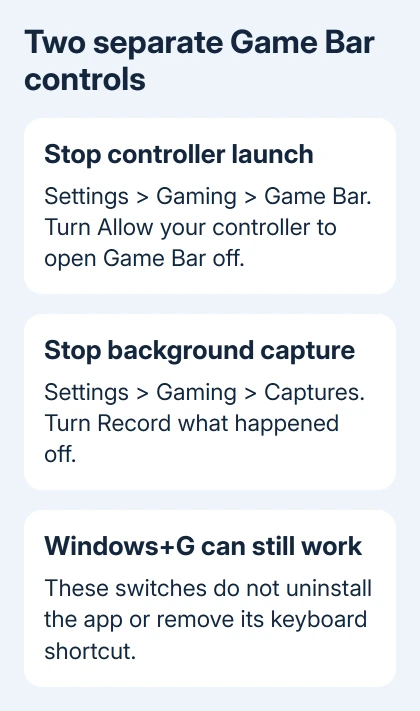
This switch stops the controller button from opening Game Bar. It doesn't remove Game Bar or disable its keyboard shortcut. Pressing Windows+G afterward can still bring it up, which doesn't mean the controller setting failed.
Microsoft's Game Bar keyboard instructions describe its separate shortcuts. To check whether your change worked, try the button or shortcut you wanted to turn off.
If a controller instead opens Task View when you close windows, use the Task View and controller checks. That page addresses unwanted desktop thumbnails rather than ordinary Game Bar widgets.
Turn off background gameplay recording
Open Settings > Gaming > Captures and turn Record what happened off. This turns off the feature that keeps recent gameplay ready to save as a clip, including what happened before you pressed Record.
An older interface may call this Record in the background while I'm playing a game. Use the background-recording control your installed version displays rather than searching for the exact wording from another Windows build.
Background capture is separate from a recording you start yourself. Turning off the background feature doesn't necessarily stop a recording you've already started yourself.
If a recording timer is running, use its Stop recording control. A recording started through Game Bar can also be stopped with Windows+Alt+R. That shortcut starts or stops recording, so use Stop recording if you're unsure which it will do.
Saved clips remain in the capture folder. Disabling recording doesn't delete them or recover their disk space. Review the files separately if storage is your reason for stopping capture.
I'd turn off background capture before removing the app when saving recent gameplay is the unwanted feature. You can still take a screenshot or start a recording when you want one.
Close pinned widgets that stay on the desktop
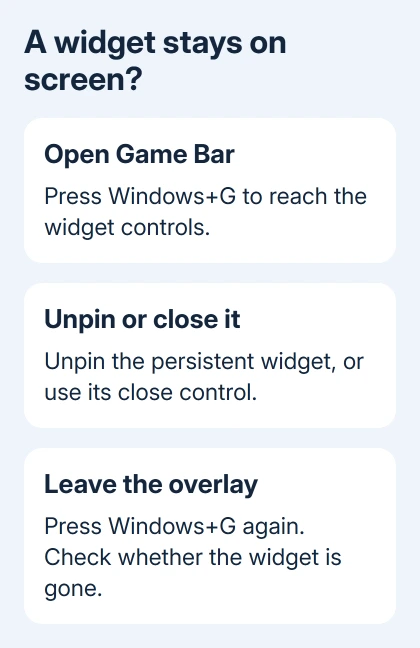
Press Windows+G to open the Game Bar controls. Look for a widget that remains visible outside the overlay, such as a performance display, then use its pin control to unpin it or its close control to dismiss it.
Press Windows+G again or click back into your app to leave the overlay. Check whether the unwanted widget remains. Turning off controller access won't automatically remove a widget you previously pinned.
A performance counter from another app needs that app's own controls. For example, a game launcher or graphics utility can display an overlay independently of Game Bar. Disabling one overlay doesn't switch every other overlay off.
If the only issue is distracting information during play, closing the widget can be enough. If recording is also unwanted, make the capture change in the previous section instead of assuming a hidden widget has stopped capturing.
Remove Game Bar if you want the app gone
Open Settings > Apps > Installed apps, then search for Game Bar or Xbox Game Bar. If its three-dot menu offers Uninstall, select that option and follow the confirmation.
The menu can differ between Windows releases and managed PCs. If Uninstall isn't available, you can't remove it through Settings on that PC. Turning off the supported launch and capture controls is still useful.
Game Bar can also appear under Settings > System > System components on newer layouts. Check there if it isn't in the ordinary installed-app list. Where Game Bar appears in Settings doesn't change what the controller switch does.
For removal through PowerShell, open Start, search for Windows PowerShell, and open it under your own account. The package-removal cmdlet can remove Game Bar for your Windows account:
Get-AppxPackage -Name Microsoft.XboxGamingOverlay | Remove-AppxPackageIf Windows reports that removal isn't allowed, stop there rather than trying to override a protected package. If removal succeeds, Windows+G can no longer open that copy; Windows may ask for an app to handle the shortcut instead.
The Xbox app, Game Bar, and gaming services are separate components. This command names only Game Bar; it leaves the Xbox app and other gaming packages installed.
If you need Game Bar again after removing it, use Microsoft Store to find and install it. Check the capture settings afterward so you restore only the features you want.
For Game Bar that you want to keep but can't use, the Game Bar repair instructions cover repair and reset. Those are recovery actions, rather than ways to disable it.
Check what still opens before making deeper changes
Test controller access and keyboard access separately. With the controller switch off, the controller shouldn't launch Game Bar through that setting, while Windows+G can still open it if it's installed.
Check Captures separately too. Record what happened should stay off after disabling background capture. A manual recording started later is a separate action, so it doesn't mean the switch turned back on.
Game Mode is also separate. It changes how Windows handles gaming, while Game Bar provides widgets and recording controls. Leave Game Mode enabled if the overlay is your only complaint.
Be careful with older registry or policy instructions copied from Windows 10. Microsoft's AllowGameDVR policy page says its policy is enforced only on Windows 10 desktop. Don't assume that policy is a complete Windows 11 removal method.
If a managed PC restores those settings, ask the administrator whether device management controls them. On a personal PC, send Windows Feedback Hub your build from winver and the exact switch that changes back.
Describe the remaining behavior precisely: controller launch, background capture, a pinned widget, or Windows+G. That helps them focus on the feature that's still turning up.
The Short Version
Disable controller access in Gaming > Game Bar and background capture in Gaming > Captures. Close pinned widgets separately. Windows+G can still open the installed app; use Uninstall only when your Windows installation offers it.
Checked November 12, 2026.
 If you have any business, I can build it online






