

You start copying a big file to a memory stick or an external disk, the bar crawls to 95 percent and sits there, then Windows gives up: "Error 0x80070079: The semaphore timeout period has expired".
I would move the drive to another USB port first, then check the drive itself. Both worked for owners: a slower port or cable, or a disk check that found bad clusters.
Skip the antivirus and router advice. It did not help the people who tried it.
The busiest Microsoft Q&A question on this error has 500+ people asking the same thing.
What the error means
Windows waited for the drive to answer. It gave up. Microsoft's list of system error codes has it as number 121: "The semaphore timeout period has expired".
The 500+ asker described the usual pattern: "Any larger size file starts copying and thatn stops around 95-98% before its finshed". Ours: small files slip through, and the long write is where a weak link in your setup shows.
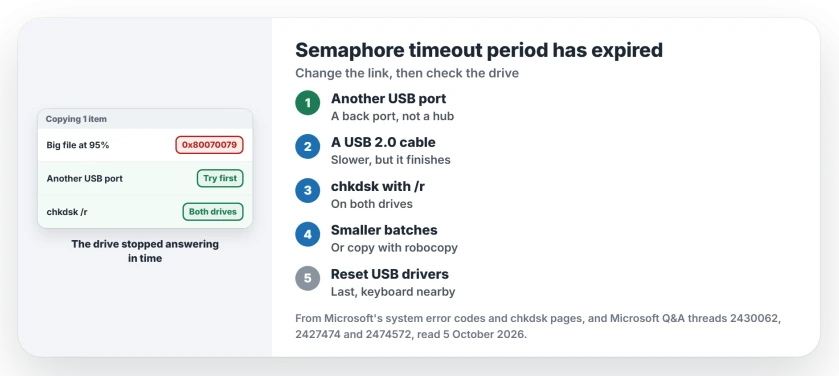
Status: checked 5 October 2026. Another USB port or a USB 2.0 cable cleared it for owners, and chkdsk found bad clusters for one.
1. Try another port or cable
Owners with USB 3.0 drives fixed it by slowing the link down. Owners report the same fix with different drives.
One wrote, in a reply with 50+ helpful votes: "I then connected my external USB 3.0 HDD using USB 2.0 cable on the same port and i works like a breeze". Try that first.
A Western Digital owner moved the drive from a red USB 3.1 port to a blue one: "The problem went away after I switched the drive to a different USB port on my computer".
If your PC has an older USB 2.0 port, try it. A 2017 owner did: "No errors: perfect file transfer and fast". Ours: on a desktop, use a port on the back, straight on the motherboard, not a front panel or a hub.
2. Check the drive itself
A 2011 asker copying a 4 GB file between two drives fixed it with a disk check. Run as administrator, chkdsk "reported bad clusters in one of the sub-folders", and after the repair the copy went through.
In an administrator Command Prompt, type chkdsk, the drive letter and /r. Microsoft says /r finds bad sectors and recovers what it can still read. Check both drives. The one you copy from can be the bad one.
Another owner found the cause in the System log in Event Viewer: "the external USB drive had bad areas". Ours: a drive with bad areas is one to copy off and replace. Check its health first.
3. Copy in smaller pieces, or with robocopy
Copying less at once worked for two owners. One "selected them in three smaller groups. These transferred without any further hiccups".
A Windows 10 owner with a USB 3.0 drive in an enclosure tried the command line instead: "Robocopy worked!" The robocopy page has the exact command for a whole folder.
4. Reset the USB drivers
The answer marked as the fix on the 500+ thread: remove the USB drivers in Device Manager, then cut the power.
Its author explained the second step: "By unplugging power cord and let it stay for at least 5 minutes, you are forcing your PC to renegotiate drivers and devices".
I would leave this one for last. Ours: removing USB drivers can leave a USB keyboard and mouse dead until Windows restarts, so close everything first.
The same post blamed a faulty stick for starting it. If one drive keeps doing this on every PC, the drive is the problem.
A memory card or a FAT32 drive
Slow cards struggle too. A 2012 owner swapped a Class 4 microSD card for a faster SanDisk card and "copied the file without error".
A 2016 owner: "My problem was solved when I reformatted my external hdd from FAT32 to NTFS". Ours: formatting erases the drive, so copy everything off first, and pick the format by your biggest file.
What did not help
Antivirus and router changes, which the 400+ thread accepted as its answer. A later reader asked what a wireless network or antivirus would "have to do with the burning {copying} process among local devices".
The hardware troubleshooter, accepted on a 200+ thread. A later reader on that thread said it "hasnt worked for me", even after trying everything else they found.
Is my drive failing if I see error 0x80070079?
Not always. A port, a cable or a slow card causes it too. Ours: if chkdsk or Event Viewer reports bad sectors, treat the drive as failing and copy your files off.
Why does the copy stop at 95 percent?
The last part of a big write is where a slow or flaky link times out. Owners saw it on large files and not on small ones, which is why a different port or cable helps.
Can I copy the file another way?
Yes. Robocopy from the command line worked for one owner, and splitting the copy into smaller groups worked for another.
The Short Version
- Move the drive to another USB port, ideally on the back.
- Try a USB 2.0 cable or port on a USB 3.0 drive.
- Run chkdsk with /r on both drives.
- Copy in smaller groups, or use robocopy.
- Reset USB drivers last, with a wired keyboard nearby.
- Bad sectors? Copy off and replace the drive.
Where to Next
Unplug the drive now and plug it into a different port, then copy the same file again. If it stops at the same point, run chkdsk on both drives.
Which change got your copy through? A comment with the drive and the port type helps the next reader.

Isaac Smith is the founder and editor of PC Glance, a website that covers computers, laptops, and technology. He is a tech enthusiast and a computer geek who loves to share his insights and help his readers make smart choices when buying tech gadgets or laptops. He is always curious and updated about the latest tech trends.