

Task Manager shows System Interrupts near the top, sometimes at 100 percent, and your fan never stops. You cannot end it, and it is not a program you installed.
I would unplug your USB devices one at a time and turn off sound enhancements. System Interrupts is hardware asking the processor for attention, and owners traced theirs to a USB device or the sound driver.
The busiest Microsoft Q&A thread on it has 2,100+ people asking the same question.
What System Interrupts is
It is not a real program. Task Manager shows it so you can see time the processor spends answering hardware: the USB controller, the sound chip, the network card, the graphics card.
A few percent is normal. When it sits high for minutes, one device or its driver is calling far too often.
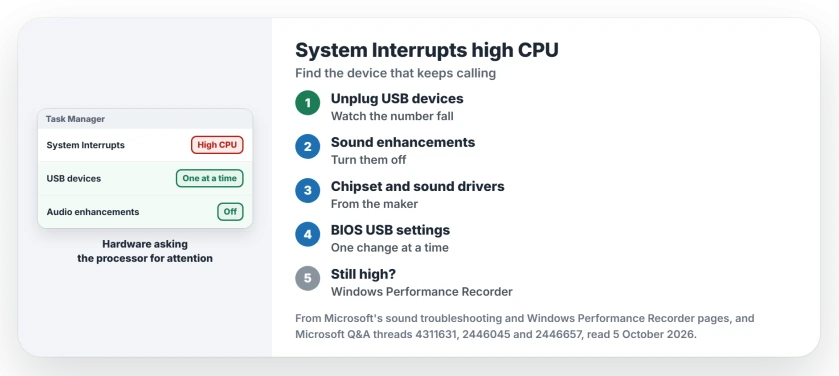
Status: checked 5 October 2026. Owners fixed it by turning off sound effects and by changing USB settings in the BIOS; others tied it to a connected iPhone. The evidence is old, the method holds.
1. Unplug your devices one at a time
Start with USB: phones, hubs, docks, webcams, game controllers. In 2009 owners saw it "ONLY after I connect my iPhone or open up itunes", and a 2010 trace showed "the CPU is being occupied by USBPort.sys".
Ours: unplug one device, wait a minute, watch Task Manager. When the number drops, you have found it.
2. Turn off sound enhancements
The accepted answer on the 400+ thread came from an owner whose System Interrupts was "at about 30% CPU time". Their fix was to "Click Disable All Sound Effects".
In their words: "The sound enhancements seem for some reason to cause the problem even when not used". Five days later "the bug seems to have disappeared".
On Windows 11, Microsoft's sound page puts it under Settings, Sound, your output device, then Audio enhancements set to Off. Microsoft says to switch them off when sound misbehaves, so the setting is safe to try.
3. Update the chipset and sound drivers
Get both from the support page for your model on the maker's site, not from a driver-updater app. Ours: the chipset driver covers the USB controllers, which is where the old traces pointed.
If the spike began after a driver update, roll that driver back in Device Manager instead.
4. Check the USB settings in the BIOS
A 2015 owner wrote: "I just disabled USB legacy and USB 2.0 in my bios". They had traced it first: "I used xperf to discover USBPORT.SYS was causing high system interrupts".
Ours: change one BIOS setting at a time, and write down what it was. A wrong USB setting can leave a USB keyboard dead at startup.
5. Find the driver with a trace
That owner's xperf comes from the same Microsoft toolkit as Windows Performance Recorder, which Microsoft describes as "a performance recording tool that is based on Event Tracing for Windows (ETW)".
Record a minute while System Interrupts is high, then open the recording in Windows Performance Analyzer, the viewer that comes with it. The driver taking the most time is your suspect.
When it starts with the charger
A Dell owner in 2020 saw it the moment they plugged in: "Immediately after plugging AC charger in, Task manager reports 100% CPU usage and never drops from that". No fix was posted.
Ours: try the laptop's original charger, then a different socket. Heat changes how interrupts behave as well, as a keyboard lag case showed.
Can I end System Interrupts in Task Manager?
No. It is not a process you can close. You lower it by stopping the device or driver that keeps interrupting.
Is System Interrupts a virus?
No. Windows shows it on every PC. Ours: malware hides inside real programs, not inside this line.
Why is my fan loud with System Interrupts high?
The processor is working, so it heats up. Our loud laptop fan guide covers the rest of the list.
The Short Version
- System Interrupts is hardware calling the processor.
- Unplug USB devices singly and see whether the number falls.
- Turn audio enhancements off for your output device.
- Update chipset and sound drivers from the maker.
- Try the BIOS USB settings one at a time.
- Still high? Record a trace with Windows Performance Recorder.
Where to Next
Unplug everything except the keyboard and mouse, then restart and watch Task Manager for five minutes. If the number stays low, plug things back one by one.
Which device was it for you? Tell us in the comments, because the old threads name phones and USB ports and we want newer ones.

Isaac Smith is the founder and editor of PC Glance, a website that covers computers, laptops, and technology. He is a tech enthusiast and a computer geek who loves to share his insights and help his readers make smart choices when buying tech gadgets or laptops. He is always curious and updated about the latest tech trends.