
You delete ten gigabytes of old projects inside Ubuntu, then check drive C: in File Explorer. The free space has not moved. Sometimes it has even dropped.
I would compact the Linux disk file, which takes one command on a current WSL. Older versions can use diskpart, which works on Windows Home too. The asker of a Super User question with 366,997 views lost a gigabyte after deleting ten.
Why C: gets nothing back
Each WSL 2 distribution keeps its Linux files inside one virtual disk, a file called ext4.vhdx. Microsoft documents that "WSL 2 automatically resizes these VHD files to meet storage needs". That resizing only runs one way.
The accepted Super User answer says so plainly. WSL grows the disk, "but shrinking it to reclaim unused space is something that must currently be done manually".
Microsoft's diskpart page says the same of every dynamic disk file. They "increase in size as you add files, but they do not automatically reduce in size when you delete files".
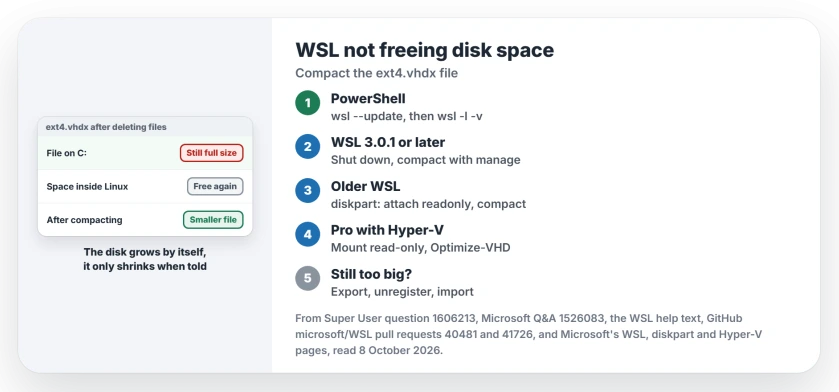
Status: checked 8 October 2026. WSL 3.0.1 can compact a distro's disk itself. Older versions need diskpart, which works on every Windows edition, or Optimize-VHD on Pro.
Ours: Windows 11 Home 25H2, WSL 3.0.1.0. Its help text lists a new option under manage: "Compact the VHDX file of a WSL 2 distribution". This laptop has no Linux distro installed, so I could not run it.
1. WSL 3.0.1 or later: one command
Check your version and update first. Then list your distros by name:
wsl --version
wsl --update
wsl -l -v
Now stop WSL and compact the distro you want. Here it is one called Ubuntu:
wsl --shutdown
wsl --manage Ubuntu --compact
The pull request behind it says the command "compacts the VHDX backing file for a stopped WSL 2 distro". A running distro gets turned away, so close every WSL window first.
Running Docker Desktop? Quit it too. The accepted answer warns that otherwise "it may inadvertently attempt to restart WSL" after your shutdown.
A community contributor wrote the feature, which was merged on 12 August 2026 and first shipped in the 2.9.8 preview on 24 August. The stable 3.0.1 release of 29 September carries it, as the help text on this laptop shows.
2. Older WSL on any edition: diskpart
You need the full path of the file first. Microsoft's disk space page gives a PowerShell line that prints it. Our page on WSL's file-not-found error walks through that line.
Copy the file somewhere safe before you touch it. The accepted answer starts the same way, suggesting you "copy the vhdx as a backup" once WSL is down.
Then open Command Prompt as administrator:
wsl --shutdown
diskpart
select vdisk file="C:\path\to\ext4.vhdx"
attach vdisk readonly
compact vdisk
detach vdisk
exit
That script comes from a 2022 answer on the same question. "This worked for me. went from about 200GB to 60GB," one owner replied. Another said it was the only method that worked on their Windows 10 Home PC.
One owner found WSL and Windows Terminal frozen on a black screen afterwards. Their fix was simple: "Restarting windows resolved these for me".
3. Windows Pro with Hyper-V: Optimize-VHD
The accepted answer's first route reads: "If you are on Windows Professional or higher, you can install Hyper-V and use the Optimize-VHD commandlet".
The asker turned Hyper-V on and accepted the answer. They had "successfully purged my distro with 2GB using the first method".
Owners in that thread run it straight on the file with Full mode. Read Microsoft's page before you copy that. Full mode is "Allowable only if the virtual hard disk is mounted read-only", it says.
On a file not attached that way, the command "will default to Prezeroed mode". So mount it read-only first. Mount-VHD has a switch for exactly that:
Mount-VHD -Path "C:\path\to\ext4.vhdx" -ReadOnly
Optimize-VHD -Path "C:\path\to\ext4.vhdx" -Mode Full
Dismount-VHD -Path "C:\path\to\ext4.vhdx"
Ours: I could not test this order on Windows Home. It follows Microsoft's page, not an owner report. Microsoft also notes that "The compact operation can succeed without reducing the file size, if no optimization is possible".
When compacting gives back too little
Export and import builds a fresh disk that holds only your files. One owner's diskpart and Optimize-VHD runs fell short. Then "The third option (import/export) did the job for me, from 60Go to 15Go".
wsl --shutdown
wsl --export Ubuntu D:\wsl-backup\ubuntu.tar
wsl --unregister Ubuntu
wsl --import Ubuntu D:\WSL\Ubuntu D:\wsl-backup\ubuntu.tar
Unregister deletes the distro and its disk. Run it only once the .tar file exists and has a sensible size. The accepted answer adds one chore: "Note that you will need to reset the default username after an import".
Docker Desktop keeps a disk of its own, and one owner found theirs under AppData\Local\Docker\wsl in the user folder. Another used Docker's purge, which "reduced my image from 40GB to 1.5GB".
Know what that button does before you press it. Docker now calls it Clean up data, and its documentation says: "A disk image reset destroys all Docker containers and images local to the machine, preserving all settings".
Is C: still short after all this? Our guide to freeing up disk space sorts the other big folders by how much each can give back.
Sparse mode is still an experiment
WSL can also mark your disk sparse, which its help text describes as "allowing disk space to be automatically reclaimed". Owners have not seen it work reliably yet.
"I haven't had much luck with the sparse option, it seems to still be taking up the same amount of space," one wrote under the accepted answer. You may lose the manual routes, too.
A Microsoft Q&A asker fared worse, because after switching, Optimize-VHD refused: "Virtual hard disk files must be uncompressed and unencrypted and must not be sparse".
The diskpart route has the same limit. An owner warned that "this doesn't work if the image is set to sparse". Microsoft still files sparseVhd under experimental settings.
The 3.0.2 preview now shows "an experimental warning whenever sparse mode is enabled". Switched it on already? Another owner gave the way back: wsl --manage Ubuntu --set-sparse false, then compact as normal.
Will compacting delete my Linux files?
No. Compacting only drops empty space inside the disk file, and your home folder stays as it was. Keep the backup copy until WSL starts normally again.
Why does Linux report a 1 TB disk?
That is the most it may grow to, not what it uses. Microsoft says each disk "is initially allocated a 1TB maximum amount of disk space". The file on C: shows the real size.
The Short Version
- Deleting files inside WSL never shrinks ext4.vhdx by itself.
- WSL 3.0.1 or later: shut WSL down, then compact with the manage option.
- Older WSL: diskpart, attach the vdisk read-only, compact vdisk.
- Pro with Hyper-V: Optimize-VHD, with the disk mounted read-only for Full mode.
- Still too big? Export, unregister, import.
- Leave sparse mode alone for now.
Where to Next
Note the size of ext4.vhdx before you start and again after. How much did you get back, and with which method? Leave both numbers in a comment with your WSL version. Real results from other PCs help the next reader pick a method.

Isaac Smith is the founder and editor of PC Glance, a website that covers computers, laptops, and technology. He is a tech enthusiast and a computer geek who loves to share his insights and help his readers make smart choices when buying tech gadgets or laptops. He is always curious and updated about the latest tech trends.