
You type cd D:\ in Command Prompt, press Enter, and the prompt still shows your C: folder. No error appears. Tab completion even finds folders on D:, so Windows clearly sees the drive.
I would stop fighting cd and add one switch: cd /d D:\ moves you to the drive and the folder at once. Typing the drive letter alone also works.
The best-known Super User question on this, from April 2010, has 1,504,960 views. Four more copies of it sit there.
cd changes a drive's folder, not your drive
Command Prompt remembers a current folder for every drive letter. Plain cd sets that remembered folder on D:, but you stay on C:, so nothing on screen changes.
The accepted answer put it this way: cd to a D: path "does not change the fact that you're still working on the C: drive". That is all.
Microsoft documents the same quirk for when you give cd a drive letter alone: "cd displays the names of the current directory in the specified drive".
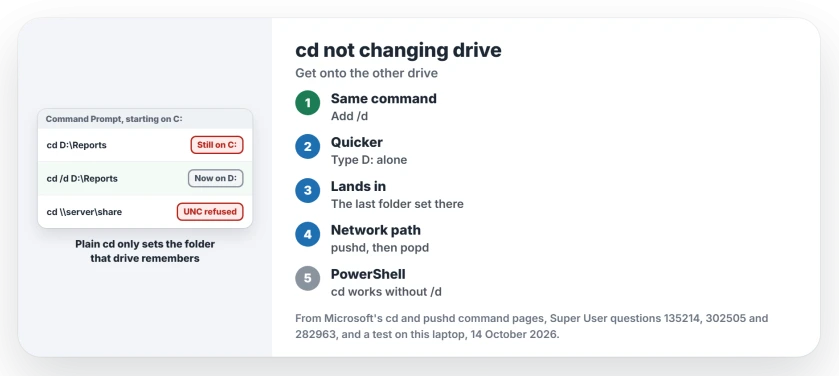
Status: 14 October 2026, Windows 11 25H2, cmd.exe 10.0.26200. Plain cd still leaves you on C: with no error; /d and pushd still fix it.
Ours: on this laptop a temporary test drive, Q:, stood in for a second disk. From C:, cd Q:\Reports left the prompt on C:. It set no error code. Then typing cd Q: printed Q:\Reports, the folder it had quietly remembered.
1. Add /d to the same line
Microsoft's cd reference describes the switch in one line: /d "Changes the current drive as well as the current directory for a drive".
cd /d D:\ProjectsOurs: cd /d Q:\Reports\2026 took us straight there from C:, as it will take you. A folder name with a space worked without quote marks too, as Microsoft's page says it should with command extensions on. Quote marks never hurt.
2. Or type the drive letter alone
Type D: and press Enter. That is the answer the 2011 asker accepted, and they replied that they had just realized it. On the older 2010 question, a later comment said typing the letter worked on Windows 10.
This part surprises people. Typing D: drops you into whichever folder you last cd'd to on D:, not its root. Ours: Q: alone landed in Q:\Reports.
A commenter made it a trick. Set a deep folder on D: with cd first, and copy commands that name only D: will drop files there.
3. A network path needs pushd
A path that starts with two backslashes gets a flat refusal. Ours: cd to the C$ share on this laptop printed "CMD does not support UNC paths as current directories" and left us where we were.
pushd gets round it. Microsoft says it "temporarily assigns the highest unused drive letter (starting with Z:) to the specified network resource" and moves you there.
pushd \\server\share\folder
popd
Ours: pushd to the same share landed on Z:\Windows, and popd brought us back and freed the letter. The Super User answer that suggested it has 316 votes, and two commenters confirmed it on Windows 10.
Close each pushd with popd. I would put the pair at the start and end of any script.
One owner who kept opening the same share found pushd will "map a new network drive again and again". Another ran out of free letters and got the UNC error back.
Does PowerShell have the same problem?
It does not. If your prompt starts with PS, you are in PowerShell, and its cd jumps drives straight away. Ours: in Windows PowerShell 5.1, cd Q:\Reports moved there at once, and it even entered the network share by its path.
So when a guide's command fails in one window, check which shell you opened. Command Prompt has its own quirks; one is a window that stalls until you press Enter.
A mapped drive that cd /d cannot find in an administrator window is a different fault. Admin windows get their own drive letters, and we covered why a mapped drive disappears as administrator.
The Short Version
- Plain cd sets the folder on another drive but keeps you on C:.
- Use cd /d D:\folder to switch drive and folder in one step.
- Or type D: alone, which lands in the last folder you set on that drive.
- For a
\\server\sharepath, use pushd, then popd when you are done. - PowerShell's cd switches drives without /d.
Where to Next
Which guide sent you to cd D:\ without the /d? Paste the command you copied into a comment. I collect commands that fail this way and flag them for readers.

Isaac Smith is the founder and editor of PC Glance, a website that covers computers, laptops, and technology. He is a tech enthusiast and a computer geek who loves to share his insights and help his readers make smart choices when buying tech gadgets or laptops. He is always curious and updated about the latest tech trends.