

You choose Eject for your USB stick or external drive. Windows answers: "This device is currently in use", though nothing looks open and you need the drive back.
I would not pull it yet, because Windows writes the name of the program that blocked the eject into its own log. Reading it takes a minute.
The Super User question asking what is using a USB drive has 392,806 views. It dates from December 2009, and the log answer that owners keep thanking came in 2016.
Windows knows the program, but the box stays quiet
The 2009 asker said it best: "Of course, being the operating system, it knows exactly what applications are using my device".
The box comes from hotplug.dll. Ours: its message file here also holds versions that name an application, a service or a driver, yet the one you usually see names nothing.
Your log says more. Each blocked eject leaves event 225 from Kernel-PnP. Windows' own message file spells out the line: the application "stopped the removal or ejection for the device", with its process ID and command line.
Ours: this laptop's System log holds 378 of those events, all from one second on 9 August 2026. Windows tried to remove an AMD system device during a chipset driver install, and 82 different programs held it.
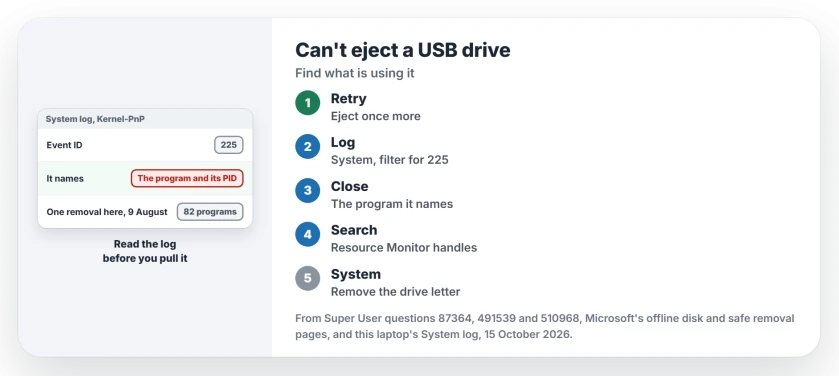
Status: event 225 and the wevtutil command were tried on this laptop, Windows 11 Home 25H2, on 15 October 2026 with no admin rights. No drive was ejected, renamed or taken offline.
1. Read event 225 in Event Viewer
Try Eject once more, so the newest entry is yours. Then open Event Viewer, go to Windows Logs, then System, and choose Filter Current Log.
Type 225 where it asks for event IDs, and the top entry names the program, its full path and its process ID.
The Super User answer with 206 votes found it this way. Windows "creates an entry in the event log when you try to eject a removable drive and you cannot because a process has a lock on it".
Rather type? This command from a 2018 answer prints the newest five:
wevtutil qe System /q:"*[System[(EventID=225)]]" /c:5 /f:text /rd:trueAn owner called it "a true copy and paste gem". Ours: it ran here with no admin rights and printed the full event text.
2. Close what it names
The names are rarely the ones you would guess. One owner found Task Manager itself: "Surprisingly, the Task Manager was preventing safe ejection of my USB drive".
Another owner's log pointed at a driver updater. In their words, "In my case, the '225' solution told me the Intel Driver Update service was the culprit". A third found fan control software holding the drives.
Quit that program the usual way, then eject again. Is your event naming File Explorer? An owner's tip fits: "You can relaunch Windows Explorer in the Task Manager in Windows 10".
3. No event? Search the drive letter
Some holders leave no entry. Search the open handles instead. The tools that find a file that is open in another program take a drive letter as well.
The quickest is built into your PC. An owner described it: "In resmon.exe, in the CPU tab. Scroll down to the Associated Handles box". Type the drive letter with its colon, and every handle on that drive appears with its program.
4. System holds it? Remove the drive letter
Sometimes the event names System, process 4. The 206-vote answer covers that: "the System process (process id 4) is holding your drive".
On external hard drives, Process Explorer can show that handle on $Extend\$RmMetadata, a hidden NTFS folder. A 2012 asker found exactly that. They could not end System, so they needed another way out.
The accepted answer came from Disk Management. The owner removed the drive's letter. "Instantly afterwards, I was able to eject the drive," they wrote.
Removing or changing the letter was confirmed by owners on Windows 7 and 8.1, and one wrote that removing it "worked like a charm".
Right-click Start and open Disk Management. Right-click your drive's volume, pick the option for its drive letter and paths, then Remove. If the drive shows up without a letter next time, add one back in the same box.
5. Still held? Offline, then online
Disk Management can also take your whole disk offline. Microsoft's offline disk page describes the command as moving the selected disk into the offline state.
An owner did that from Disk Management: "I put the hard drive offline and then immediately online again", and after that they could remove it.
I would try the drive letter first, though. Another owner saw errors in Event Viewer after going offline: "I don't know if this is completely safe".
A Mac gives the same refusal in its own words, and the Mac disk in use page names the holder with lsof.
Is it safe to just pull it out?
Only after everything writing to it has finished. Microsoft says to eject drives before you unplug them, to avoid losing data. Its safe removal page walks you through the icon.
Most sticks use Quick removal now, and the eject rule for USB sticks changed in 2018 because of it. Never pull a drive while a copy is still running.
The Short Version
- Windows logs every blocked eject as event 225, with the program's name and process ID.
- Filter the System log for 225 in Event Viewer, or run the wevtutil command.
- Close that program, and restart File Explorer if it is the one named.
- With no entry, search the drive letter in Resource Monitor's Associated Handles.
- If System holds it, remove the drive letter in Disk Management, then eject.
Where to Next
Which program did event 225 name on your PC? Tell me in a comment, odd ones especially, and I'll fold them into step 2.

Isaac Smith is the founder and editor of PC Glance, a website that covers computers, laptops, and technology. He is a tech enthusiast and a computer geek who loves to share his insights and help his readers make smart choices when buying tech gadgets or laptops. He is always curious and updated about the latest tech trends.