
You open an email and Mail shows a line over it: "Your network settings prevent content from loading privately". The message itself is fine. What changed is that Mail can no longer hide your IP address on the network you are using.
I treat this as a network question. Mail Privacy Protection loads remote content through Apple's relay, and two things stop it: a switch on the network you joined, or a network that refuses the relay.
An October 2021 Ask Different post about this banner, written after a Pi-hole update, has 56,279 views.
What the banner is telling you
Mail Privacy Protection fetches remote images in the background and hides your IP address from senders. Apple's Mail guide says it stops a sender learning "when and how many times you view it" and what your IP address is.
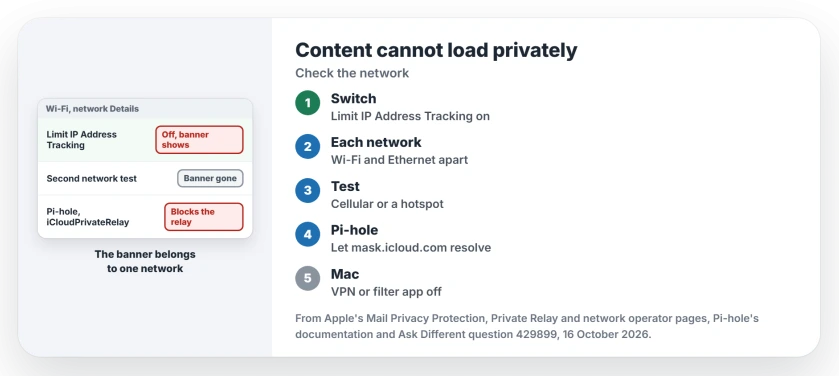
On the iPhone, Apple says it depends on one switch: "Mail Privacy Protection requires Limit IP Address Tracking to be enabled". That switch is set per network. Turn it off for your home Wi-Fi, and Mail shows the banner at home only.
Ours: none. I had no Mac, iPhone or Pi-hole to test on, so every step here leans on Apple, Pi-hole's docs and named owners.
Status: Apple's Mail, Private Relay and network operator pages for iOS 27 and macOS 27, plus Pi-hole's configuration docs, set against a 2021 Ask Different thread on 16 October 2026.
Turn Limit IP Address Tracking back on
Start with the network you are on now. On iPhone or iPad, open Settings, tap Wi-Fi, then tap the More Info button beside your network. Turn on Limit IP Address Tracking. On cellular, look under Cellular and your number.
On a Mac, open System Settings, then Network. Click Wi-Fi or Ethernet, then Details for your network, and turn on Limit IP address tracking. With it off, Apple's Mail settings page says your IP address is not hidden on that network.
Wi-Fi and Ethernet count as separate networks. Apple's page on Private Relay for specific networks says to "apply this setting for each network independently", so a Mac on a dock may need it twice.
Did you turn it off on purpose, because Safari stalled with Private Relay on? Our page on Safari and iCloud Private Relay covers that case. On such a network Safari wants the switch off and Mail wants it on, so pick the one you use more.
Is the network refusing Apple's relay?
If the banner stays with the switch on, the network itself may block the relay. Apple's page for network operators says school and business networks may have to audit traffic, so "your network can block access to Private Relay in these cases".
The method Apple gives those operators is a DNS reply that refuses two names, mask.icloud.com and mask-h2.icloud.com. The 2021 asker's case shows Mail needs those names too: once a home filter refused them, the banner appeared.
Prove it with a second network. Switch the iPhone to cellular and open the same email, or let the Mac join your phone's hotspot. Banner gone? The first network is blocking the relay.
At work or school, that block is policy. Ask whoever runs it, and keep reading your mail; the banner does not stop messages arriving.
Running a Pi-hole at home?
An owner running Pi-hole hit this in 2021. Their accepted answer explained that recent Pi-hole versions "sink hole requests to two key Apple domains" so Private Relay cannot get past the filter.
Pi-hole's documentation lists the switch as iCloudPrivateRelay under dns.specialDomains, set to true by default. On Pi-hole 6, setting it to false lets the two names resolve again:
sudo pihole-FTL --config dns.specialDomains.iCloudPrivateRelay falseThe 2021 answer used the older Pi-hole 5 form, a BLOCK_ICLOUD_PR=false line in /etc/pihole/pihole-FTL.conf, then restarted the DNS service.
Weigh it first. One commenter warned that traffic can then go around your filter; in their words, "instead of more privacy you may actually get less".
I would leave the Pi-hole alone if ad blocking matters more to you than hiding your IP from senders.
A VPN or filter app on the Mac
Apple names one more cause on a Mac. A VPN or internet filtering app "might have installed settings or extensions that are incompatible with Private Relay". System Settings may show an alert.
Turn the VPN off, then reopen the email. If the banner clears, look in that app's settings for a DNS or filtering option. If a VPN keeps coming back on your iPhone, our page lists six things that switch it on.
Is my mail unsafe while the banner shows?
No. It covers what a sender can learn when remote content loads, such as your IP address. On a network you cannot change, Mail's Block All Remote Content setting holds those images back, as Apple puts it, "until you choose to do so". On a Mac, the setting lives in Mail, Settings, Privacy, once Protect Mail Activity is off.
Why does it only show up at home?
Because both causes live on one network. A home Wi-Fi with Limit IP Address Tracking off, or a home DNS filter such as a Pi-hole, gives you the banner there and nowhere else. Fix that one network, and the banner goes with it.
The Short Version
- The banner means Mail cannot hide your IP address on this network.
- Turn Limit IP Address Tracking back on for the Wi-Fi, Ethernet or cellular network.
- Still there? Test on another network; a school, work or home filter may block the relay.
- Pi-hole owners can let the two mask.icloud.com names resolve, at the cost of some filtering.
- On a Mac, a VPN or filtering app can cause it too.
Where to Next
So which was it for you: the switch, the network, or a filter? Leave a comment with the answer and your router or DNS filter, if you know it.

Isaac Smith is the founder and editor of PC Glance, a website that covers computers, laptops, and technology. He is a tech enthusiast and a computer geek who loves to share his insights and help his readers make smart choices when buying tech gadgets or laptops. He is always curious and updated about the latest tech trends.