
You switch the VPN off, the little VPN badge disappears from the status bar, and within a minute it is back. Nothing you did brought it back.
That is unsettling when the whole point of the switch is that you control it, and I can walk you through the six things that turn it on behind you.
None of them is a hack. Every one is something on your phone doing what it was told. The job is working out which.
1. Connect On Demand, inside the VPN configuration
Start here, because this is the setting doing it most of the time.
iOS lets a VPN configuration carry a rule that reconnects it automatically.
That rule sits in Settings rather than in the app, which is why you will not find it in your VPN app. It is called Connect On Demand and it does what the name says.
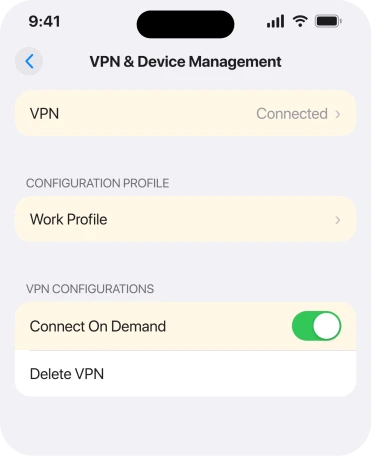
Go to Settings, General, VPN & Device Management, then VPN. Tap the small i beside the configuration. Turn Connect On Demand off.
If the switch is not there, this configuration was installed by a profile and the rule is baked in. That is rungs 3 and 4.
2. The VPN app has its own auto-connect
Separate switch, separate place. Turning off Connect On Demand does nothing to it.
Open the VPN app itself. Look for anything called Auto-connect, Launch on start, Trusted networks or Kill switch. Any of those brings the tunnel back up without touching iOS.
Kill switch is the one people forget. It blocks your traffic and reconnects when the VPN drops.
From where you are sitting that looks exactly like a VPN that will not stay off, and I have seen it send people hunting through Settings for an hour.
One member of Apple's community forum made exactly this point on a thread about a VPN reconnecting.
They were arguing against deleting anything: "Go into the settings on your vpn app and turn off auto connect option." They were contradicting the advice to delete the profile. Both routes are in play, so try the gentle one first.
3. A leftover profile from a VPN you already deleted
This is the genuinely spooky version. You have no VPN app installed at all, and the badge still comes back.
Deleting the app does not always remove the configuration it installed. The profile stays behind in Settings. It still holds its rules and it can still bring a tunnel up.
Look at Settings, General, VPN & Device Management. See a configuration for a service you stopped using months ago? Found it. That is your answer.
On a community thread about a VPN switching on and off repeatedly, a Community+ member gave the fix in one line: "Go to Settings/General/VPN & Device Management and delete the VPN profile."
Another member replied to confirm it worked for them. One person, one step, one stated result.
Read rung 6 before you delete anything. Apple attaches a real cost to it.
4. A work or school profile is pushing it
Different situation, and the phone is behaving correctly here.
Whoever manages your iPhone can install a VPN and require it to stay up. You will not find a switch you are allowed to change. The decision was never yours to make.
The same screen shows it: Settings, General, VPN & Device Management, under Configuration Profile.
Our page on Auto-Lock being greyed out covers what else a managed profile can take out of your hands.
Do not delete an employer's profile to get your VPN icon back. Apple is blunt about what goes with it, and rung 6 quotes them. Ask whoever manages the phone instead.
5. It is not a VPN at all
Rule this in before you go hunting. Several things wear the VPN badge without being a VPN in the way you mean.
Content blockers, parental control apps and some antivirus apps register themselves as VPN configurations. That is the only way iOS lets them see your traffic. Turn one off and it reinstates itself, because that is its job.
iCloud Private Relay is a separate case and it confuses people constantly. Apple: "When iCloud Private Relay is on, the traffic leaving your iPhone is encrypted and sent through two separate internet relays."
That sounds like a VPN. It is not one. And it lives somewhere else entirely: Settings, your name, iCloud, Private Relay.
Our page on Safari failing to connect with Private Relay on covers what it does and does not do.
6. Deleting the profile, and what it takes with it
Last, because it works and because Apple attaches a warning most pages leave out.
Apple, on configuration profiles: "If you delete a profile, all of the settings, apps, and data associated with the profile are also deleted."
Settings, apps and data. On a consumer VPN that means nothing you care about. On a work profile it can take your mail account, your Wi-Fi credentials and your certificates. All at once, and I would not risk that to move an icon.
So delete freely if it is a VPN you installed yourself. Never if the profile came from an employer or a school. Not sure which you are looking at? That uncertainty is itself the answer, and rung 4 is where you belong.
Once it is gone, restart before you judge it. A tunnel can survive in memory until the next boot.
What does not help
- Turning the VPN switch off again. That is the symptom, not a fix. Something is switching it back.
- Airplane mode. It drops the connection and the on-demand rule brings it straight back when you leave.
- Reset Network Settings. It wipes every saved Wi-Fi password and does not remove a VPN configuration profile.
- Deleting the VPN app on its own. Reported repeatedly as leaving the configuration behind, which is rung 3.
- Turning off iCloud Private Relay if your badge is a real VPN configuration. They are unrelated and you would be giving up Safari privacy for nothing.
Status: iOS 26.6, checked 17 August 2026. Apple documents where configuration profiles live and what deleting one removes. Connect On Demand and app-side auto-connect are user-reported causes.
Why does my iPhone VPN keep turning itself back on?
Most often a Connect On Demand rule inside the VPN configuration, at Settings, General, VPN & Device Management, VPN, then the info button.
If that switch is absent or already off, look for an auto-connect or kill switch inside the VPN app itself.
I deleted the VPN app and the VPN is still there. Why?
Because the configuration profile it installed is separate from the app and survives it. Check Settings, General, VPN & Device Management for a leftover configuration and remove it there. Restart afterwards before judging whether it worked.
Is iCloud Private Relay a VPN?
No. Apple describes it as encrypting the traffic leaving your iPhone and sending it through two separate internet relays, and it lives under Settings, your name, iCloud, Private Relay. Turning it off will not affect a VPN configuration.
The Short Version
- Connect On Demand inside the VPN configuration does it most often.
- The VPN app carries its own auto-connect and kill switch, and iOS cannot turn those off for you.
- Deleting the app often leaves the configuration profile behind, still working.
- A work or school profile can require the VPN, and that is not yours to remove.
- Content blockers and some security apps register as VPNs without being one.
- iCloud Private Relay is not a VPN and lives in a completely different screen.
- Apple warns that deleting a profile deletes its settings, apps and data too.
Where to Next
The useful way to think about this is that the VPN badge has more than one owner. iOS owns the configuration. The app owns its own reconnection rules. And a profile can own both, giving you no say at all.
Work out which owner you are dealing with before you delete anything, because the delete is the one step here you cannot undo with a toggle.
If you have no VPN app installed, no profile listed, and the badge still comes back, tell me what else you have on the phone that filters traffic.
A content blocker or a parental control app is the likeliest culprit, and it will not be filed under VPN in your head.

Isaac Smith is the founder and editor of PC Glance, a website that covers computers, laptops, and technology. He is a tech enthusiast and a computer geek who loves to share his insights and help his readers make smart choices when buying tech gadgets or laptops. He is always curious and updated about the latest tech trends.