

If you want to use keyboard shortcuts in Excel, start with a few actions you repeat every day: moving to a cell, editing it and formatting a selection. You don't need to memorize pages of commands.
I'll walk through a small worksheet routine, then show you how the ribbon reveals more shortcuts. These instructions use the Windows desktop app and a US keyboard layout; the browser and Mac versions have differences.
Hold a combination, tap a sequence
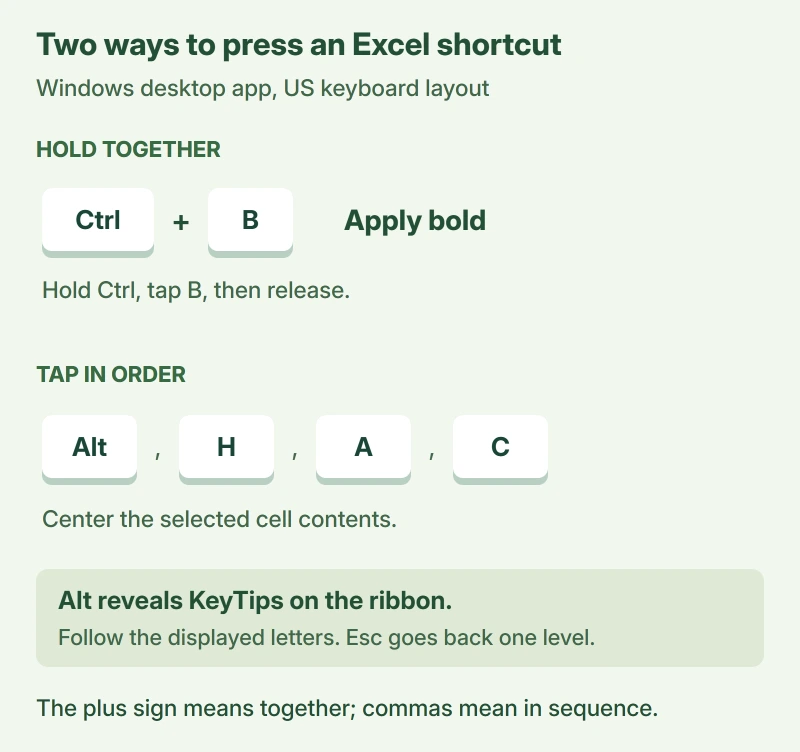
Microsoft says there are two kinds of notation in its Excel keyboard-shortcut reference. A plus sign means keys held together. A comma separates keys you press in order.
For Ctrl+B, hold Ctrl, tap B, then release both keys. For Alt, H, A, C, tap each key separately in that order; in the Windows ribbon, that sequence centers the selected cell contents.
Status: Microsoft's Windows Excel shortcut and ribbon documentation checked 17 October 2026. Examples use a US layout; no workbook was tested on this laptop.
Try the routine in a spare workbook first. It gives you room to make a mistake without changing a sheet someone else depends on.
Try a short edit-and-format routine
Click a cell with an editable label. Press F2 to edit its contents, make your change, then press Enter to finish. Need to abandon the edit? Press Esc before committing it.
Microsoft documents F2 as editing the active cell, with the insertion point at its end. If in-cell editing is disabled, the insertion point moves into the formula bar instead.
Now select the label again and press Ctrl+B to make it bold. Pressing the same shortcut a second time removes bold. It's an easy first shortcut to remember.
For more formatting choices, press Ctrl+1 to open Format Cells. Choose the format you need there. I would learn that one before memorizing a separate combination for every number style.
A change you didn't want? Ctrl+Z undoes a recent action. When you're happy with the edit, Ctrl+S saves the workbook; finish any filename or location prompt that appears for a new file.
Move farther without losing your place
Use F5 when you know the destination. Type a reference such as D20 in Go To, then press Enter to select that cell directly. You don't have to scroll there first.
These are useful companions once you're moving around a larger worksheet:
| Where you want to go | Windows shortcut |
|---|---|
| Beginning of the sheet | Ctrl+Home |
| Edge of the current data region | Ctrl+Arrow key |
| Next worksheet tab | Ctrl+Page Down |
| Previous worksheet tab | Ctrl+Page Up |
| Last cell containing data or formatting | Ctrl+End |
Watch what counts as an edge. A blank gap can change where Ctrl+Arrow stops, so don't assume one press reaches the last value in an entire column.
Ctrl+End has a different boundary. Microsoft's last-cell explanation includes formatting, so it can take you past your visible data into cells that look empty.
If the arrow keys move your view while the active cell stays put, our Excel arrow-key fixes cover Scroll Lock and the other keyboard states behind that behavior.
For headings that should stay visible as you scroll, choose the right freeze corner before moving through the worksheet.
Grow a selection with Shift
Start with Shift+Arrow to extend a selection by one cell at a time. Hold Shift and tap the direction you need. The highlighted range shows what your next formatting action will affect.
For a larger jump, Ctrl+Shift+Arrow extends toward the next boundary in that row or column. Microsoft states that a blank next cell changes the extension toward the next nonblank cell.
I would look at the highlighted range before changing it, particularly in a list with gaps. A shortcut saves the mouse movement; it doesn't decide which cells belong in your selection.
Once the selection is right, Ctrl+C copies it and Ctrl+V pastes at your chosen destination. If Excel leaves the destination unchanged, the silent paste-failure guide separates that fault from a mistyped shortcut.
Let the ribbon show you the next key
Press Alt and look for the letter labels on the ribbon. Microsoft calls these KeyTips. You can follow the letters shown rather than learning every sequence in advance.
For the centering example, tap H for Home, then A, then C. Don't hold all four keys together. Esc backs out one level when a menu or set of KeyTips is open.
You can discover other commands the same way. Microsoft's ribbon keyboard guide explains how the displayed labels change after you choose a tab or command.
Pick the actions you use most often and repeat them for a few days. A handful that feels natural will help more than a long list you keep stopping to read.
The Short Version
Ctrl combinations are held together; ribbon letters are pressed in sequence. Start with F2, Ctrl+B, Ctrl+1 and Ctrl+S, then add navigation and selection shortcuts.
Check the highlighted cells when blanks or old formatting change the boundaries.
Where to Next
Which action keeps sending your hand back to the mouse? Tell me whether you're editing cells, selecting data or searching the ribbon, and which Excel version you're using.

Isaac Smith is the founder and editor of PC Glance, a website that covers computers, laptops, and technology. He is a tech enthusiast and a computer geek who loves to share his insights and help his readers make smart choices when buying tech gadgets or laptops. He is always curious and updated about the latest tech trends.