
You need to restart your Samsung phone, but holding the Side button opens an assistant instead of the power menu. You just wanted a quick reboot.
I'll show you the normal restart first, then the button hold for a frozen screen. Neither procedure is a factory reset. Save anything you're editing before restarting if the screen still responds.
Bring up the menu with both buttons
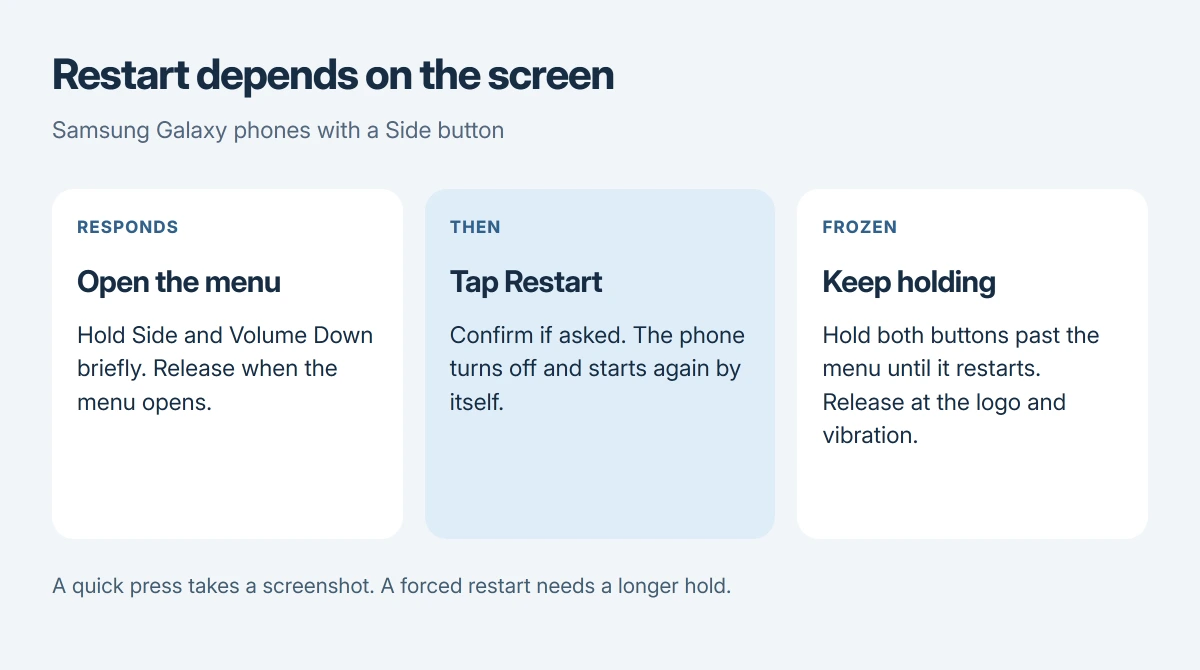
On Galaxy phones with a Side button, press Volume Down and Side together and hold briefly. When the power menu opens, release the buttons and tap Restart, then confirm if asked.
The procedure is documented by Samsung in its Galaxy restart guide. The phone turns off and starts again without you needing to press another button to switch it on afterward.
Status: Samsung's restart and frozen-device instructions reviewed 17 October 2026. Side-button models are the main focus; older Power-button models differ. No phone was operated here.
An older Galaxy with a dedicated Power button can open its power menu with that button alone. Samsung's power controls page explains the distinction between separate Power and combined Side buttons.
I would choose the responsive menu first. You don't need a forced restart just because a new button opens something unexpected.
Use the screen's power control if that is easier
Open the Quick panel and tap its power icon. Then choose Restart from the menu. This is handy if holding two buttons together feels awkward while the screen still works.
On newer layouts, swipe downward starting at the top-right corner to reach that panel; for older layouts, Samsung describes a two-finger downward swipe from the top to open Quick settings.
The panel's appearance depends on your software. Use the button method if you can't find the icon, rather than searching through unrelated settings for a restart option.
If the screen is frozen, keep both buttons held
Press and hold Volume Down plus Side or Power until the phone restarts; Samsung says to hold for more than seven seconds in its unresponsive-device instructions.
Keep holding if the menu briefly appears. Its Canadian guide describes about ten seconds, so treat the restart itself as the result you're waiting for instead of releasing at an exact count.
Samsung's blank-screen help says to release when the Samsung logo appears and the device vibrates. It also recommends removing a case if that stops you pressing both buttons properly.
A quick press can take a screenshot. Our Samsung capture guide covers that shorter action; restarting needs a hold. Hold both together without repeatedly pressing Side.
If there is still no response
Connect a suitable charger and cable. Samsung states that a completely drained battery may not show a charging indicator immediately, so a blank display at first doesn't prove that charging failed.
Its power-on guidance also suggests trying another charger and cable if charging isn't working. Use undamaged equipment suitable for the phone. If it stays unresponsive after charging, contact Samsung support with the model number.
I would avoid a factory reset here. You only asked the phone to restart, and erasing it is a different action with different consequences.
A forgotten lock needs a separate approach: a recently changed Galaxy PIN may be recoverable without erasing the phone.
If it freezes again after the restart
A successful reboot can get you working without explaining why the freeze happened. Notice whether the same app triggers it again. Knowing the app helps you explain a recurring freeze instead of just rebooting repeatedly.
Google's frozen Android guidance separates a one-time restart from checking troublesome apps and software updates, which is the next job if your phone keeps becoming unresponsive.
Once you can use it, check your Android backups. A backup protects your saved information if the fault eventually needs repair; restarting by itself doesn't create one.
The Short Version
Use the power menu for a normal restart. If the touchscreen is frozen, keep Side or Power and Volume Down held until the device reboots. A blank phone may need charging before it can respond.
Where to Next
Did the assistant open, did you get a screenshot, or did the display stay completely dark? Name the Galaxy model in your reply and describe its response. That will help me identify the part of the restart that didn't happen.

Isaac Smith is the founder and editor of PC Glance, a website that covers computers, laptops, and technology. He is a tech enthusiast and a computer geek who loves to share his insights and help his readers make smart choices when buying tech gadgets or laptops. He is always curious and updated about the latest tech trends.