

A sudden virus warning or an unfamiliar app can make everything on your Mac feel suspicious, and it makes sense to check for malware first. I understand why you'd hesitate to click anything.
I'll help you check what produced the warning, review the places unwanted software can hide, and use Apple's removal guidance. A slow Mac or a scary webpage alone doesn't prove an infection.
1. Work out where the warning appeared
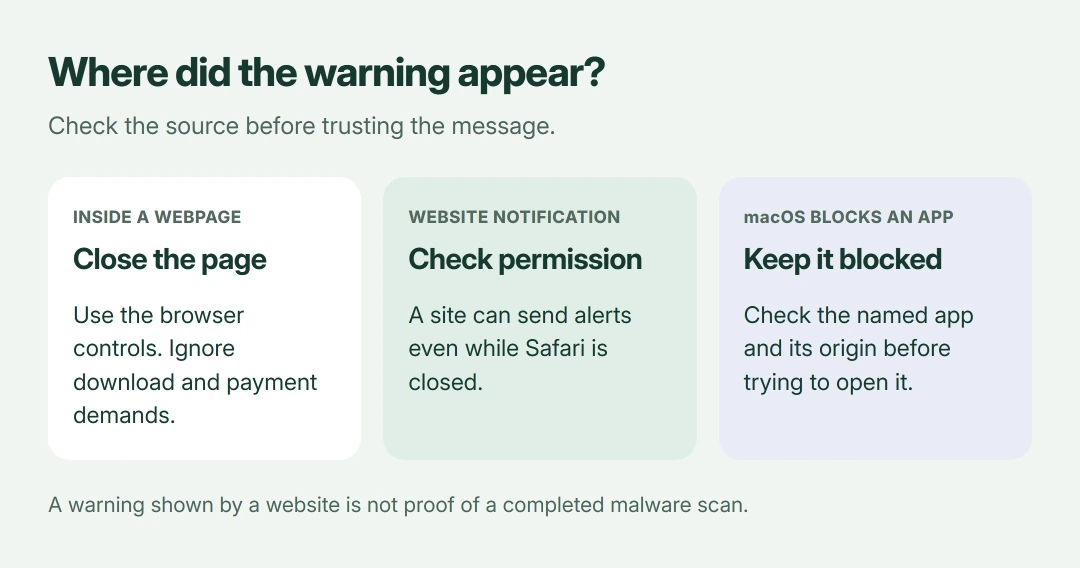
Close a suspicious browser tab using the browser's own controls. Leave its download buttons alone. Apple warns that fake alerts can imitate trusted companies and even provide misleading close buttons.
Does Safari reopen the same warning? Hold Shift while launching Safari to prevent its previous windows returning, a method documented by Apple in its pop-up help.
Status: Apple's malware protections and removal instructions checked 18 October 2026. These checks identify unwanted items; they cannot certify that a Mac is infection-free.
A notification can arrive with Safari closed. In System Settings > Notifications, select the website under Application Notifications and disable Allow Notifications, following Apple's website notification controls.
That permission explains repeated website alerts. It doesn't mean the site performed a malware scan on your computer.
If macOS itself blocks a named app, keep it blocked while checking its origin. Our guide to the Open Anyway warning explains what overriding that protection changes.
2. Update macOS and let its protection work
Apple says macOS includes XProtect, which detects and removes known malware. Its security documentation describes automatic checks and background security updates.
XProtect isn't a normal scanner app. Its work happens automatically, while Gatekeeper checks software before launch and notarization lets Apple inspect submitted apps for known malicious content.
For suspected adware, Apple's advice is to install available macOS updates, or restart if already current. Open System Settings > General > Software Update to check your Mac.
I would do that before downloading a cleaner. An alert demanding that you install its own repair tool deserves particular suspicion.
3. Inspect installed apps before removing anything
Open Finder > Applications and look for software you installed around the time the trouble began. Google lists recurring unwanted extensions, redirects and changed search settings among its unwanted-software signs.
An unfamiliar name needs checking first. Some legitimate helpers use their developer's name rather than the product name you recognize.
Once you've identified an unwanted app, quit it. Apple states in its uninstall instructions that a supplied uninstaller is preferable because it can remove associated helpers too.
No uninstaller supplied? Move the unwanted app to Trash from Finder, then review everything in Trash before emptying it so your unrelated files aren't caught in the removal.
An app the Mac refuses to move because it is still open, or one that keeps returning, is covered in the Mac uninstall guide.
4. Check what starts when you sign in
Apple's login-item instructions put these controls in System Settings > General > Login Items & Extensions. Review the items that open at login and the apps with permission for background tasks.
Select the unwanted entry, then remove it. Turn off background permission for an app you've identified as unwanted, then remove the app through its proper uninstall route.
Disabling startup isn't the same as uninstalling. I would treat a returning entry as a reason to check its parent app, rather than repeatedly removing the same name.
5. Remove unwanted browser extensions
Start in Safari's Extensions settings. Choose Safari > Settings > Extensions, then clear an add-on's checkbox to disable it, or select it and use Uninstall to remove it.
Those are Apple's extension controls. A browser add-on can affect pages without appearing as a separate window on your desktop.
In Chrome, open Extensions > Manage Extensions from the three-dot menu and remove unwanted entries. Google's unwanted-software guidance recommends removing unwanted programs before resetting browser settings.
If your search engine keeps switching back afterward, our Chrome search takeover checks follow the programs and policies that can restore it.
6. Review profiles when settings keep returning
Open System Settings > General > Device Management, then open any installed profile to read its details. Apple's profile guidance explains both viewing and removal.
A profile isn't automatically malicious. Employers and schools use them to configure accounts, networks and other settings on managed Macs.
On your personal Mac, remove a profile only after identifying it as unwanted and checking what it controls. Removing one also removes its settings and associated information, which can include an email account's configuration.
For a managed Mac or a profile you cannot remove, contact its administrator. If unwanted apps or changes keep returning, contact Apple Support with their names and the exact warning before authorizing a wipe.
The Short Version
Check whether the alert came from a page, a website notification or macOS. Update and restart, then review apps, startup entries, extensions and profiles. Keep genuine malware blocks in place while removing the unwanted software.
Where to Next
What first made you suspect malware: a notification, a changed search engine, or an app returning after removal? Tell me the wording and where it appears. Please leave passwords and account details out of your comment.

Isaac Smith is the founder and editor of PC Glance, a website that covers computers, laptops, and technology. He is a tech enthusiast and a computer geek who loves to share his insights and help his readers make smart choices when buying tech gadgets or laptops. He is always curious and updated about the latest tech trends.