
Mac screen recording starts with Shift + Command + 5. Choose the whole display or the area you need, set the audio in Options, then click Record. The audio choices depend on the macOS version, so check those before making a long recording.
Apple now documents a system-audio option for macOS 27. Older versions have different built-in limits, and selecting a microphone is a separate choice.
1. Open Screenshot and choose the recording area
Press Shift + Command + 5 together. The Screenshot toolbar contains both still-picture and video controls. Select a recording control rather than one of the capture buttons.
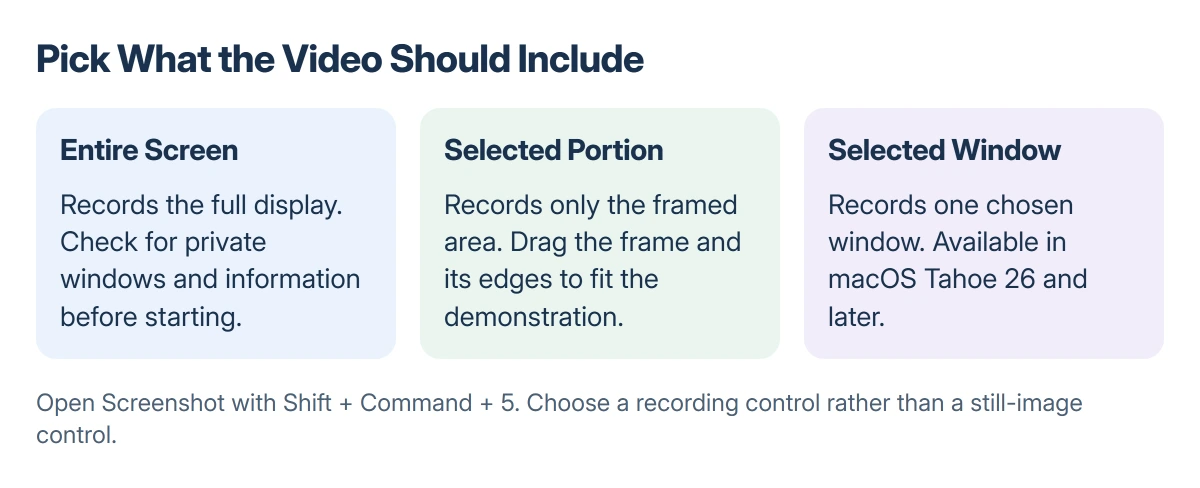
Apple documents Record Entire Screen and Record Selected Portion in its Mac recording instructions. For a portion, drag the frame into place and adjust its edges around the content.
Status: Apple's Screenshot and QuickTime instructions checked 22 October 2026, including macOS 27 system audio and Tahoe 26 window recording. No recording was made here.
Record Selected Window is available in macOS Tahoe 26 and later. Choose that control and click the window to record it. On earlier versions, select a portion instead when a full display is unnecessary.
Close anything private that could appear within the captured area before starting. A full-display recording includes more than the app you intended to demonstrate.
For a still image instead of video, the Mac screenshot shortcuts explain the separate capture controls. A screenshot does not need a video recording followed by a paused frame.
2. Choose the sound before pressing Record
Open Options on the Screenshot toolbar. Under Microphone, select the input you want for speech. Choose None when the microphone should stay out of the recording.
Apple says to select Include System Audio for computer audio on macOS 27 Golden Gate or later. That is separate from choosing the microphone, so decide whether you need computer sound, narration or both.
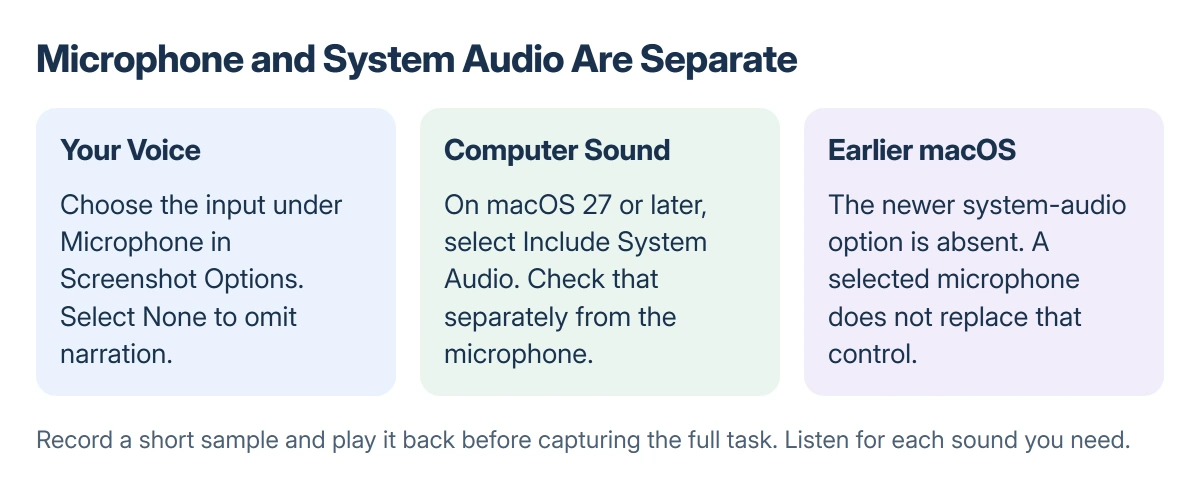
Do not expect a macOS 26 toolbar to show the new system-audio option. Apple's current page dates that control to macOS 27; the microphone option on an older system is not a substitute for it.
Capture a brief sample, then replay the saved file before starting the complete task. Listen for the intended voice and app sound separately. A moving video alone does not confirm that the correct audio was captured.
3. Pick a destination and finish the recording
In Options, choose the location under Save to. The default is the desktop. Set a timer there too if you need time to arrange the app before capture begins.
Click Record to begin. To finish, use the menu-bar stop button or press Command + Control + Esc.
A small thumbnail appears briefly afterward. Click it to edit, or let it disappear while the Mac saves the file to the destination you selected.
Apple states that automatically saved recordings use a .mov file with the date and time in its name. Open the result in QuickTime Player and check that the beginning, ending and sound are usable.
Use QuickTime when that is your starting point
Open QuickTime Player from Applications and choose File > New Screen Recording. If that opens the Screenshot toolbar, use the same capture and audio controls already described.
Older systems can show QuickTime's separate recording window. Its small menu beside the record button offers the microphone and click indicators. Click Record, then choose the display or drag an area to capture.
The same menu-bar stop control ends the recording. QuickTime opens the result afterward so it can be reviewed, edited or shared.
Missing sound, a black window or a busy Mac
If narration is absent, reopen Options and check the selected input. If computer sound is absent, check both the macOS version and the system-audio choice instead of changing the microphone repeatedly.
Some apps restrict recording. Apple specifically names the Apple TV app as an example that might not allow its windows to be recorded. A protected video turning black does not establish that the whole capture tool is broken.
If the Mac stays busy after a recording or screen share has ended, the replayd troubleshooting guide covers owners' results from closing the app still using screen capture.
For a failure in Screenshot itself, give Apple Support the macOS version, the selected capture mode and whether the saved video has an image, sound or neither.
The Short Version
Use Shift + Command + 5, choose the recording area and set Options first. Microphone input and system audio are separate. System audio needs macOS 27 or later; window recording starts with Tahoe 26.
Stop from the menu bar and review the saved video.
Where to Next
Check one short sample before recording a meeting, lesson or demonstration. Confirm the actual saved file and its sound, then keep the same settings for the full capture.

Isaac Smith is the founder and editor of PC Glance, a website that covers computers, laptops, and technology. He is a tech enthusiast and a computer geek who loves to share his insights and help his readers make smart choices when buying tech gadgets or laptops. He is always curious and updated about the latest tech trends.