

An Excel drop-down list uses Data Validation. Put the allowed entries in a small source list, select the cells people will fill in, then choose Data > Data Validation > List.
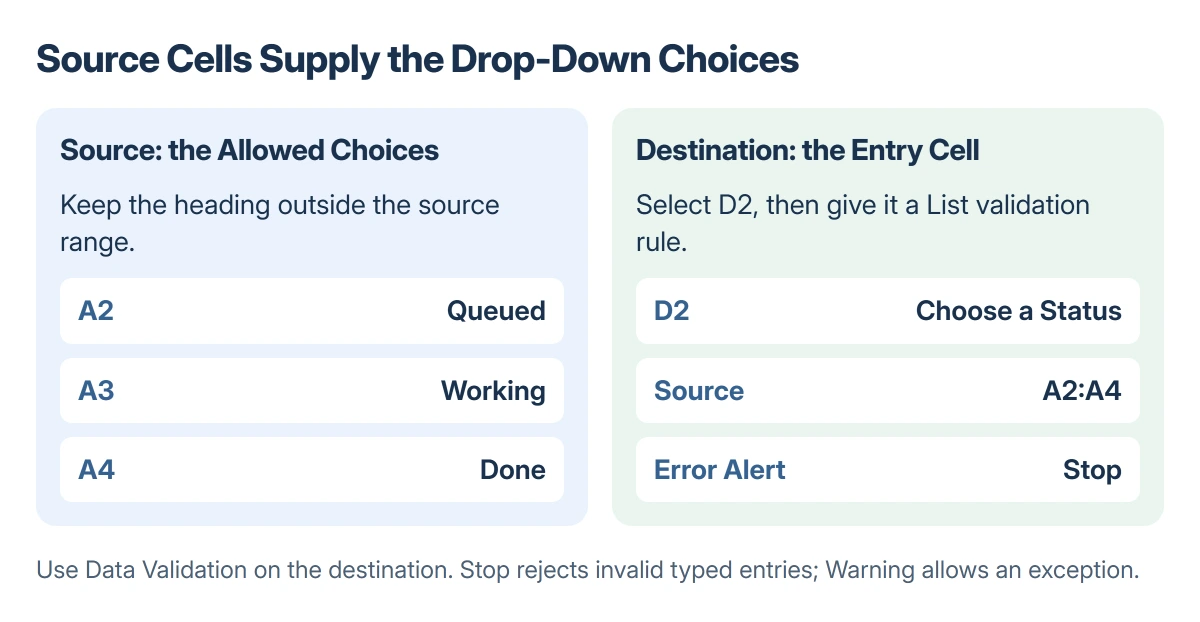
The source cells supply the choices; the selected destination cells receive the arrows.
Set the error style as well. A visible list and a rule that rejects other typed values are two separate parts of the setup.
Prepare the choices in their own cells
On an unused part of a worksheet, type one choice per row. For example, put Queued, Working and Done in A2:A4, with a heading in A1.
Keep the heading outside the actual list. Remove accidental spaces and empty entries before setting up the destination, so the choices appear as intended.
Status: Excel list-validation instructions checked 22 October 2026 for Windows, Mac and the web. The example cells are illustrative; no workbook was edited.
Microsoft documents automatic updates for lists based on a table. On Windows, select a source cell and press Ctrl + T, then confirm whether your selection includes a heading.
Its drop-down instructions explain that a list based on an Excel table can update when source items are added or removed. A manually fixed range needs attention when its boundaries change.
If the source already contains repetitions, review the Remove Duplicates consequences before deleting entries. Work on the choices list, not a table of records you still need to keep.
Apply validation to the destination cells
Select the cell that should show the choices, such as D2. To give several cells the same list, select the destination range before opening the rule.
Open the Data tab and choose Data Validation. On its Settings tab, set Allow to List.
Click Source, then select only the cells containing the choices. In the example, that is A2:A4, excluding the A1 heading. Excel can display the reference as =$A$2:$A$4.
Keep In-cell dropdown selected. Use Ignore blank when an empty destination is acceptable, then confirm with OK.
Click the destination cell and open its arrow. The three example statuses should appear as options. If the heading appears too, reopen Data Validation and remove the heading cell from Source.
For a short unchanging list, the choices can also be entered directly in Source, separated as your Excel expects. A cell range is easier to maintain when the words or number of choices may change.
Decide whether other typed values are allowed
Reopen the destination's validation rule and select Error Alert. Enable the alert for invalid entries, then choose the required style.
Microsoft says Stop blocks a typed value outside the list. Warning and Information show a message but allow the user to continue, so those styles serve a different purpose.
Choose Stop for a status column that must use agreed spellings. Choose a warning style only when exceptions are intentional. Type an invalid example into a spare destination cell to verify the behavior before sharing the workbook.
The Input Message tab is optional. It explains what belongs in the selected cell, while Error Alert controls the response to an invalid entry. One does not replace the other.
Mac and browser differences
On Mac, Microsoft documents Data Validation or Validate under the Data tab, depending on the interface shown. Choose the Settings tab, set List and select the source entries.
In Excel for the web, open Data > Data Tools > Data Validation. The list rule still needs the source and the in-cell option. Check its alert settings before expecting desktop-like rejection behavior.
Microsoft states that worksheet protection or workbook sharing can make Data Validation unavailable. Get the workbook owner's permission to change the protection or sharing arrangement instead of removing controls blindly.
For a long worksheet, freeze the header row and first column so the field name stays visible while people fill the validated cells.
If the result is wrong
An empty option calls for checking blank source cells. Missing new choices call for checking the source boundary or table. An absent arrow calls for checking the destination selection and In-cell dropdown.
If a shared or protected workbook prevents the change, give its owner the destination range and the intended source range. Those addresses make the request specific without altering the rest of the workbook.
The Short Version
Type the choices in a source range, select the destination and create a List rule in Data Validation. Exclude the heading and enable the in-cell arrow.
Use Stop when invalid typed entries must be refused, then verify the rule in the destination.
Where to Next
Save the workbook after checking a valid choice and an invalid entry. Recheck the source after adding a new option so the shared copy offers the complete list.

Isaac Smith is the founder and editor of PC Glance, a website that covers computers, laptops, and technology. He is a tech enthusiast and a computer geek who loves to share his insights and help his readers make smart choices when buying tech gadgets or laptops. He is always curious and updated about the latest tech trends.