
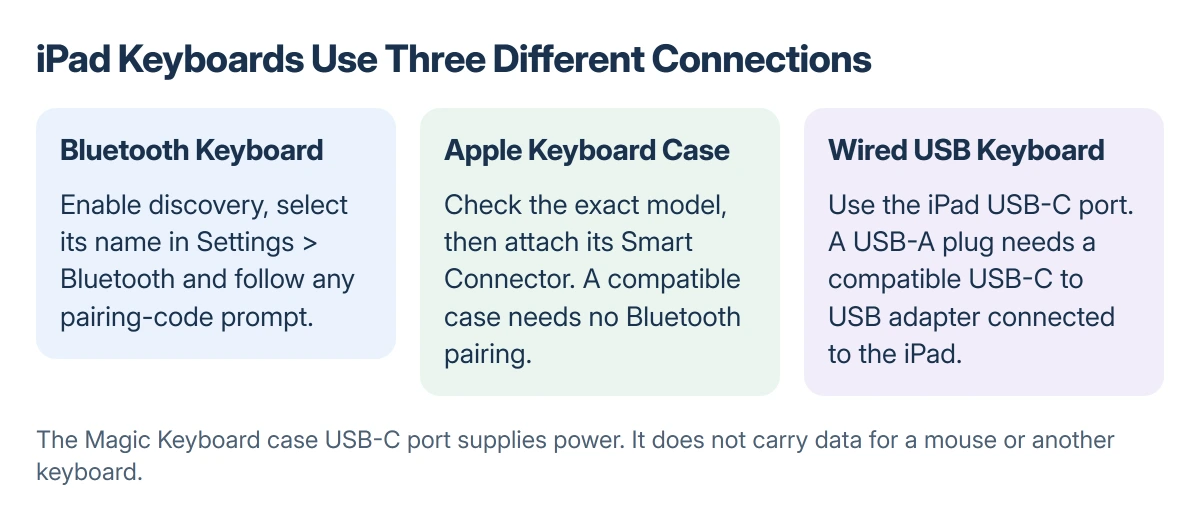
Connecting a keyboard to an iPad depends on its connection type. A Bluetooth keyboard needs pairing in Settings > Bluetooth.
A compatible Magic Keyboard for iPad or Smart Keyboard connects through the Smart Connector and needs no Bluetooth pairing.
A wired USB keyboard uses the iPad's own port, with an adapter if needed.
Apple uses the Magic Keyboard name for different products. A separate desktop keyboard and a case that magnetically holds an iPad do not follow the same setup procedure.
Identify the connection before opening Settings
Look for the keyboard's power switch, pairing control and model name. A separate Bluetooth keyboard follows its maker's pairing instructions; a compatible Apple keyboard case attaches to the iPad's contacts.
Match the keyboard case to the exact iPad model, not just its screen size. Apple publishes separate compatibility lists because similar-looking iPads do not necessarily use the same keyboard.
Status: Apple's Bluetooth, USB-C, Magic Keyboard and Smart Keyboard instructions checked 22 October 2026. No iPad accessory was connected or tested.
Check iPadOS requirements along with the model list. Apple's troubleshooting page gives a higher minimum for the Magic Keyboard for iPad Air than for some older keyboard combinations.
Pair a Bluetooth keyboard
Charge the keyboard or fit working batteries, then turn it on. Use its pairing button or key combination to put it into discovery mode. Turning it on alone does not always make it discoverable.
On the iPad, open Settings > Bluetooth and turn Bluetooth on. Tap the keyboard's name when it appears in the devices list.
Apple says a Bluetooth accessory may require a PIN or passcode. Follow the prompt and the keyboard maker's instructions rather than entering an arbitrary code.
Once connected, open a note or another text field and type a short line. A connection label confirms the link; text appearing in the selected field confirms that the keyboard is actually typing there.
Apple documents the connection controls in its iPad Bluetooth instructions, including discovery, pairing and forgetting an accessory. Keep the keyboard near the iPad during setup.
If it never appears, confirm that pairing mode is active and consult the keyboard's instructions for switching away from another paired computer. The exact multi-device keys depend on the keyboard.
Attach a Magic Keyboard for iPad
Place the keyboard on a flat surface with its hinge away from you and its Apple logo on top. Open the lid, then position the compatible iPad so its rear cameras meet the keyboard's camera cutout.
The magnets and Smart Connector establish the connection. Apple states that this keyboard does not need to be paired, switched on or charged separately after attachment.
Its USB-C port is a power input for charging the iPad, not a data port for another keyboard or mouse. Do not connect a cable between that port and the iPad's own USB-C port.
For Smart Keyboard and Smart Keyboard Folio, align the three contacts and fold the cover into its typing position. The older Smart Keyboard uses a different connector location from Smart Keyboard Folio.
Connect a wired keyboard to a USB-C iPad
Plug a USB-C keyboard into the iPad's USB-C port. For a keyboard with a USB-A plug, attach a compatible USB-C to USB adapter to the iPad, then connect the keyboard.
Apple's USB-C port guide lists keyboards among supported USB devices. Use the iPad's port; the Magic Keyboard case's USB-C port supplies power only.
This USB route is for iPads with USB-C. For a Lightning iPad, confirm a supported adapter with Apple or the keyboard maker before buying one.
When a connected keyboard still will not type
For an Apple connector case, remove another protective case if it obstructs the contacts. Apple's keyboard troubleshooting steps call for checking compatibility, updating iPadOS and cleaning the contacts with a soft, lint-free cloth.
Reconnect it and restart the iPad if needed. A previously working case whose pointer or clicks fail has a separate Magic Keyboard trackpad troubleshooting path.
The software keyboard can behave differently while hardware is connected. If the problem is the onscreen keyboard covering typed text, check that display and layout problem separately.
If setup still fails, give the accessory maker the exact keyboard model, iPad model and iPadOS version. Those details distinguish an incompatible accessory from a failed pairing or connector.
The Short Version
Bluetooth keyboard: enable discovery, open Settings > Bluetooth, select its name and follow any code prompt.
Compatible Apple keyboard case: align its Smart Connector and typing position. Do not search Bluetooth for a case that has no pairing function.
On a USB-C iPad, connect the wired keyboard to the iPad itself, using a compatible adapter for a USB-A plug.
Where to Next
Verify typing in a simple note before changing shortcuts or buying another accessory. If it fails there too, follow the support route for the actual connection type.

Isaac Smith is the founder and editor of PC Glance, a website that covers computers, laptops, and technology. He is a tech enthusiast and a computer geek who loves to share his insights and help his readers make smart choices when buying tech gadgets or laptops. He is always curious and updated about the latest tech trends.