
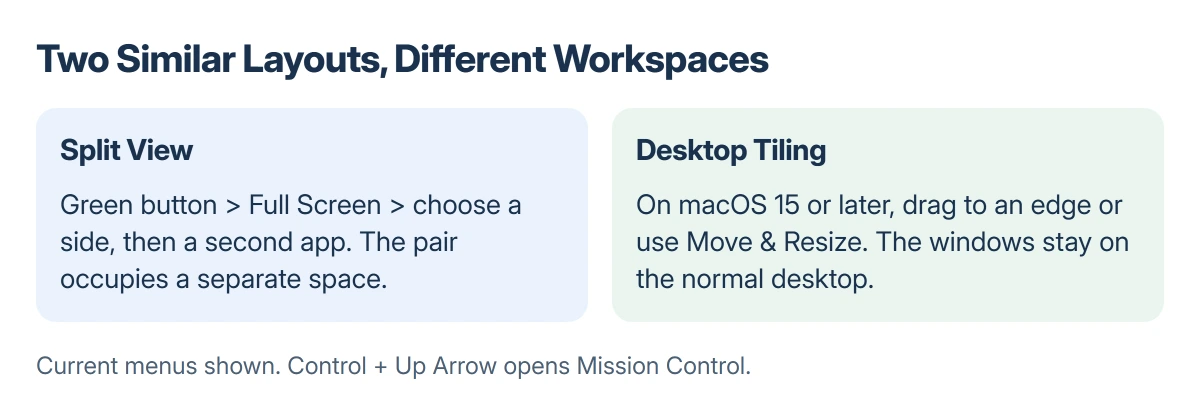
Split screen on a Mac can mean two different layouts. Split View gives two apps their own full-screen space. Desktop tiling places windows side by side while keeping the desktop available.
For Split View in current macOS, hold the pointer over a window's green button, choose Full Screen > Left of Screen or Right of Screen, then click the second app on the other side.
Choose the layout before moving the windows
Open both apps and the documents needed in them. Use Split View for a dedicated two-app workspace, or desktop tiles when other windows and desktop access should stay nearby.
The green button offers both kinds of layout in current macOS. Clicking it immediately can enter full screen; holding the pointer over it exposes the layout choices.
Status: Apple's current Mac Split View and window-tiling guides checked 22 October 2026. Menu wording follows those guides; no windows were moved or tested.
Apple documents the full-screen-space behavior in its Split View guide. The two layouts can look similar while behaving differently when one app is removed.
Put two apps in Split View
Hold the pointer over the green button at the upper-left of the first app's window. Choose Full Screen, then Left of Screen or Right of Screen.
Click the second app in the available half. The two apps now share a dedicated space, rather than sitting as ordinary windows on the desktop.
On macOS Sonoma 14, the green-button menu instead names Tile Window to Left of Screen and Tile Window to Right of Screen directly. Apple's Sonoma guide confirms those older labels.
Drag the central separator left or right to give one side more room. Apple says double-clicking the separator restores the original sizes.
To swap sides, use a window's title bar or toolbar to drag it to the other half. If those controls are hidden, bring the pointer up to the screen edge to reveal them.
For a different second app, open the green-button menu in the window being replaced and choose Replace Tiled Window, then select its replacement.
Many Mac apps support Split View, but not every app or window does. An absent option in one window is a reason to try another supported app, not proof that the Mac needs resetting.
Tile windows while keeping the desktop
Desktop tiling needs Sequoia 15 or a later macOS release. Drag a window toward the left or right edge and release when the placement area is highlighted. Place the other window in the opposite half.
Alternatively, hover over the green button and choose a layout under Move & Resize. Fill & Arrange provides arrangements for multiple windows in Apple's current tiling controls.
Apple's window-tiling instructions also describe holding Option while dragging toward a placement area. This triggers the highlighted layout without requiring the same edge-reaching movement.
These controls belong to macOS. On a Windows PC, use Windows Snap and its keyboard shortcuts instead of looking for a Mac green button.
Leave Split View without losing the other app
In the app being returned to the desktop, hover over the green button and choose Move Window to Desktop. Its partner remains full screen in the dedicated space.
Press Control + Up Arrow to open Mission Control, then select the remaining app from the Spaces bar. The app did not close when its partner left.
For Split View on another display, Apple states that Displays have separate Spaces must be enabled in System Settings > Desktop & Dock.
If Safari keeps supplying separate windows when tabs were intended, fix Safari's window-versus-tab behavior before arranging the workspace.
If one app still refuses a layout that works for another, check that app's own window support or ask its developer. Changing unrelated display settings is unlikely to add a layout the app cannot use.
The Short Version
Split View: green-button menu, Full Screen, choose a side, then select the second app. It creates a separate space.
Desktop tiles: drag to an edge or use Move & Resize. To leave Split View, choose Move Window to Desktop and find the remaining app in Mission Control.
Where to Next
Choose the layout that suits the task and check both documents before starting. Keep the dedicated-space distinction in mind when switching back to other work.

Isaac Smith is the founder and editor of PC Glance, a website that covers computers, laptops, and technology. He is a tech enthusiast and a computer geek who loves to share his insights and help his readers make smart choices when buying tech gadgets or laptops. He is always curious and updated about the latest tech trends.