

Wrap Text in Excel displays a cell's contents on multiple lines without splitting the value into other cells. Select the cells, then choose Home > Alignment > Wrap Text in Excel for Windows.
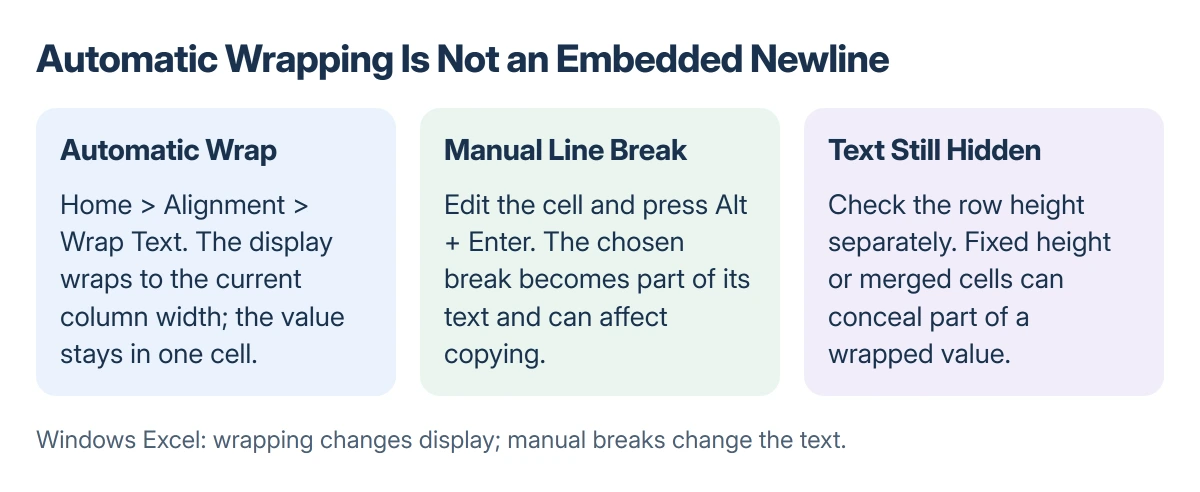
Automatic wrapping follows the column width. A manual line break puts a new line at a chosen point. Use the first for flexible descriptions and the second when a label or address needs a deliberate break.
Turn on automatic wrapping
Select the cell or range containing the long text. Open the Home tab and select Wrap Text in the Alignment group.
Narrow the column to the width the worksheet needs. The text wraps onto more lines while remaining one cell value; widening the column lets more words fit on each line.
Status: Microsoft's Windows Excel wrapping instructions checked 22 October 2026. Automatic wrapping and Alt + Enter are documented; no workbook was changed.
Microsoft documents the width-dependent behavior in its Wrap Text instructions. Wrapping is formatting, rather than a command that divides a description into separate records.
Use a consistent column width before judging whether the layout fits. A narrow description column can make every row need much more vertical space.
Put a new line at a particular word
For a deliberate break in Excel for Windows, double-click the cell to edit it. Click at the intended break point and press Alt + Enter.
Microsoft states that F2 starts editing a selected cell. The Alt + Enter combination inserts a line break inside the current value, rather than moving the selection to the next cell.
For example, an address can keep the recipient name on one line and the street on the next. Automatic wrapping alone cannot guarantee that exact split when the column width changes.
A manual break remains part of the text. Turning off Wrap Text does not mean the value no longer contains that break.
That distinction matters when copying to another program. A real line break can cause Excel to add quotes around copied text, even when the cell's appearance looks ordinary.
Wrapped text is still one value
Click the cell and inspect its contents in the formula bar. A description displayed over several lines still belongs to the same row and column address.
Do not use Text to Columns merely to make a long sentence readable. That operation splits data into neighboring columns, which is a different outcome from wrapping its display.
If a copied description already lands in several columns, follow Excel's remembered delimiter settings rather than changing Wrap Text repeatedly.
Before exporting wrapped values for another application, check whether that application expects embedded newlines. The layout that reads well in a worksheet may not match a destination's field format.
Text still hidden after wrapping?
Microsoft says a fixed row height or merged cells can prevent all wrapped text from being visible. Wrap Text controls where lines break; the row still needs enough space to show them.
For a normal unmerged range, select the affected cells and use Home > Format > AutoFit Row Height. If that does not fit the contents, use the fuller Excel AutoFit row-height checks.
Avoid merging a data table's cells as a quick visual fix. Check the worksheet's structure before changing it, particularly when other people sort, filter or import the records.
If the file is protected and formatting controls are unavailable, ask its owner to allow the required change. The protection is a separate constraint from how Excel lays out the text.
The Short Version
Select the cells and enable Home > Alignment > Wrap Text. Column width decides where automatic wrapping occurs.
Use Alt + Enter inside an edited cell for a deliberate line break. Check row height separately if part of the text stays hidden.
Where to Next
Review the final column widths in print preview before sharing the worksheet. If the destination is another app, test one representative value before exporting the entire table.

Isaac Smith is the founder and editor of PC Glance, a website that covers computers, laptops, and technology. He is a tech enthusiast and a computer geek who loves to share his insights and help his readers make smart choices when buying tech gadgets or laptops. He is always curious and updated about the latest tech trends.