
Moving columns in Excel is safest with Cut followed by Insert Cut Cells. Select the column header, cut the column, then right-click the header at the intended insertion point and choose the insert command.
This creates room for the moved column. Ordinary pasting or dragging onto occupied cells can replace data, so save a copy before rearranging an important workbook.
Select the entire column before cutting
Click the letter at the top of the source column. For adjacent columns moving together, select their headers as one block. Selecting only the visible cells can leave records out of alignment.
For example, moving an Amount field means moving its whole column, including the heading and every record. Check that the selection covers the field you intended before cutting.
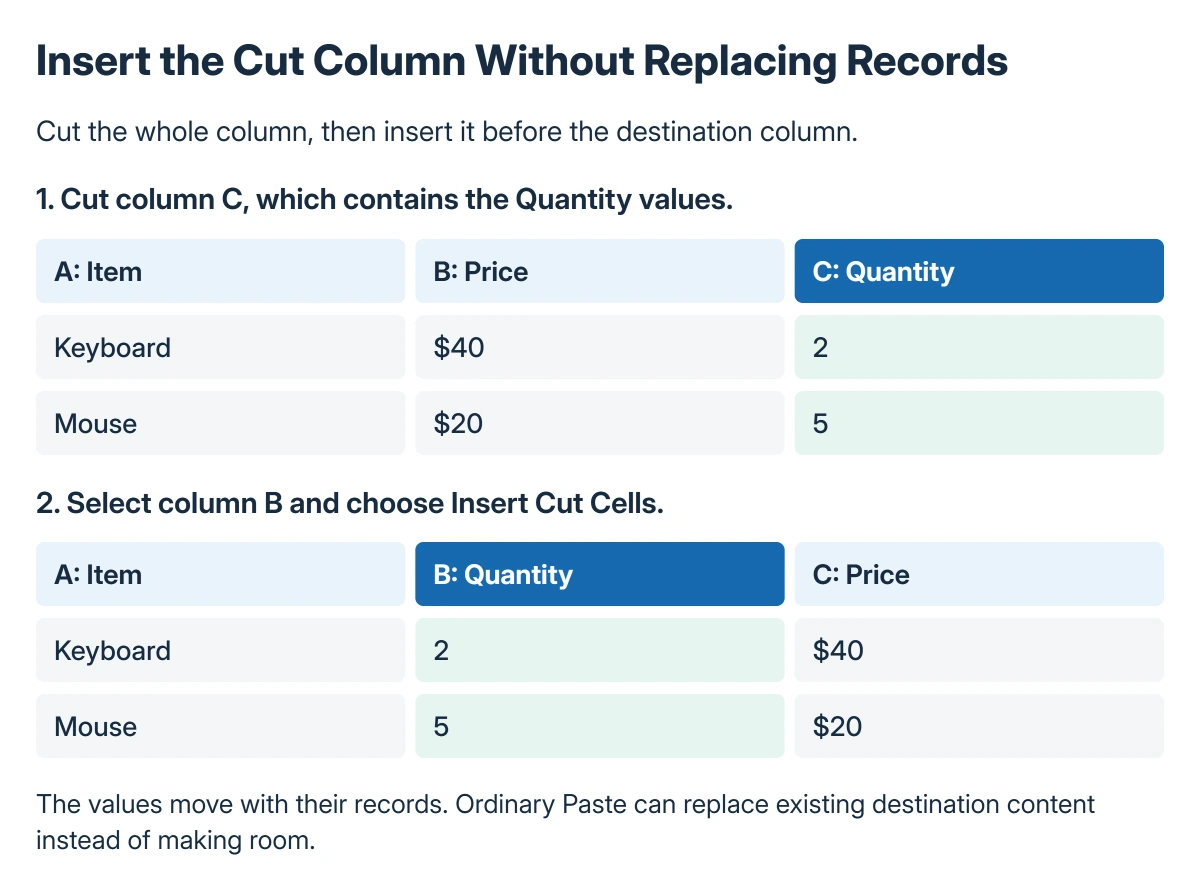
Status: Excel move-and-insert behavior checked in Microsoft's Windows, web and Mac instructions on 22 October 2026. The column example is illustrative; no data was moved.
Microsoft states that moving or copying columns normally includes their data, formulas, comments, formatting and hidden cells in its column-moving guide. Review hidden content before moving a large block.
Insert the cut column at its destination
In Windows desktop Excel, press Ctrl + X or choose Home > Cut. Right-click the destination column's letter, then select Insert Cut Cells.
To move Amount ahead of Customer, use the Customer header as the destination. Confirm that the moved field now appears before it and that the other columns have shifted rather than disappeared.
Microsoft documents the same command-based method for Excel for the web. Use the column header's context menu; a menu inside an individual cell can offer a different set of actions.
Press Esc to cancel an unfinished cut. If an accidental replacement has just happened, undo it before continuing to work on the rearranged sheet.
Choose Copy when the original must stay
Use Copy instead of Cut when a second version of the column is needed. At the destination header, choose Insert Copied Cells to make space for the duplicate.
Check formulas after either operation. A copied calculation or a reference elsewhere in the workbook needs verifying; the column looking correct is not enough to establish that every dependent result is right.
Keep display problems separate from the move. The Excel long-number checks explain why an identifier can lose digits through numeric conversion, which rearranging its column cannot repair.
Dragging has different replacement rules
Microsoft says ordinary dragging in Windows can replace destination data. Its insertion variant uses Shift during the drag, while copying has different modifier combinations.
Keep the modifier held until the mouse is released. For a high-value sheet, the named Insert Cut Cells command makes the intended operation easier to check than a hurried drag.
On Mac, Microsoft's guide describes Shift-dragging a row or column between existing ones to make space. Option-dragging makes a copy. Do not assume the Windows copy modifier applies on Mac.
The mouse route also has limits for nonadjacent selections. Move separate blocks in deliberate operations rather than expecting a scattered selection to behave like one continuous column group.
Check the worksheet after rearranging it
Read the headings and several representative records across each row. Confirm that values are still paired with the correct customer or item, and inspect formulas using the moved field.
Adjust frozen headers and columns if the field that should remain visible has changed position. Freezing a pane affects navigation, not which cells were moved.
If protection or a workbook structure prevents the insert, ask its owner to make the change in an editable copy. Stop after an unexpected result rather than attempting more moves to conceal it.
The Short Version
Select the column header, cut it and choose Insert Cut Cells at the destination header. Use Insert Copied Cells when the original must remain.
Save first, watch the insertion position and verify records and formulas afterward. Dragging uses platform-specific modifiers and can replace data.
Where to Next
Retain the original workbook until the rearranged workbook has been checked. If a formula breaks, compare its references before making further structural changes.

Isaac Smith is the founder and editor of PC Glance, a website that covers computers, laptops, and technology. He is a tech enthusiast and a computer geek who loves to share his insights and help his readers make smart choices when buying tech gadgets or laptops. He is always curious and updated about the latest tech trends.