
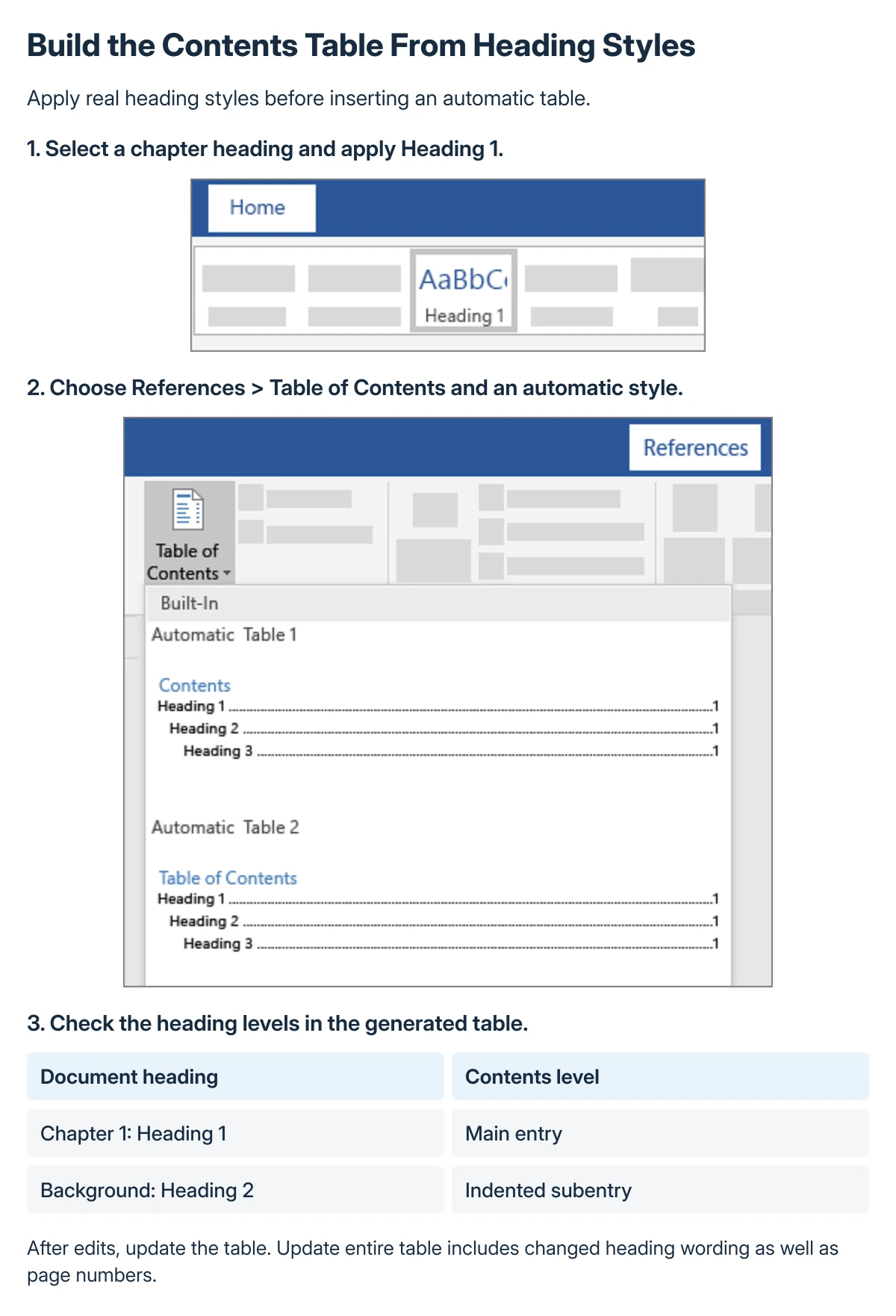
Word builds an automatic table of contents from heading styles. Apply the appropriate headings to the document, place the cursor where the contents should appear and choose an automatic style from References > Table of Contents.
Making chapter titles large or bold is not enough. The styles tell Word which paragraphs belong in the contents, and updating the table keeps its entries and page numbers aligned with later edits.
Mark the document's headings first
Select a chapter title and apply Heading 1 from Home > Styles. Use lower heading levels for its subsections so the document's structure is consistent.
Work through the real section titles before inserting the contents. Avoid applying heading styles to ordinary paragraphs just because the font looks suitable.
Status: Automatic contents creation and update options verified in Microsoft's Word help on 22 October 2026. Desktop and browser menu labels were read; no document was generated.
Microsoft says missing entries often result from titles that are not formatted as headings in its table-of-contents instructions. Correct that structure before retyping entries manually.
If heading numbers themselves turn into black blocks, the Word heading-number repair addresses the list formatting. Rebuilding the contents does not directly repair that font problem.
Insert an automatic contents table
Click at the intended location, usually near the document's beginning. In desktop Word, open References > Table of Contents and select an automatic style.
Microsoft documents this automatic route for Word on Windows and Mac. It collects the headings instead of requiring a separately maintained list of typed chapter names and page numbers.
Review the result against the actual sections. A missing title calls for checking its heading style; an ordinary sentence appearing in the list calls for checking whether it was styled as a heading by mistake.
Update the whole table after changing headings
On References, choose Update Table. Select Update entire table after renaming, adding or rearranging headings, then confirm with OK.
Use Update page numbers only when the entries themselves are correct and only their page positions have changed. That option does not collect revised heading wording.
Microsoft states the difference in its contents-update guide. Choosing the smaller update after a title change explains why an old entry can remain visible.
A manual contents style is different: Word fills it with placeholders for you to type. It cannot automatically update a list that was created manually rather than generated from headings.
Use the browser's own command
In Word for the web, click the insertion point and open References > Insert Table of Contents. Its label differs from the desktop style gallery.
After edits, right-click the generated contents and choose Update Table of Contents. Check both its heading text and page numbering in the final document.
If a formatting option needed for submission is absent from the browser interface, work in a supported desktop version instead of converting the contents into plain text as a shortcut.
Check the contents without changing the source text
Make corrections to a chapter's title in the document itself, then update the table. Editing only the generated entry creates a change that a later refresh may replace.
Keep citations in the appropriate note or reference format. Word's footnote command creates a linked note; it does not require turning the citation into a heading to make it manageable.
Inspect the complete document in print preview before submission. If entries remain wrong despite correct styles and a full update, give Microsoft Support or the document editor a copy showing the heading styles and the incorrect contents.
The Short Version
Apply heading styles, insert an automatic contents table from References and check its entries. After title or structure changes, update the entire table.
Page-numbers-only updates do less, and a manually typed contents list does not become automatic just because it looks similar.
Where to Next
Recheck the contents after the final layout edit. Verify a few section titles and their destination pages before exporting or sending the document.

Isaac Smith is the founder and editor of PC Glance, a website that covers computers, laptops, and technology. He is a tech enthusiast and a computer geek who loves to share his insights and help his readers make smart choices when buying tech gadgets or laptops. He is always curious and updated about the latest tech trends.