
Out of office replies in Outlook depend on the app and the email account. In new Outlook, open View > View settings > Accounts > Automatic Replies. Classic Outlook uses File > Automatic Replies when the account supports it.
Set both the message and its end time. Gmail, Yahoo and other POP or IMAP accounts do not gain this feature merely by being added to Outlook.
Check the version and mailbox first
In new Outlook for Windows, choose View settings from the View tab, then open Accounts > Automatic Replies. Select the account being configured if more than one mailbox is available.
Turn automatic replies on and enable Send replies only during a time period. Enter the absence dates and times, then type the response and save the settings.
Status: Outlook absence-message settings checked in Microsoft's current help on 22 October 2026. New, classic and browser routes and account limits were reviewed; no mail was sent.
Microsoft documents the version-specific controls in its automatic-reply guide. A missing feature can be an account limitation rather than a broken Office installation.
Set the message in classic Outlook
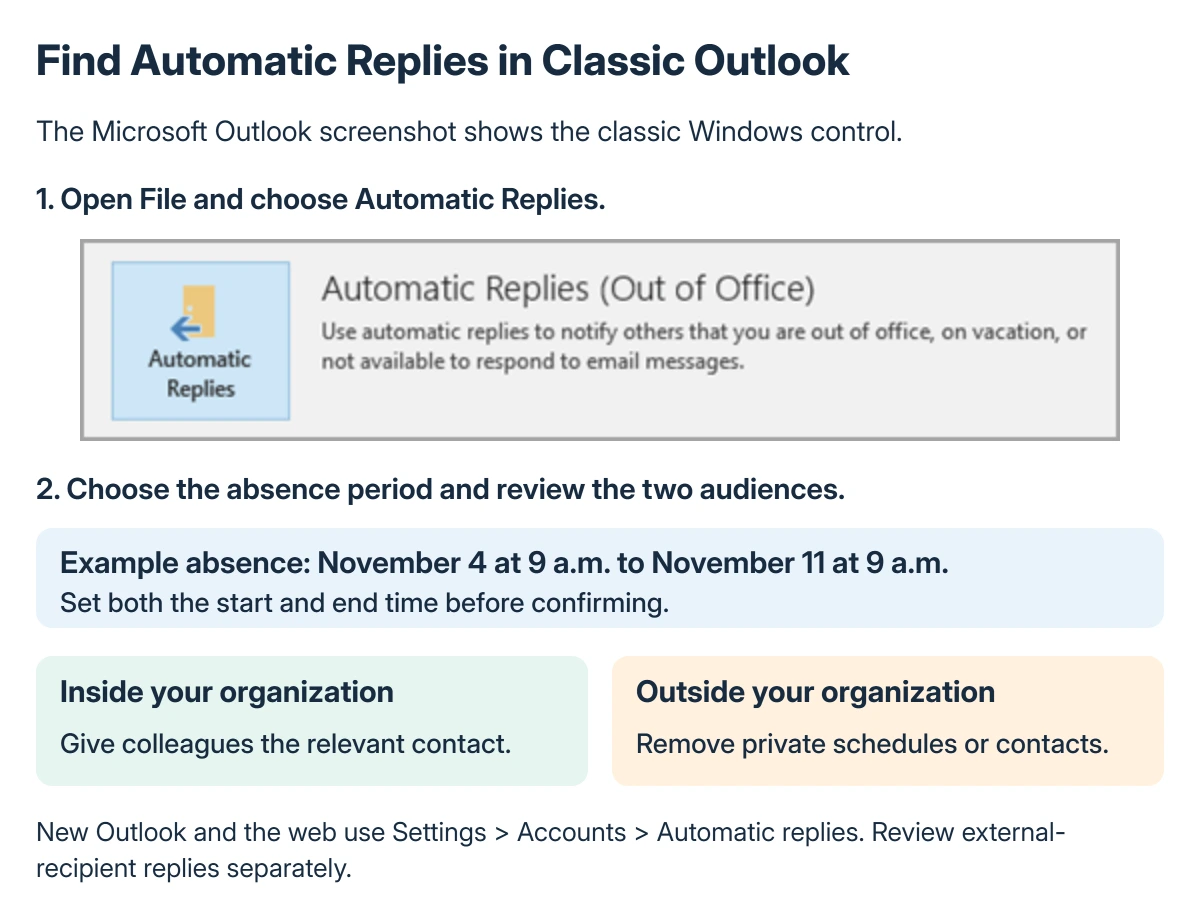
Open File > Automatic Replies, then select Send automatic replies. Set a date range so the feature stops at the intended return time.
For a work or school mailbox, review the Inside My Organization and Outside My Organization tabs. Write the appropriate message for each audience and choose OK when finished.
Keep the response practical: when you return, whether mail is being monitored and a suitable alternate contact. The absence response is configured separately from the normal Outlook signature.
If no end time is set, return to the feature and switch it off manually. Classic Outlook also shows an active-reply message under the ribbon with a Turn off control.
Set replies from Outlook on the web
For browser-based Outlook, including Outlook.com, open Settings > Account > Automatic replies. Turn the feature on, choose a time period and enter the message.
Review the external-contact option, then choose Save. Microsoft's current browser route uses Account, while its new Windows instructions use Accounts.
Use the settings for the mailbox that actually receives the messages. Updating one account's absence response does not configure every other account displayed in the Outlook app.
Limit what external senders receive
Microsoft says replies outside the organization can reach newsletters, advertisements and junk senders too. Its recommendation is the contacts-only option when that fits the intended audience.
In new Outlook or the browser, look for Send replies only to contacts. Classic Outlook's external audience uses My contacts only in the relevant tab.
Avoid including private travel details or internal-only information in the external message. Put only what those recipients need to know to handle the absence.
No Automatic Replies option?
Microsoft states that Gmail, Yahoo and other POP or IMAP accounts do not support Outlook's Automatic Replies feature. Use the mail provider's own absence settings or the separately documented classic Outlook rule method.
The classic rule method needs Outlook left running while you are away. That is a different arrangement from the mailbox feature, so check the requirement before relying on it for a trip.
After saving, test from an appropriate second address. Microsoft describes automatic replies as responding once to a sender during the absence; repeated messages from the same address can make testing misleading.
If ordinary mail is not being delivered either, use the Outlook service checks before changing the absence message repeatedly. If the feature is still unavailable, tell the mail administrator which account type and app version are involved.
The Short Version
Choose the route for new, classic or web Outlook, set the message and time range, then review external recipients. Save the settings and verify the intended mailbox.
POP and IMAP accounts have different options. A classic reply rule needs Outlook running, and a missing Automatic Replies button does not by itself call for reinstalling Office.
Where to Next
Check the end time and external message before leaving. On return, confirm that automatic replies have stopped rather than relying only on the dates you remember entering.

Isaac Smith is the founder and editor of PC Glance, a website that covers computers, laptops, and technology. He is a tech enthusiast and a computer geek who loves to share his insights and help his readers make smart choices when buying tech gadgets or laptops. He is always curious and updated about the latest tech trends.