
Right-click on a Chromebook by pressing or tapping the touchpad with two fingers together. The menu opens for the item under the pointer, so position the pointer before making the gesture.
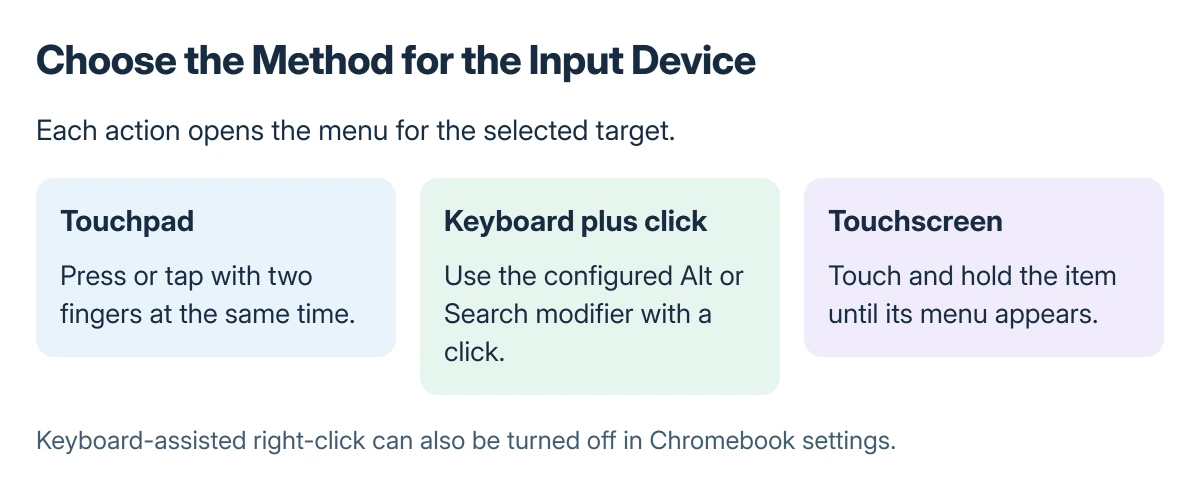
A touchscreen uses a touch-and-hold instead. Keyboard-assisted clicking is another option, but its modifier can depend on the Chromebook's settings.
Open the menu with a two-finger press or tap
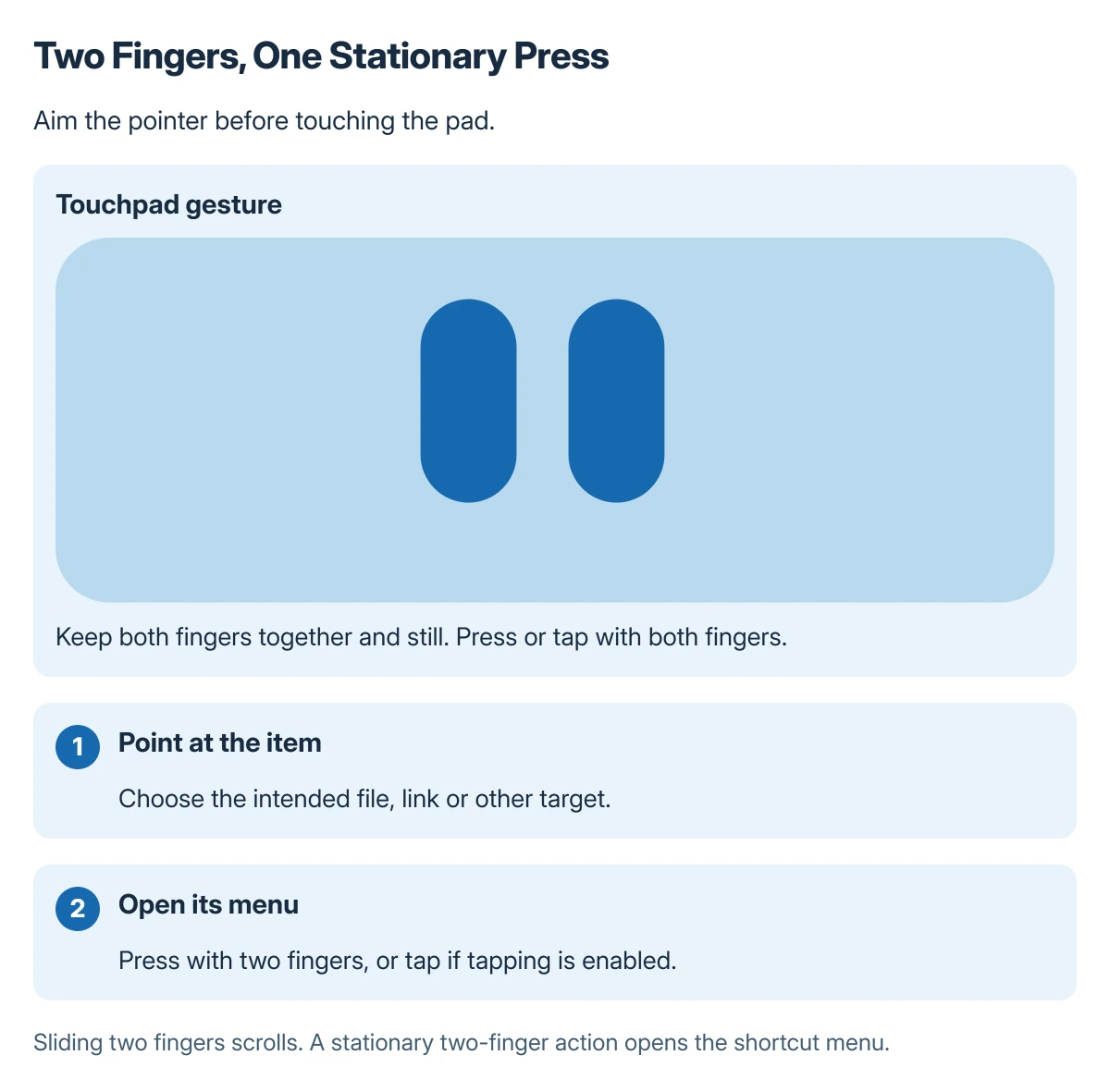
Move the pointer onto a file, link or other item. Keep both fingers still and press the touchpad together, or tap it with both fingers when tapping is enabled.
Google says a two-finger press or tap performs a right-click in its Chromebook touchpad guide. Moving those fingers instead performs a different gesture, such as scrolling.
Status: Google's touchpad, keyboard and touchscreen guidance checked 22 October 2026. Keyboard modifiers can be configured; no Chromebook was operated.
Try a file in the Files app if a particular webpage gives no menu. The result separates a familiar system action from a website whose own controls behave differently.
Check the keyboard modifier instead of guessing
The touchpad page also gives Alt + one-finger click. Hold the modifier, click the intended item, then release the key after its menu appears.
A qualification is documented by Google in the keyboard guide: the right-click combination can be Alt + click, Search + click, or disabled. A changed modifier explains why an old shortcut may stop working.
Open Settings > Device > Keyboard and inspect the keyboard options offered by the device. Follow its Alt + key behavior controls or the shortcut-change notification if one appears.
Use the two-finger method while checking that preference. It avoids repeatedly trying a modifier that has been assigned a different job.
Text fields have a separate emoji picker; open it while the insertion point is inside the message rather than on a file.
For uppercase typing, Chromebook Caps Lock combinations use the Search or Launcher modifier differently from clicking.
With a touchscreen, hold the item
Google states in its touchscreen instructions that touching and holding opens the right-click action. Keep the finger on the actual item until its menu appears.
That gesture is useful in tablet mode. It is separate from holding a touchpad click to drag a file, which can move the item instead of opening its menu.
Once the menu opens, choose the action needed. For moving selected text, the Chromebook cut-and-paste guide explains the keyboard commands and how to check the destination.
For capturing the menu or an error, use the Chromebook screenshot controls. If the touchpad will not move or click anywhere after a restart, follow Google's troubleshooting and contact the manufacturer.
The Short Version
Aim the pointer, then press or tap with two fingers. A touchscreen uses touch-and-hold. If modifier-click fails, check whether the Chromebook expects Alt, Search or no keyboard-assisted click.
Where to Next
Keep the menu action separate from the gesture that opens it. Confirm the selected file before choosing Delete, Rename or another command that changes it.

Isaac Smith is the founder and editor of PC Glance, a website that covers computers, laptops, and technology. He is a tech enthusiast and a computer geek who loves to share his insights and help his readers make smart choices when buying tech gadgets or laptops. He is always curious and updated about the latest tech trends.