
A Lenovo laptop that won't turn on needs a power check before Windows recovery. Connect its correct charger directly to an outlet, remove accessories and watch for a charging light. Lenovo's power reset can also clear a stalled state.
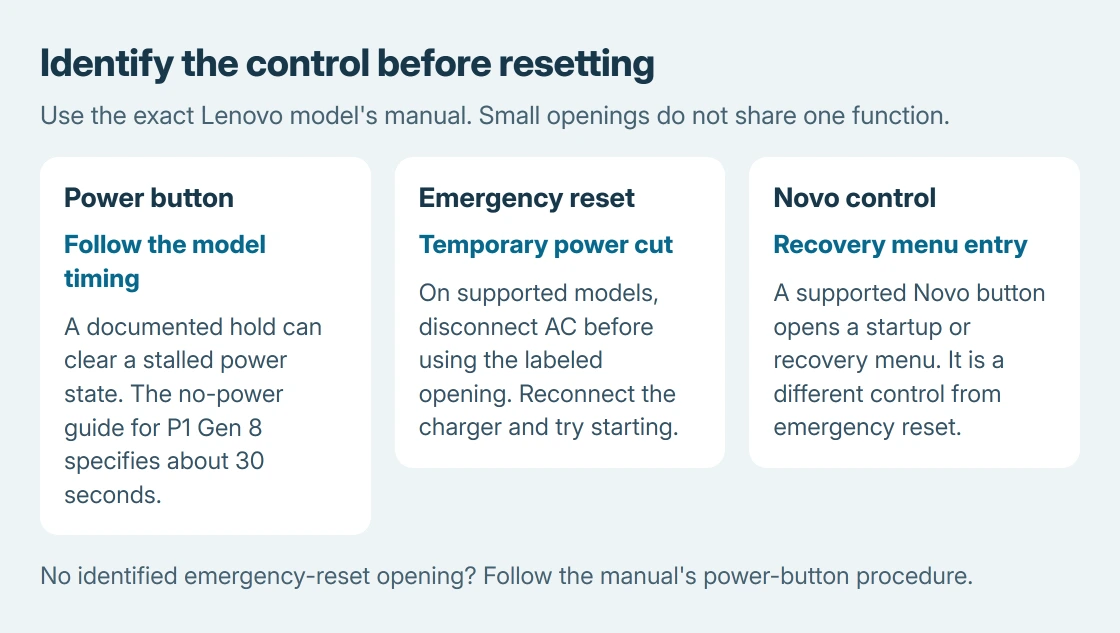
The reset method depends on the model. Some ThinkPads have an emergency-reset hole that temporarily cuts power. A Novo recovery button has a different purpose, so identify the control in the laptop's manual before using a paper clip.
Check whether the laptop has power or just no picture
Press the power button once and look for lights, fan movement or a startup image. A running fan with a dark screen does not establish that Windows started, but it does show that the laptop is responding to power.
For that powered-but-dark case, use the Lenovo display checks. This guide concentrates on a machine that gives no response or remains stuck after a power problem.
Status: Lenovo's ThinkPad power-reset manuals reviewed October 26, 2026. Reset controls vary by model. No laptop was opened or power-tested.
If an update is visibly progressing, leave it to finish. Do not interrupt firmware installation to try a power reset.
Connect the correct charger without a dock
Use the charger specified for the model and connect it to the laptop's documented charging port. Reseat a detachable mains cord at the adapter, then try an outlet known to work. Disconnect the dock, drives and other accessories.
Lenovo says to verify the adapter, power cord, connector and outlet in its ThinkPad no-power procedure. It also starts by ensuring the computer is charged.
With USB-C charging, a plug that fits is not enough to establish compatibility. Check the model's charger requirements and use its power-capable port. A phone charger or a dock's reduced power delivery may not meet the laptop's needs.
A charging light that returns through a direct connection makes the dock or its supply the next check. No light leaves the adapter, cable, port and laptop power circuitry as possibilities; it does not prove which one failed.
Stop using a charger with a damaged cable, bent connector or burn marks. Replace it with a model-compatible unit rather than forcing the plug or probing a live socket.
Perform the power-button reset specified for the model
Disconnect AC power and external cables first. Remove a battery only when it is designed for external removal and the manual permits it. An internal battery is not a reason to take off the bottom cover for this check.
Lenovo's P1 Gen 8 and T1g Gen 8 no-power instructions specify a 30-second hold of the power button, followed by reconnecting the charger and trying to start. This can clear a stalled power state without reinstalling Windows.
Other Lenovo models can specify another method or duration. Find the exact model's user guide through Lenovo Support and follow its power-reset instructions rather than combining several reset timings.
If the laptop starts, reconnect accessories individually and check normal charging. If it remains unresponsive, check for the documented emergency-reset control next.
Use an emergency-reset hole only when the manual identifies it
Open the model's user guide and check the bottom-view drawing. Do not assume every small opening is a reset switch. Speaker openings, microphones and Novo controls must not be used as substitutes.
Lenovo states in its ThinkPad E590 guide that the emergency reset temporarily cuts the power supply. The guide then directs restarting with AC power connected.
For a supported model, disconnect AC, insert a straightened paper clip into the identified emergency-reset hole, then reconnect AC and try starting. Follow any extra model instructions about a removable battery.
This is a power reset. It does not offer a keep-files or erase-files choice. The Lenovo recovery guide explains Novo and Windows reinstallation when the machine can actually reach recovery.
If the manual shows no emergency-reset hole, do not improvise one. Return to its documented power-button procedure or contact Lenovo with the product model.
Use the result to choose display help or service
When lights return but the picture does not, reconnect an external display if one is available and note any logo or error. Microsoft documents blank-screen checks for a computer that has power.
If a model with an externally removable battery starts on its correct adapter with that battery removed, the battery or its connection needs attention. This result does not apply to a machine whose battery was never disconnected.
Still no response after these checks calls for Lenovo service. Provide the model, charger part number, indicator behavior and reset attempted. A board, charging-port or battery fault needs testing, not a Windows reset.
The Short Version
Check the charger and outlet, bypass the dock, then follow the model's power reset. Use an emergency-reset hole only when the manual labels it. Novo recovery is a separate control. Persistent no-power behavior needs Lenovo hardware service.

Isaac Smith is the founder and editor of PC Glance, a website that covers computers, laptops, and technology. He is a tech enthusiast and a computer geek who loves to share his insights and help his readers make smart choices when buying tech gadgets or laptops. He is always curious and updated about the latest tech trends.