
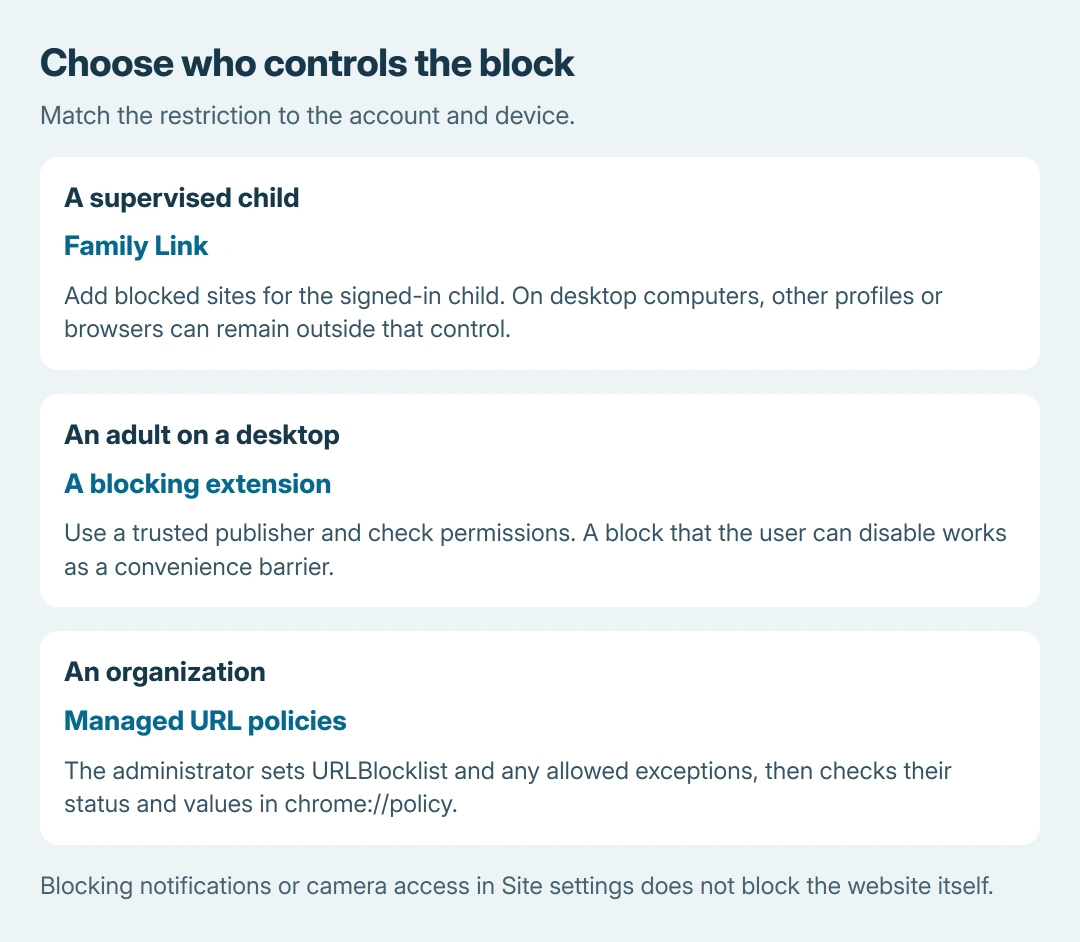
Blocking websites on Chrome depends on who uses the browser. Use Family Link for a supervised child's Google Account, an approved blocking extension for personal desktop browsing, or URLBlocklist for Chrome managed by an organization.
Chrome's ordinary Site settings control permissions such as notifications and camera access. Blocking one permission does not prevent the website itself from opening, so start with the type of restriction actually needed.
For a child, add blocked sites in Family Link
Open the Family Link app, select the child, then choose Controls > Google Chrome and Web. Under Manage sites, open Blocked sites, select Add a website and enter the site or domain to restrict.
Google says this control applies while the child uses their supervised account in Chrome. Its Family Link browsing guide distinguishes a specific website from a broader domain entry.
Status: Google Family Link, desktop-extension and managed-URL instructions checked October 26, 2026. Profile and device limits matter. No browsing restriction was installed or tested.
A website entry such as www.example.com does not automatically cover different subdomains or endings. Choose the domain-level option when the intended restriction should cover the wider group, and test the actual addresses used.
The main filtering choices also include Only allow approved sites. That suits a small allowed list. Try to block explicit sites is an automated filter; it does not promise to catch every explicit page.
Can the child browse outside the supervised account?
On Windows, Mac and Linux, Google states that a child can sign out of Chrome or use another profile or browser, where these Family Link settings do not apply. It describes similar sign-out and other-browser limits on iPhone and iPad.
For Safari, use Apple's website restriction lists in Screen Time or the upgraded family controls.
Reopen the restricted address in the child's signed-in Chrome session to check the rule. Then assess the other browsing routes available on that device. One blocked tab does not establish that every browser is supervised.
Microsoft Family Safety is a separate product. Its Chrome approval behavior should not be mistaken for Google's Family Link website controls.
For personal desktop browsing, use an extension deliberately
For a self-imposed block on a computer, search the Chrome Web Store for a current website blocker. Read its publisher, permissions and pricing before installation. Google recommends approving only extensions that you trust.
Select Add to Chrome, review the requested access, then confirm Add extension. Open the extension's settings and add the sites to its block list. Its own controls determine schedules, password features and whether those require payment.
Google documents installation and management in its extension instructions. They describe desktop extensions; adding one to the desktop from a phone does not make it operate inside phone Chrome.
Open Extensions > Manage extensions to check that it is enabled. In its Details, review site access. If the publisher supports private browsing and that is part of the goal, inspect Allow in incognito, then test separately.
An extension the browser user can disable is a convenience barrier. Do not treat a successful block in one desktop profile as enforcement across other profiles, browsers or devices.
For managed Chrome, configure the URL policy
An authorized administrator can open Google Admin console > Devices > Chrome > Settings. Select the intended organizational unit or group, then open Content > URL Blocking, enter the Blocked URLs and save.
Chrome Enterprise Core can instead show Chrome browser > Settings as the entry path. Google's managed website-blocking instructions also describe Group Policy and configuration-file deployment.
URLBlocklist controls blocked addresses. URLAllowlist provides exceptions that take precedence. Check those exceptions if one address still opens, and apply the policy to the intended users or enrolled browsers.
After deployment, restart Chrome. Open chrome://policy, select Reload policies, then inspect the relevant policy's status and value. Google adds that Status should show OK, with the configured addresses visible under Show value.
For a browser unexpectedly claiming management, the policy-message guide explains how policy can affect browser controls. Do not remove an organization's rules to troubleshoot a requested block.
When the page still opens
Check the exact address, active profile, extension state and policy exceptions. Make sure the restriction targets the website rather than just its notifications. Google's Site settings reference lists those separate permission controls.
Ask the family organizer or administrator to correct their rule. For an extension failure, contact its publisher with the address and Chrome version. Confirm device coverage before paying for a subscription.
The Short Version
Match Family Link, an extension or managed URL policy to the account and device. Verify the address and active profile. A successful block there does not establish coverage across every browser.

Isaac Smith is the founder and editor of PC Glance, a website that covers computers, laptops, and technology. He is a tech enthusiast and a computer geek who loves to share his insights and help his readers make smart choices when buying tech gadgets or laptops. He is always curious and updated about the latest tech trends.