
Faxing from iPhone uses an internet fax service to deliver a document to the recipient's fax number. Scan the paper or select an existing file, attach it in the service's app or website, then check the transmission result after sending.
The steps here use Fax.Plus as a documented example. An existing workplace fax service may provide its own mobile procedure. Confirm the recipient's fax number and the account's sending allowance before starting.
Prepare the file before opening the fax form
For paper, open Files, tap its More control and choose Scan Documents. Capture every page, inspect the crop, finish with Done, then choose a folder and Save.
Apple documents that folder-based route in its iPhone scanning instructions. An existing PDF does not need scanning again. Find it in Files and open it to check the contents.
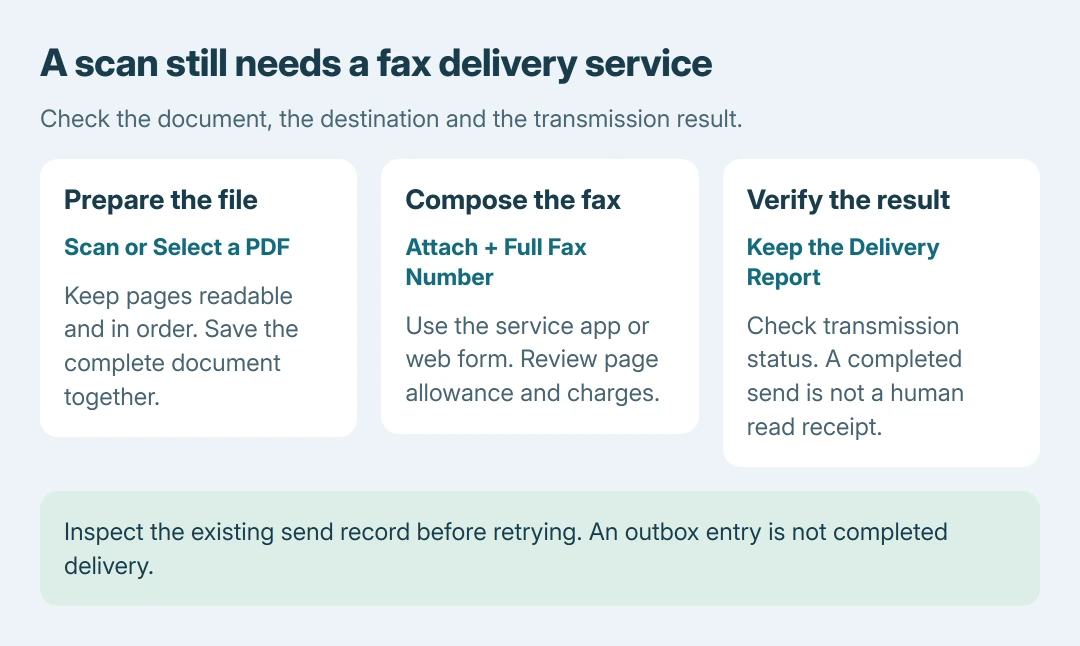
Status: iPhone scanning and Fax.Plus sending instructions checked October 26, 2026. Service allowance and account terms apply. No fax was sent and no paid account was opened.
For capture problems, the Notes and Files scanning guide explains page boundaries and multipage scans. Check that small text, dates and signatures remain readable before transmitting the file.
A document created in Word can be exported as a PDF and made available on the iPhone. Preserve its editable source and attach the final export rather than a screenshot of each page.
Open the fax service and enter the destination
Install the provider's official app from the App Store, or use its own website if mobile web sending is supported. For Fax.Plus, sign into its account and open Send Fax. Account registration may require phone-number verification.
Fax.Plus documents an iPhone browser option too: sign into its web app in Safari and open the same sending section. Scanning produces a document; submitting it to the fax service performs the transmission.
In To, enter the recipient's fax number with its country and area code. That format is documented by the vendor in its mobile sending instructions.
Confirm that this is the organization's fax destination, rather than its ordinary voice number. If an office supplied the number, compare it with the original instruction before continuing.
Attach the document and review its page order
Choose Add File, then select the document from the storage options offered. For a file in iCloud Drive, use the app's iCloud file-selection option. Wait until the intended attachment appears in the draft.
Arrange multiple attachments in the sequence the recipient should receive them. The provider says the first attachment becomes the first part of the fax. Inspect page count and order, and add a cover page only when the recipient needs one.
Review the account's page allowance and any charge prompt before sending. A free app download does not make every fax free. Fax.Plus states that receiving requires a paid plan with a dedicated fax number.
The final number-and-document comparison is ours. Check both together immediately before choosing Send, particularly when similar filenames exist or the recipient gave several telephone numbers.
Check the result before resending
Tap Send, then open the service's Faxes area to inspect progress. A document waiting in the outbox has not completed delivery. Follow a failure message before creating another send attempt.
For the Advanced Confirmation Report, open Faxes > Sent in the iPhone app. Swipe left on the fax, tap More, then Fax Confirmation Report. Keep that record with the document when proof of transmission matters.
A successful transmission records delivery to that fax destination, rather than a particular employee reading the pages. For an urgent submission, confirm receipt with the office through its normal contact channel.
If the transmission fails repeatedly, contact the fax provider with the result, attempt time and destination country. Keep the document contents and complete recipient number out of a public support post.
The Short Version
Prepare a readable file, open the fax service, enter the full fax destination and attach the pages in order. Review allowance and charges, send once, then inspect the delivery result and retain the report.

Isaac Smith is the founder and editor of PC Glance, a website that covers computers, laptops, and technology. He is a tech enthusiast and a computer geek who loves to share his insights and help his readers make smart choices when buying tech gadgets or laptops. He is always curious and updated about the latest tech trends.