

AutoFit makes an Excel column wide enough for its contents. Select the column letter, then double-click the right edge of that heading. For several columns, select their letters first and double-click one selected heading's right edge.
Use AutoFit for clipped labels or values. A long paragraph may make the column much wider than intended, so wrapping the text can be a better choice when the worksheet needs to stay compact.
Fit the columns that need more room
Click B to select column B, or drag across several letter headings to select a neighboring group. Place the pointer on the right edge of a selected heading and double-click when the resize pointer appears.
Microsoft documents this mouse method in its column-width instructions. In Windows desktop Excel, the ribbon alternative is Home > Format > AutoFit Column Width.
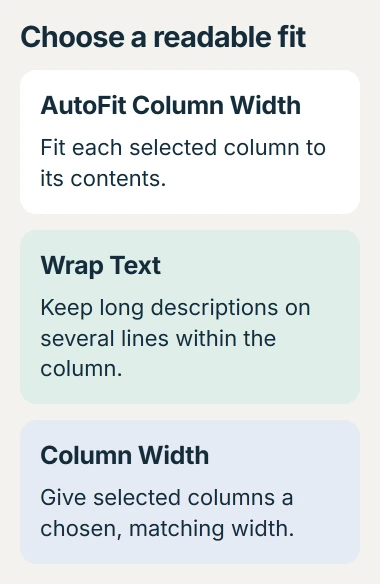
Status: Microsoft's column-sizing instructions for Windows, Mac and browser Excel checked October 30, 2026. The diagram explains layout choices; no workbook was edited.
On the full Windows ribbon, Format sits in the Cells group. The command changes the selected columns, so check the highlighted letters before choosing it.
Each selected column can finish at a different width. Microsoft says AutoFit uses the longest text in each column, rather than making every selected column equally wide.
For the whole worksheet, click the Select All corner where the row numbers meet the column headings. Double-click a boundary between two column headings. Review the result before saving a sheet with carefully arranged widths.
Resize through the headings in other Excel editions
The same double-click action works in the other editions. Microsoft's Mac sizing guide places the pointer on the separator at the column's right side.
Its browser Excel instructions also describe double-clicking between column headers. Use that shared method instead of searching for a Windows ribbon layout in another edition.
Dragging the edge sets a width by hand. Double-clicking asks Excel to fit the contents. If all selected columns become the same size, check whether the boundary was dragged instead.
Keep long descriptions readable without a huge column
For a paragraph-length entry, select its cells and use Home > Wrap Text. The text occupies multiple lines within the column instead of forcing a wide horizontal layout.
The Excel text-wrapping controls cover that choice. If the wrapped lines remain cut off vertically, use the row-height repair checks next.
For equal-width fields, Windows Excel offers Home > Format > Column Width. Enter the intended size for the selected columns. A uniform layout and a separate best fit for every column are different goals.
Our layout check is to inspect the longest description and a few typical records after resizing. A readable header does not establish that the rest of the column is easy to use.
When widening does not reveal the expected value
Microsoft states that ##### can appear when a formatted number or date needs more space in its cell-display guidance. AutoFit can resolve that width problem.
If the hashes remain, inspect the value and its format. Microsoft also explains hash marks from negative dates or times; a wider column cannot correct that calculation.
A missing column letter needs Unhide, not a sizing adjustment. A protected sheet may also prevent width changes, so ask the workbook owner for permission to format its columns.
If the layout still resists resizing, save a copy and ask its creator or Microsoft support to review the formatting. Include the Excel edition and whether one column or the whole sheet is affected.
The Short Version
Select column headings and double-click a right edge to fit their contents. Use Wrap Text for long descriptions or a manual width for equal-sized fields. Check the displayed values afterward, especially when hashes remain.

Isaac Smith is the founder and editor of PC Glance, a website that covers computers, laptops, and technology. He is a tech enthusiast and a computer geek who loves to share his insights and help his readers make smart choices when buying tech gadgets or laptops. He is always curious and updated about the latest tech trends.