
An iPad showing iPad is disabled, connect to iTunes needs passcode recovery, not another guessed code. When the passcode cannot be recovered, Apple's computer restore erases the iPad and lets you set it up again.
Newer iPads may say iPad Unavailable instead. Check for Apple's previous-passcode option before erasing anything, especially if the code was changed recently.
Check whether the previous passcode can still work
On iPadOS 17 or later, a passcode changed within the last 72 hours may still be recoverable with the old code. At the locked-out screen, choose Forgot Passcode?, then Enter Previous Passcode, when offered.
Enter the previous code and follow the prompts to create another one. Apple documents this temporary passcode recovery option. It does not apply to an old iPad displaying only the iTunes instruction.
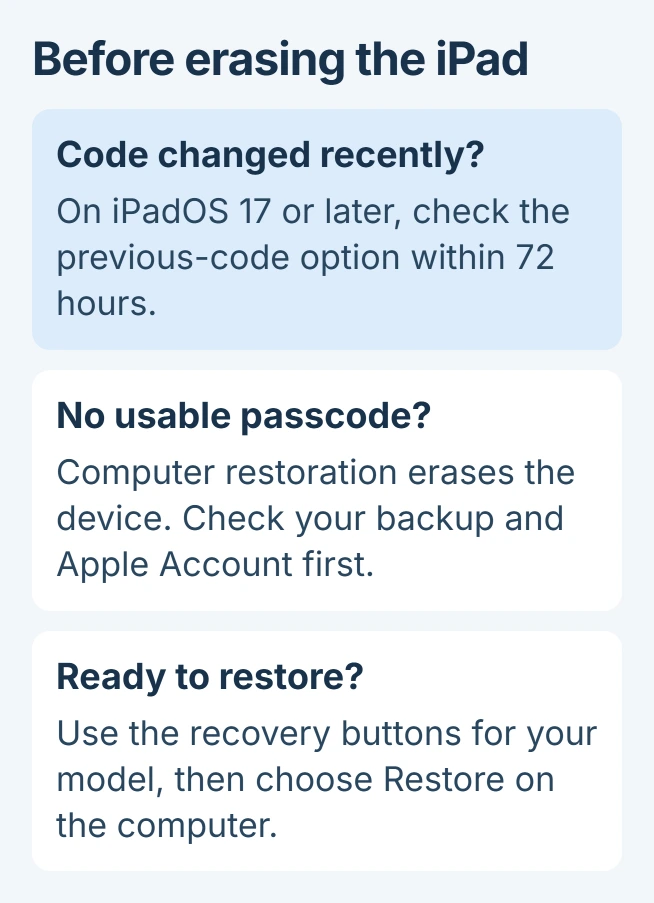
Status: Apple's iPad recovery instructions checked November 1, 2026. Computer restoration erases local data. No iPad was connected, unlocked or restored during research.
Apple says the newer Forgot Passcode option requires a network connection, an Apple Account already signed in and Find My enabled. If the option is absent, use the computer procedure instead of entering more guesses.
An iPhone has its own screen-lock and account-lock distinctions. The button instructions in this article apply to iPad models.
Prepare for erasure before connecting a computer
Restoring removes the passcode along with the iPad's local contents and settings. An existing backup can supply saved data afterward. Anything stored only on the iPad is lost.
Have the Apple Account credentials ready. Apple states that Activation Lock can remain after erasure. Removing a forgotten screen code does not remove that ownership protection.
Use a Mac with Finder or a Windows PC with Apple Devices, a suitable USB cable and internet access. The old warning names iTunes, but Apple's current Windows instructions use the Microsoft Store's Apple Devices app.
If the iPad still offers a timed wait and the correct code is known, wait and enter that code carefully. Do not choose an erase operation merely to shorten the wait.
Turn off the iPad and enter recovery mode
Disconnect it from the computer first. For a model lacking a Home button, hold the top button while also holding either volume button to show the shutdown slider. A Home-button model needs only the top button held.
Drag the slider, then wait a minute for shutdown. Connect the iPad to the computer by USB. Follow the sequence matching its physical buttons:
- No Home button: quickly press and release whichever volume button sits nearer the top button. Do the same with the other volume button, then hold the top button.
- Home button present: hold the Home button together with the top or side button.
Keep holding through the Apple logo. Release when the screen shows a computer and cable. If the passcode screen returns, start again from shutdown; the iPad has not reached recovery mode.
These sequences come from Apple's computer-based iPad reset instructions. A button that cannot be pressed needs service. A frozen iPad with a known passcode needs different initial checks.
Choose Restore, then complete setup
Select the connected iPad in Finder or Apple Devices. When the computer offers Restore or Update, choose Restore for this forgotten-passcode procedure. Confirm only after accepting the loss of local data.
The computer downloads the software and restores the device. If downloading takes longer than 15 minutes and the iPad leaves recovery mode, let the download finish. Then repeat shutdown and recovery entry.
Wait for restoration to finish and the iPad to display Hello. Follow setup, supply the linked account when requested and restore an available backup. Choose a new device passcode during setup.
An eligible newer iPad can instead erase itself through Forgot Passcode? > Start iPad Reset. Apple's reset without a computer requires its account password and connection; it also deletes local data.
Contact Apple Support if recovery cannot start, restoration keeps failing or a computer is unavailable. Provide the message and iPad model. Involve the administrator before erasing a managed iPad.
The Short Version
Try the previous code when iPadOS offers that option. Otherwise prepare for erasure, enter recovery with the model's buttons, and choose Restore in Finder or Apple Devices. Setup then needs the linked account and any available backup.

Isaac Smith is the founder and editor of PC Glance, a website that covers computers, laptops, and technology. He is a tech enthusiast and a computer geek who loves to share his insights and help his readers make smart choices when buying tech gadgets or laptops. He is always curious and updated about the latest tech trends.