
An animated GIF on iPhone can be made with Apple's Shortcuts app. Select several photos, convert them with Make GIF, then save the animation to Photos. Saving the selected pictures without conversion does not create a GIF.
This method builds a reusable shortcut for photos you choose. It does not require a paid GIF-making app or an automatic message to a recipient.
Build the photo picker first
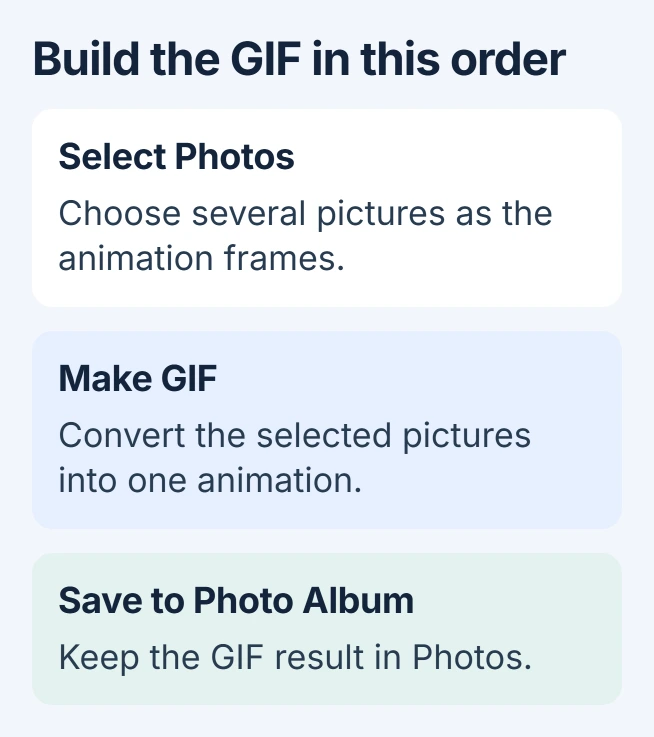
Open Shortcuts and tap the + button to create a shortcut. Give it a recognizable name, such as Photo Animation. Use Add Action or the action search field to find Select Photos, then add it.
Expand that action's options and enable Select Multiple. That lets the picker supply several pictures for separate animation frames, instead of stopping after one selection.
Status: Apple's Shortcuts creation, image input and saving references checked November 1, 2026. This is a photo-sequence workflow; no iPhone shortcut was executed.
Apple documents adding and arranging actions in its custom shortcut instructions. Keep the picker first so the remaining actions receive its selected pictures.
Convert those pictures and save the GIF
Search for Make GIF and add it after Select Photos. Its input should be the photos from that first action. Apple states that Make GIF builds an animation from photos in its Shortcuts introduction.
Add Save to Photo Album after Make GIF. Check that this final action receives the GIF result, rather than the original Photos variable. Choose the destination album offered by the action, then finish editing with Done.
Apple describes Save to Photo Album as a way to store output in Photos in its share-action reference. Without a saving or sharing action, creating the GIF does not finish the task of keeping it.
Run the shortcut and check the saved animation
Tap the shortcut's tile. Select several pictures with a clear visual difference, confirm the selection, and approve the relevant Photos access if requested. Open the destination album in Photos and inspect the new result.
Keep the original pictures until the exported animation has the frames you intended. For sending an existing reaction instead of making one, the iMessage GIF picker is the shorter route.
If the shortcut saves ordinary pictures, reopen its editor and check the input on the last action. It must use the output of Make GIF. If nothing is saved, note which action reports an error before changing the sequence.
Preview the output when a result looks wrong
Insert Quick Look immediately after Make GIF while checking the shortcut. Apple says this previews content passed between actions in its shortcut testing guide.
A correct preview followed by an absent saved file directs attention to the saving action. An incorrect preview means the photo selection or GIF conversion needs attention first. Remove the temporary preview action when finished.
Automatic playback can also differ from the file's contents. The iPhone motion and animation controls govern supported playback behavior; they do not generate extra frames in a still picture.
For a persistent Shortcuts error, give Apple Support its exact text and the action where it stops. Share the action names without sending private photos unless they are needed for the support case.
The Short Version
Build Select Photos, Make GIF and Save to Photo Album in that order. Allow multiple photo selections, check that saving receives the GIF output, and inspect the animation before sharing it.

Isaac Smith is the founder and editor of PC Glance, a website that covers computers, laptops, and technology. He is a tech enthusiast and a computer geek who loves to share his insights and help his readers make smart choices when buying tech gadgets or laptops. He is always curious and updated about the latest tech trends.